
How to add a clickable phone number
This tutorial will guide you on how to add a clickable phone number on elements that can have links (buttons, text, etc).
Step 1
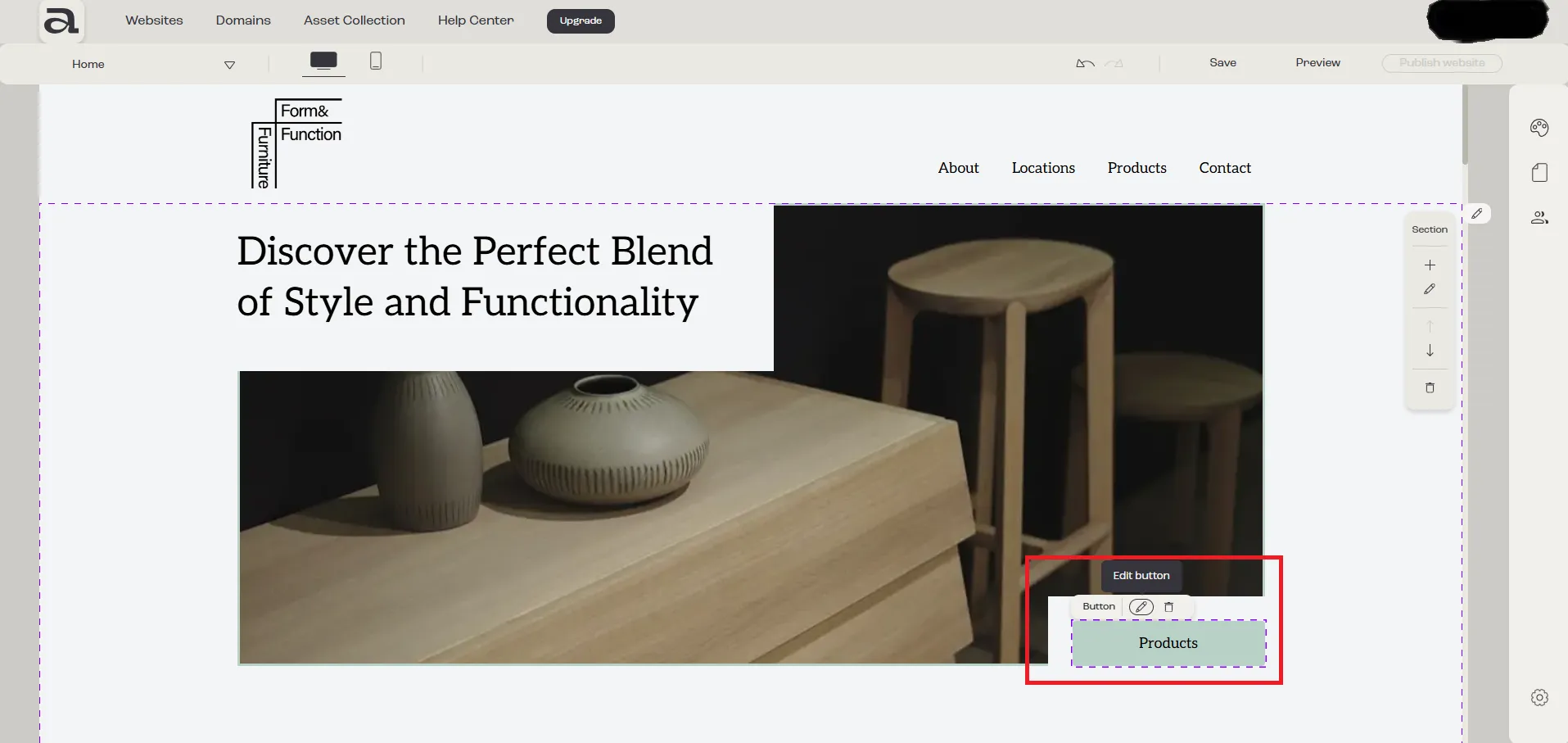
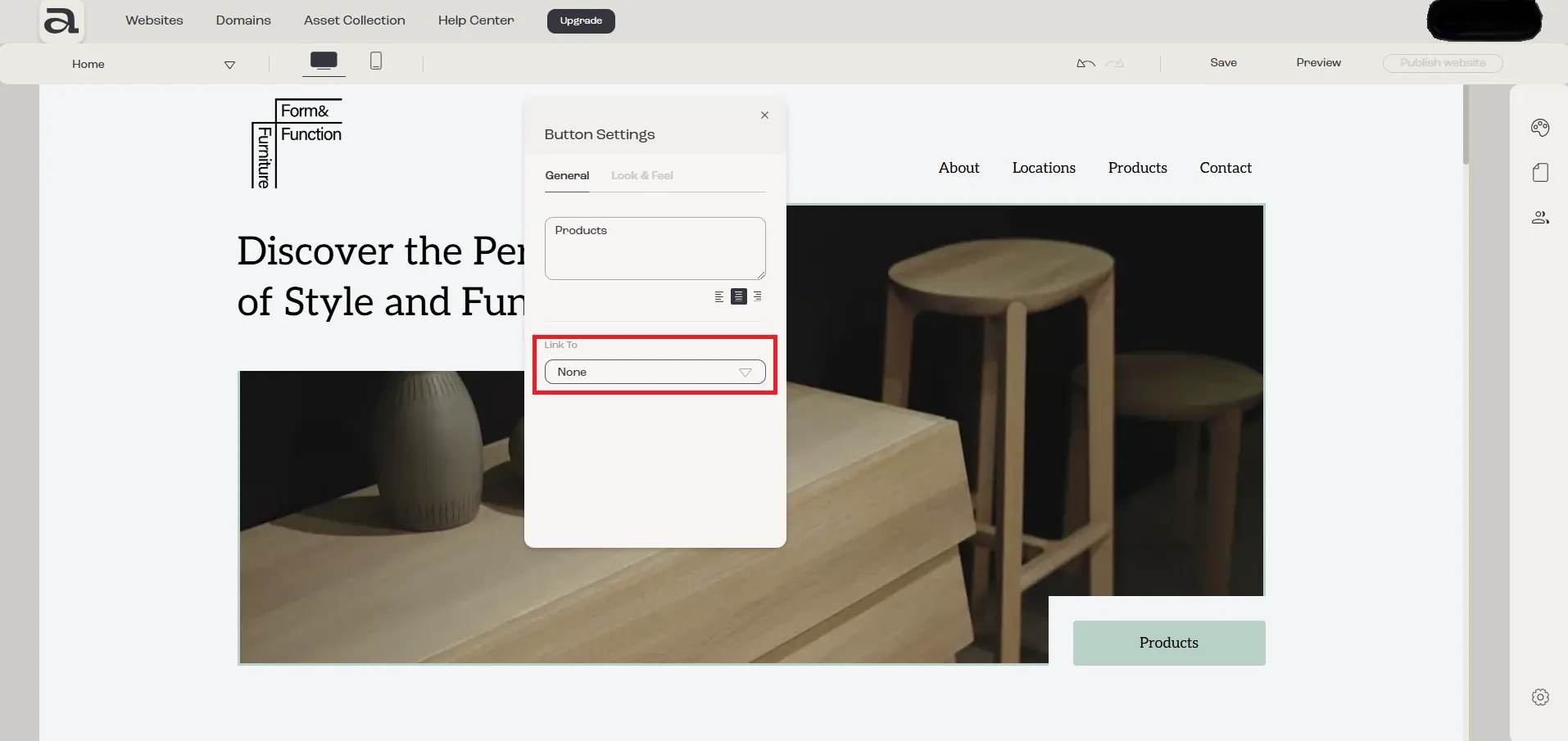
Section titled “Step 1”Open the “Settings” editor for the element you want to add a link (shown in screenshot: button settings).
Click “Edit Button” on the hover menu or double-click on the element you want to customize.
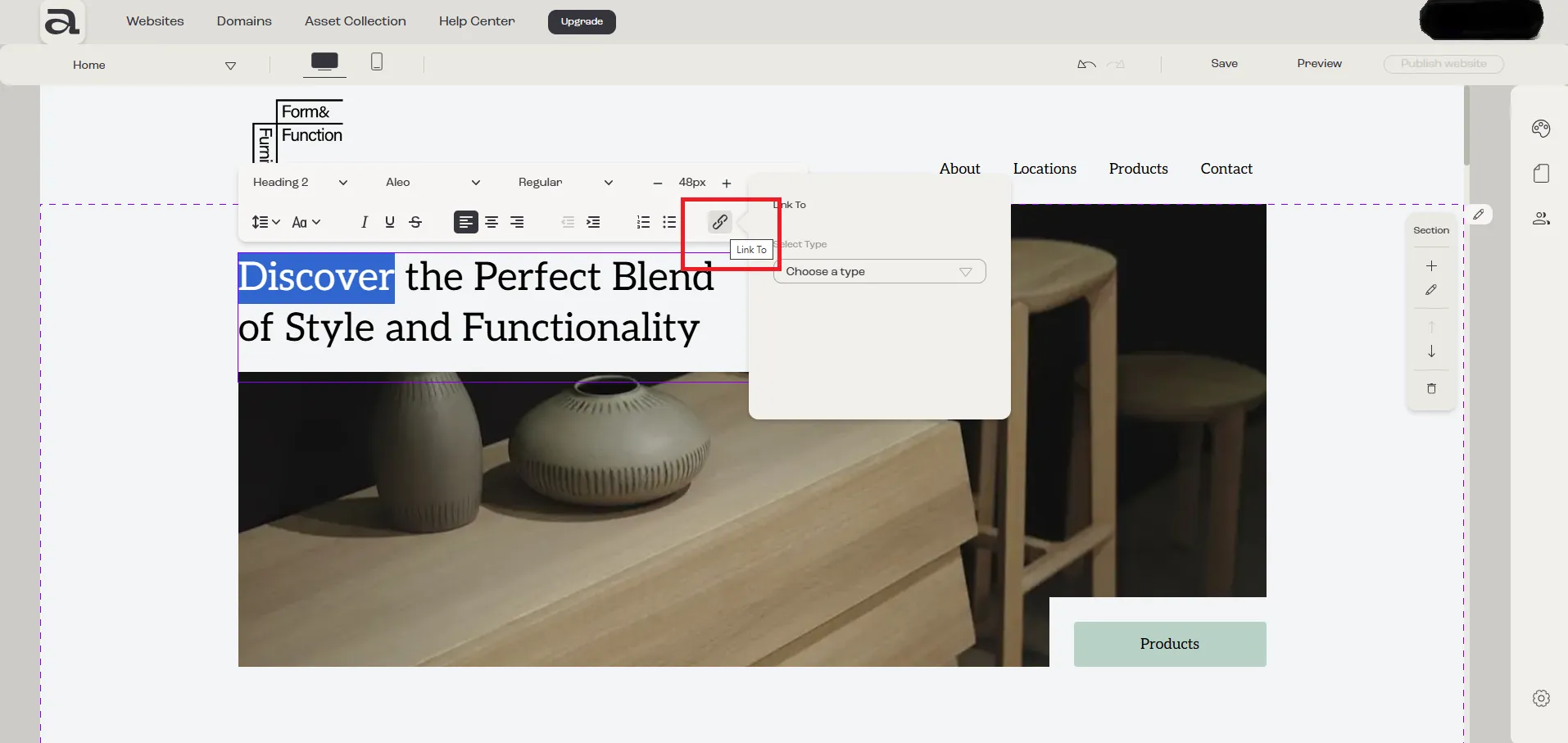
For texts, you will have to open the text editor, select the desire text and click on the “Link To” button.
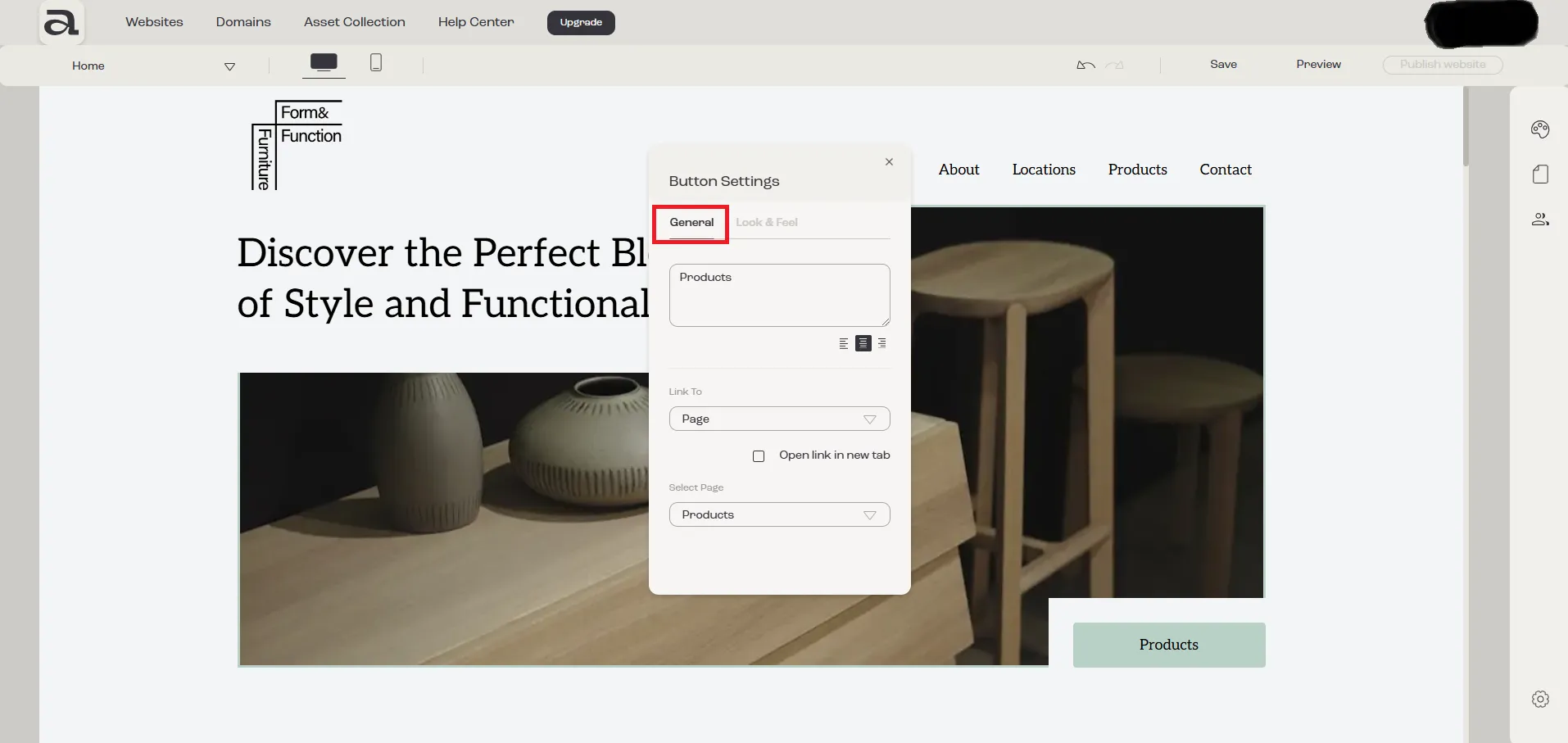
For all the other elements, in their respective editors there are two customization categories: “General” and “Look & Feel”.
The settings we are interested in are located under the “General” tab.
Step 2
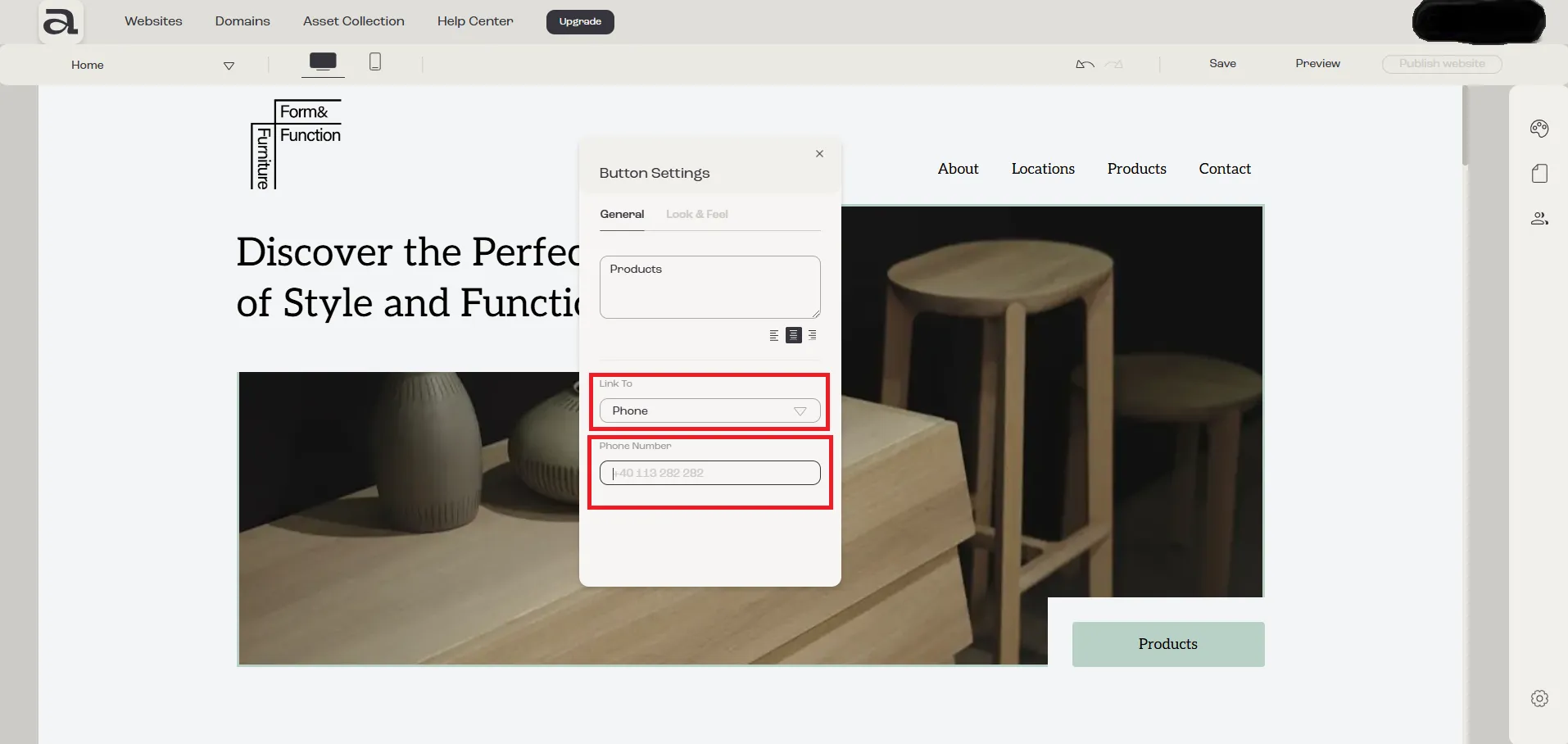
Section titled “Step 2”Click on the “Link To” dropdown.
Step 3
Section titled “Step 3”Select “Phone” and an input field labeled “Phone Number” will appear, allowing you to enter the desired phone number.