
How to edit authentication element styles
In this tutorial, you’ll learn how to customize the styles of the authentication element.
Step 1 - Open Authentication Element Settings
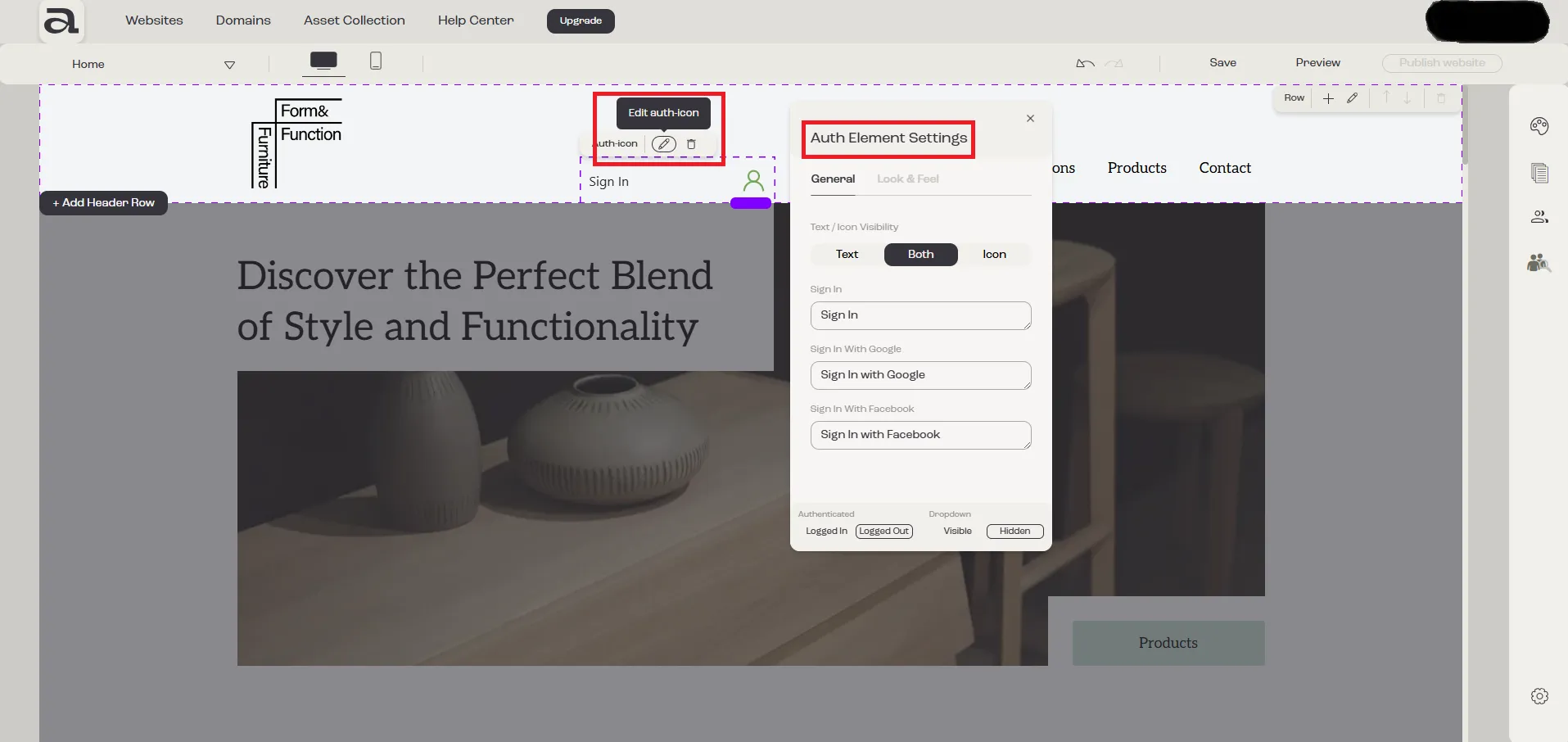
Section titled “Step 1 - Open Authentication Element Settings”To open the Authentication Element Settings menu, you have two options:
- Hover over the Auth-icon element and click the “Edit Auth-icon” button;
- Double-click on the Auth-icon element.
Step 2 - Look & Feel Tab
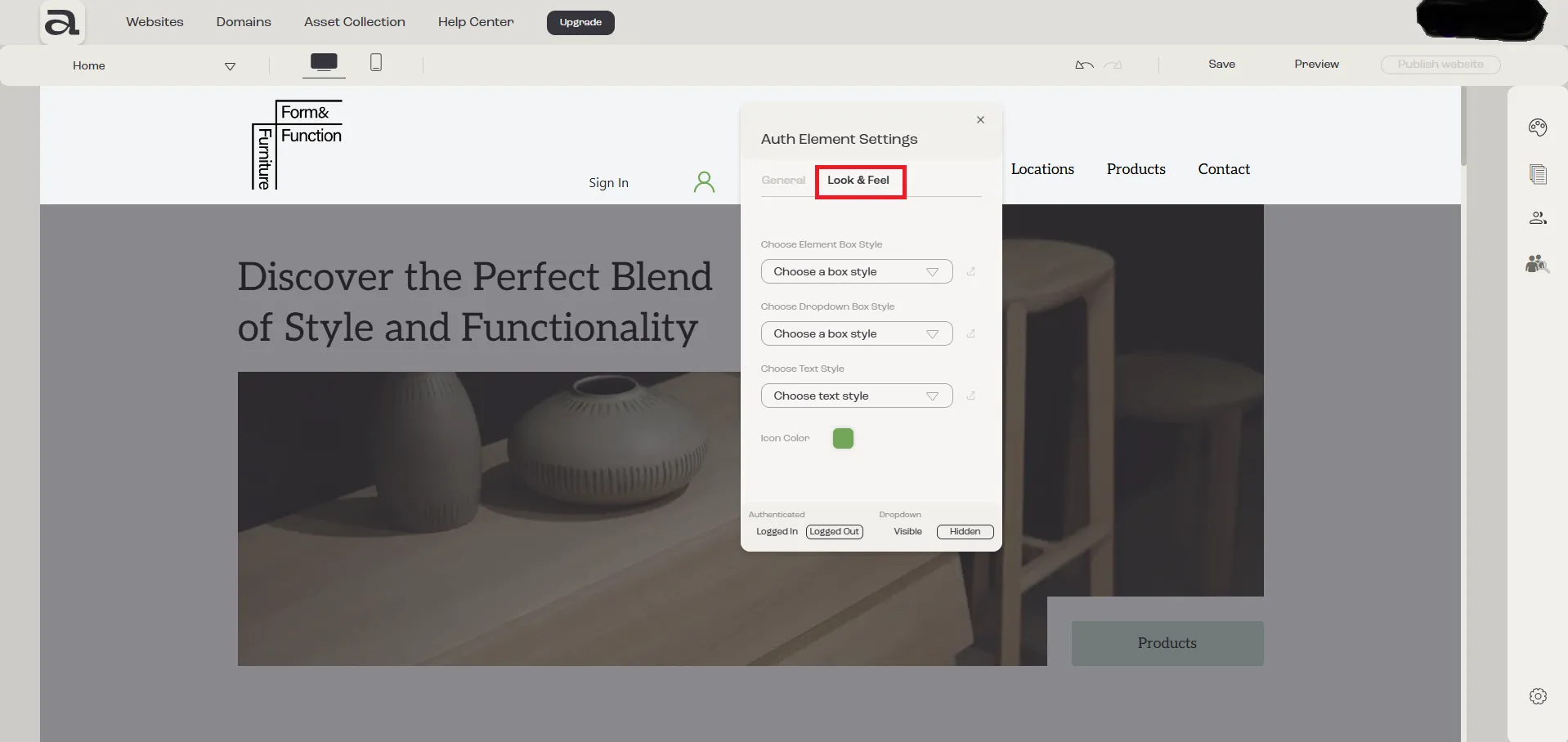
Section titled “Step 2 - Look & Feel Tab”In the Authentication Element Settings editor, you’ll find two tabs: General and Look & Feel. The settings we’re interested in are under the Look & Feel tab.
Step 3 - Change Element’s State
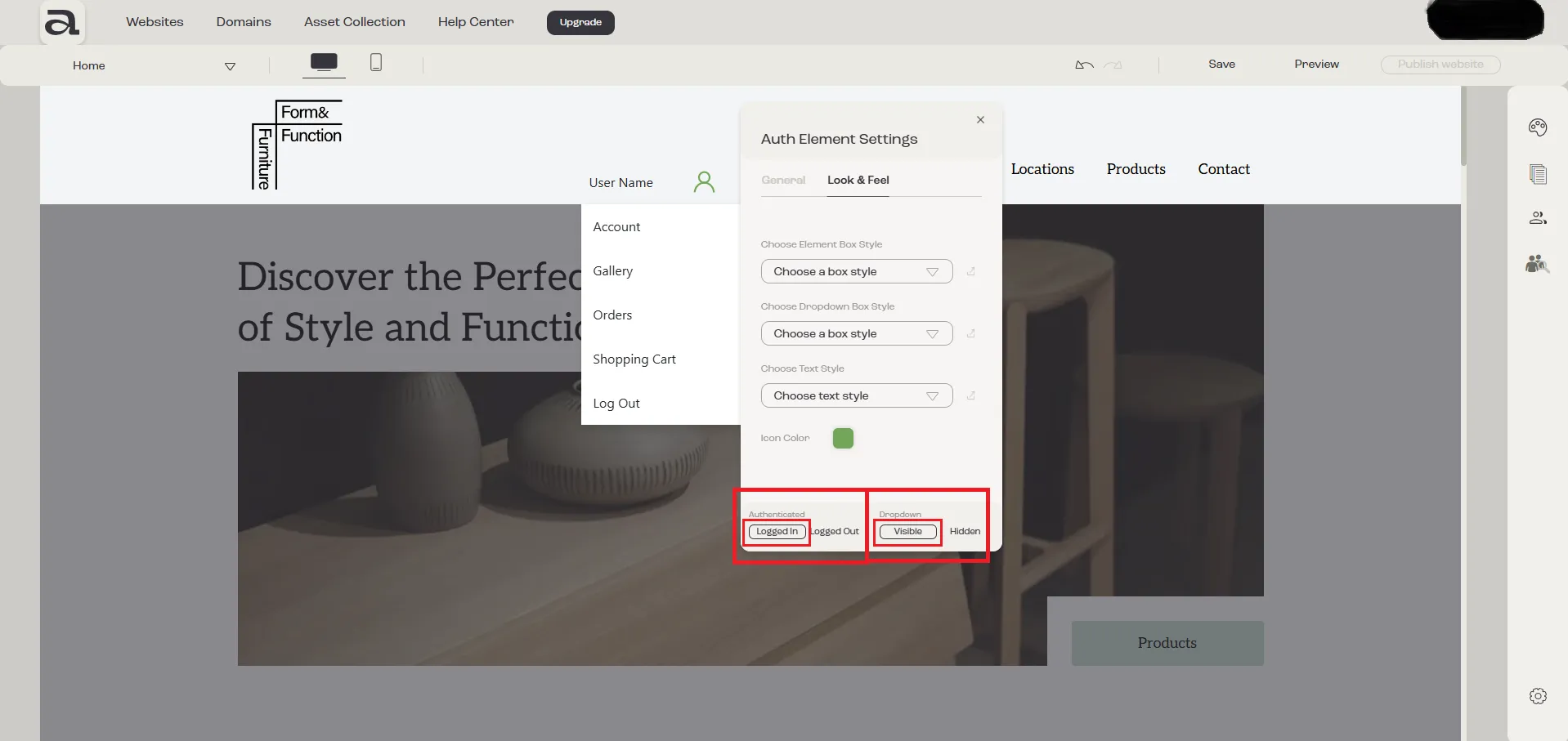
Section titled “Step 3 - Change Element’s State”At the bottom of the Authentication Element Settings menu, you’ll find the options related to element’s state.
To preview your style changes, make sure “Logged In” and “Visible” are selected.
Step 4 - Styling Authentication Element’s Box
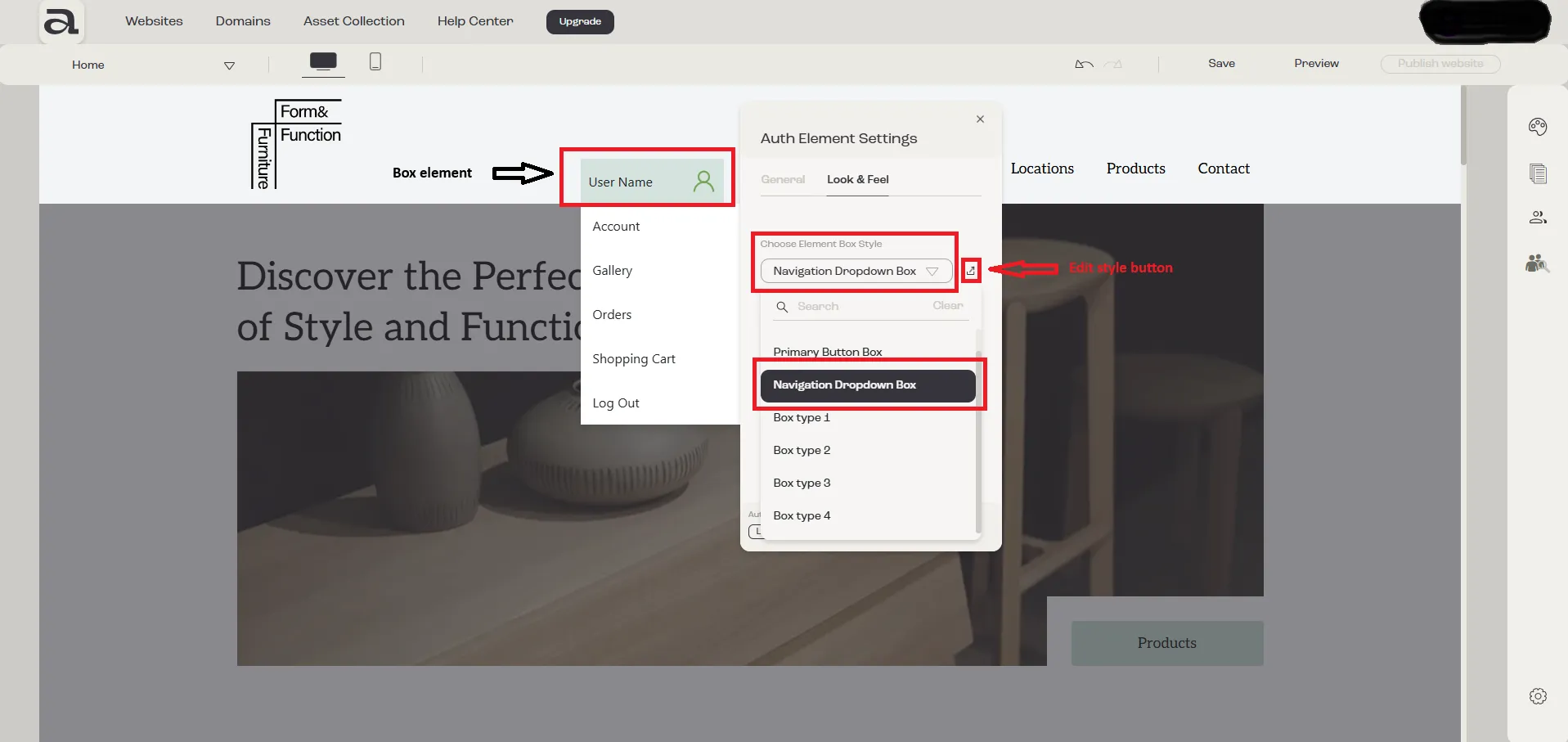
Section titled “Step 4 - Styling Authentication Element’s Box”To style the main box of the Auth-icon element, open the “Choose Element Box Style” dropdown.
You can select one of the existent styles, or click “Edit Style” to create your own custom design.
Step 5 - Styling Authentication Element’s Dropdown
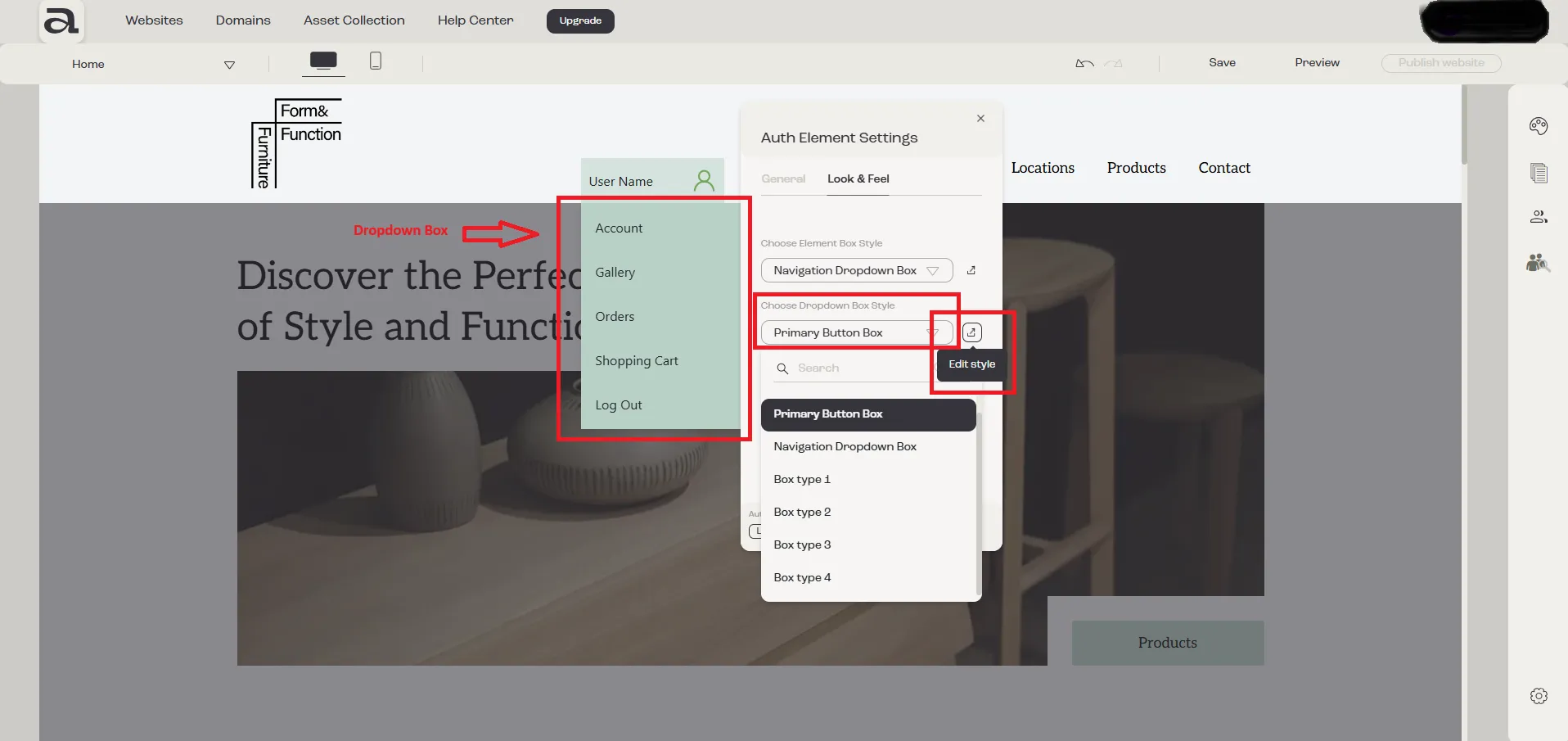
Section titled “Step 5 - Styling Authentication Element’s Dropdown”To style the dropdown that appears from the Auth-icon, use the “Choose Dropdown Box Style” dropdown.
As before, you can either choose an existent style or click “Edit Style” to customize it.
Step 6 - Choose a Text Style
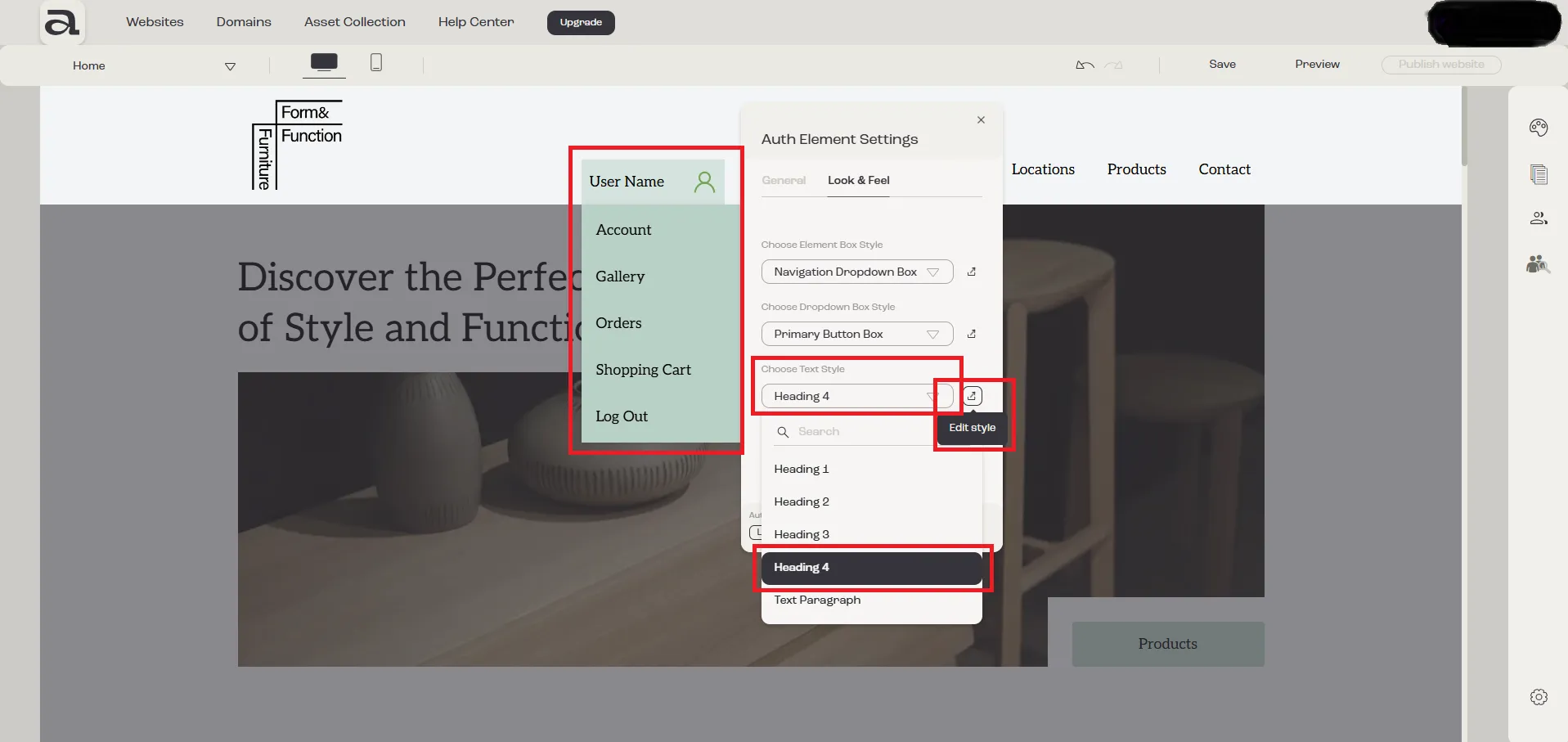
Section titled “Step 6 - Choose a Text Style”To style the text in both the Auth-icon and its dropdown, use the “Choose Text Style” dropdown.
Select from existing styles or click “Edit Style” to define your own.
Step 7 - Changing the Icon Color
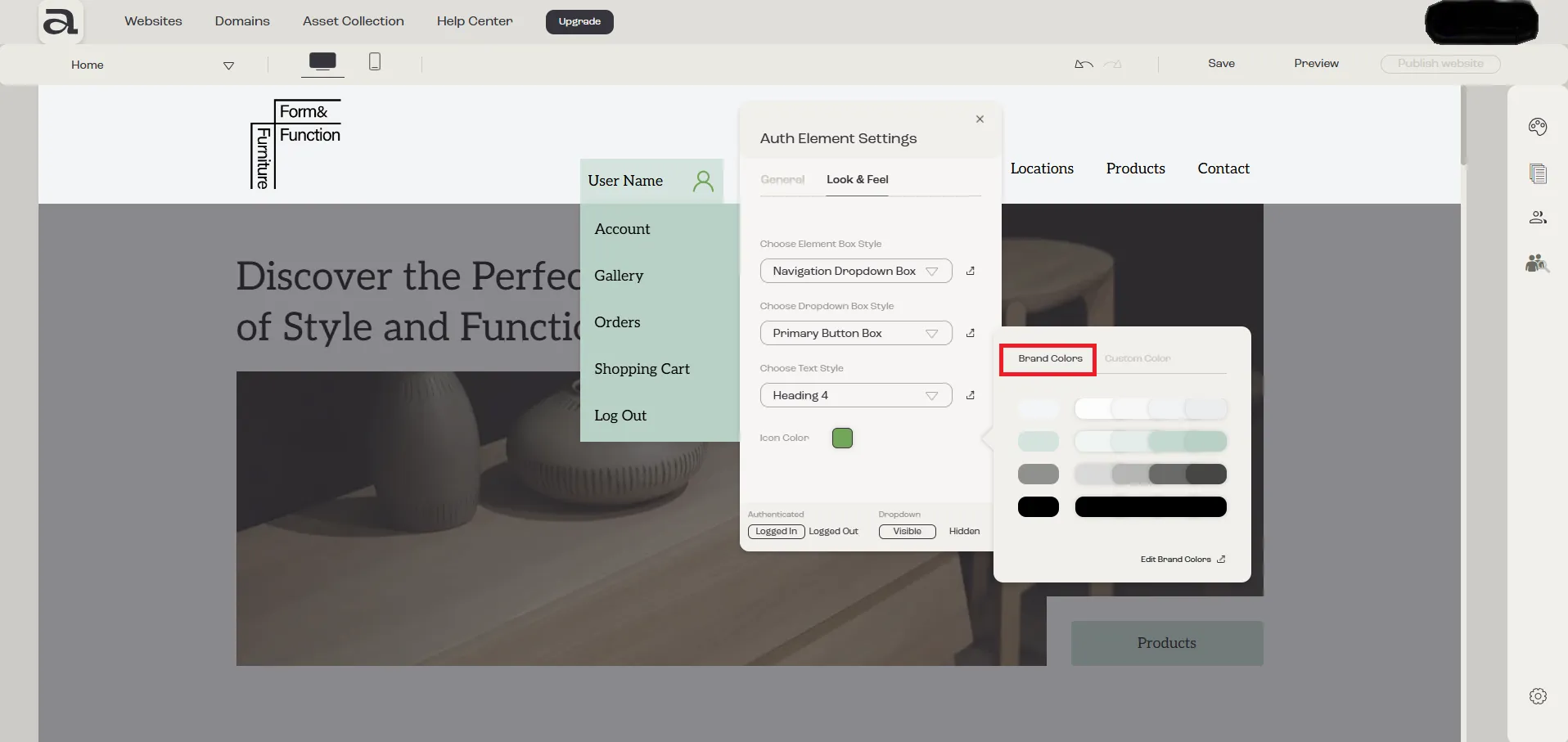
Section titled “Step 7 - Changing the Icon Color”To change the color of the icon in the Auth-icon element, click the “Icon Color” button.
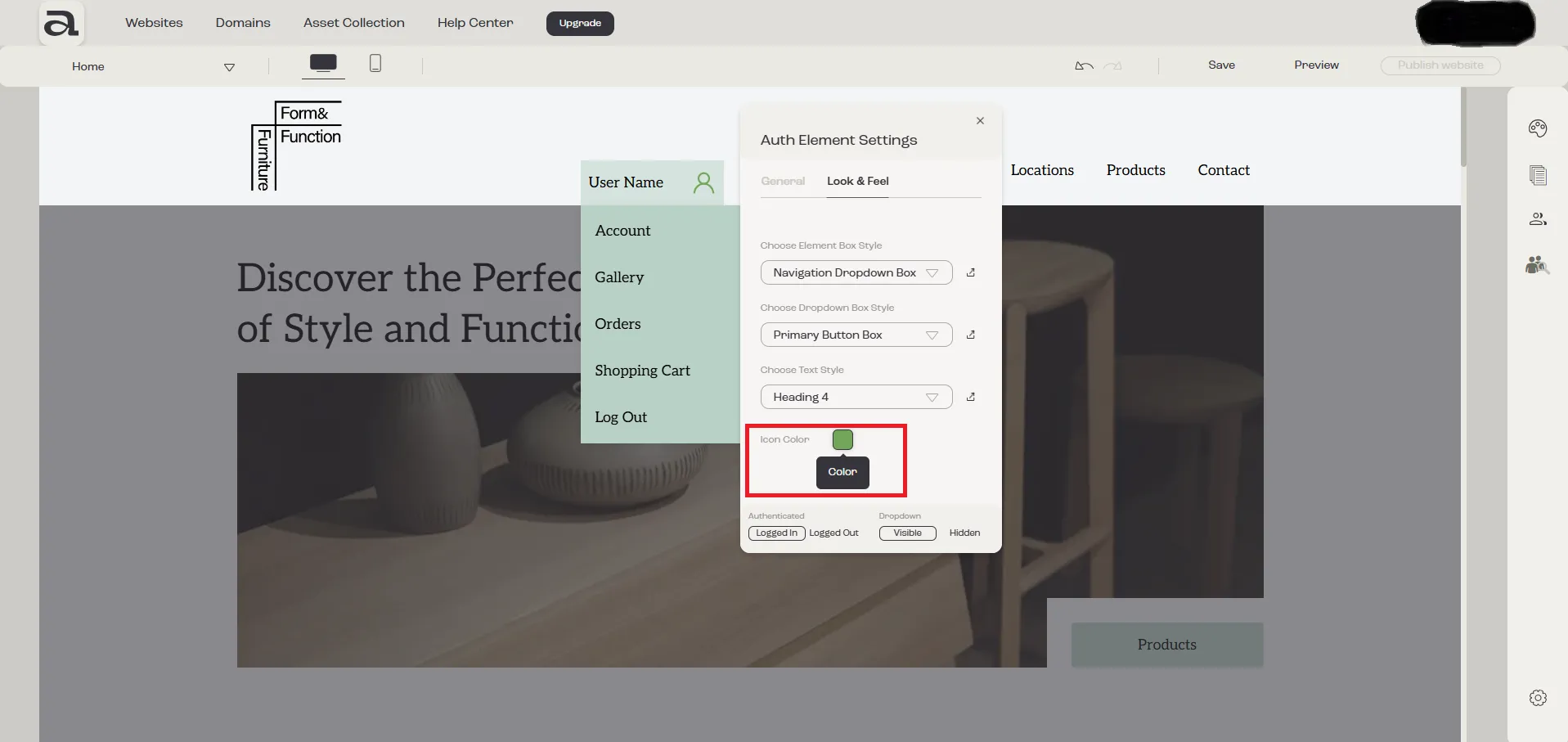
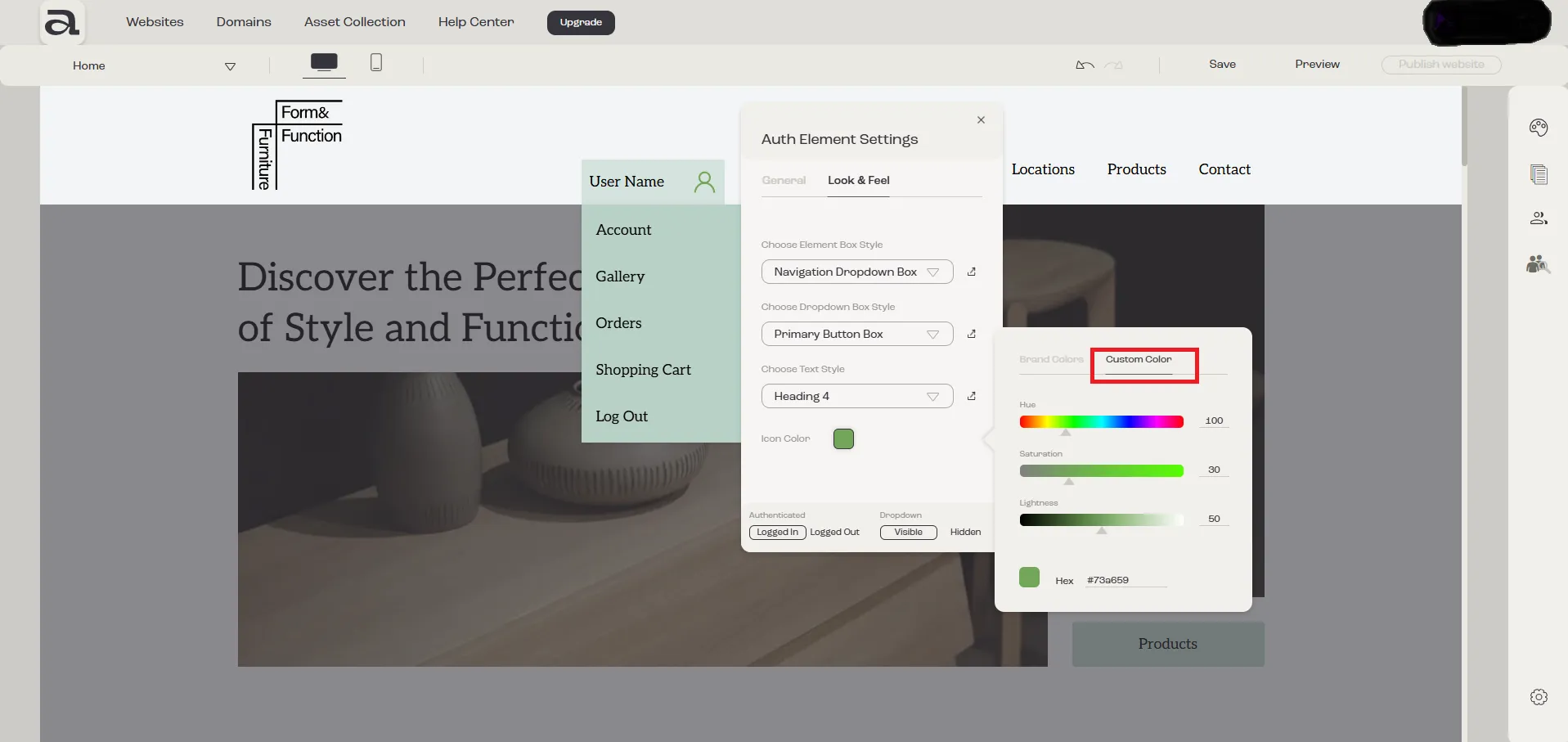
You’ll see two color options:
-
Brand Color
-
Custom Color
Option one: Brand Color
Choose a color from your pre-configured brand palette, ensuring it aligns with the design and theme of your website.
Option two: Custom Colors
Select any color from the palette to apply a custom color.