

How to change an image
This tutorial will guide you on how to change an image.
Step 1
Section titled “Step 1”Open the “Image Settings” editor.
Click “Edit Image” on the hover menu or double-click on the “Image” element you want to customize.
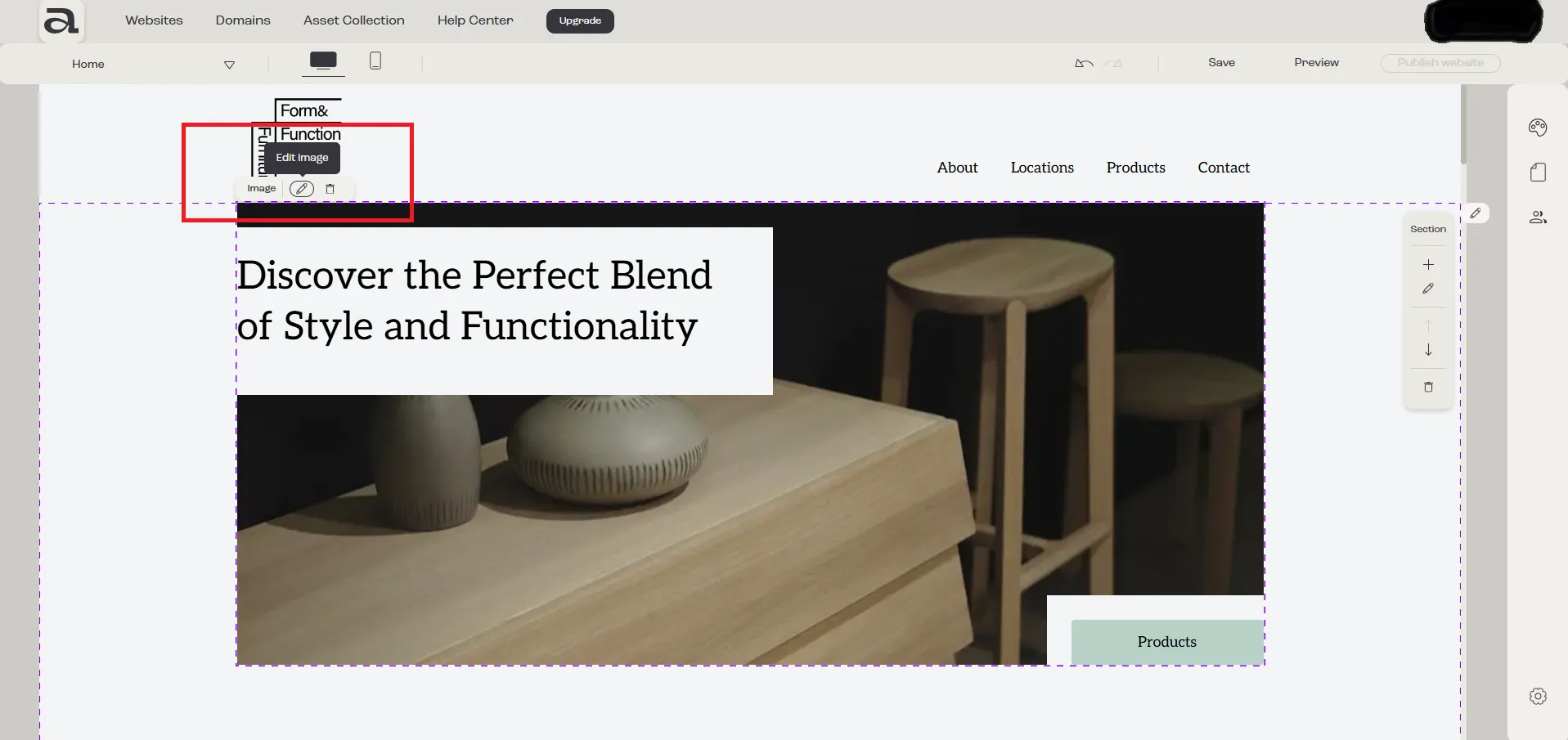
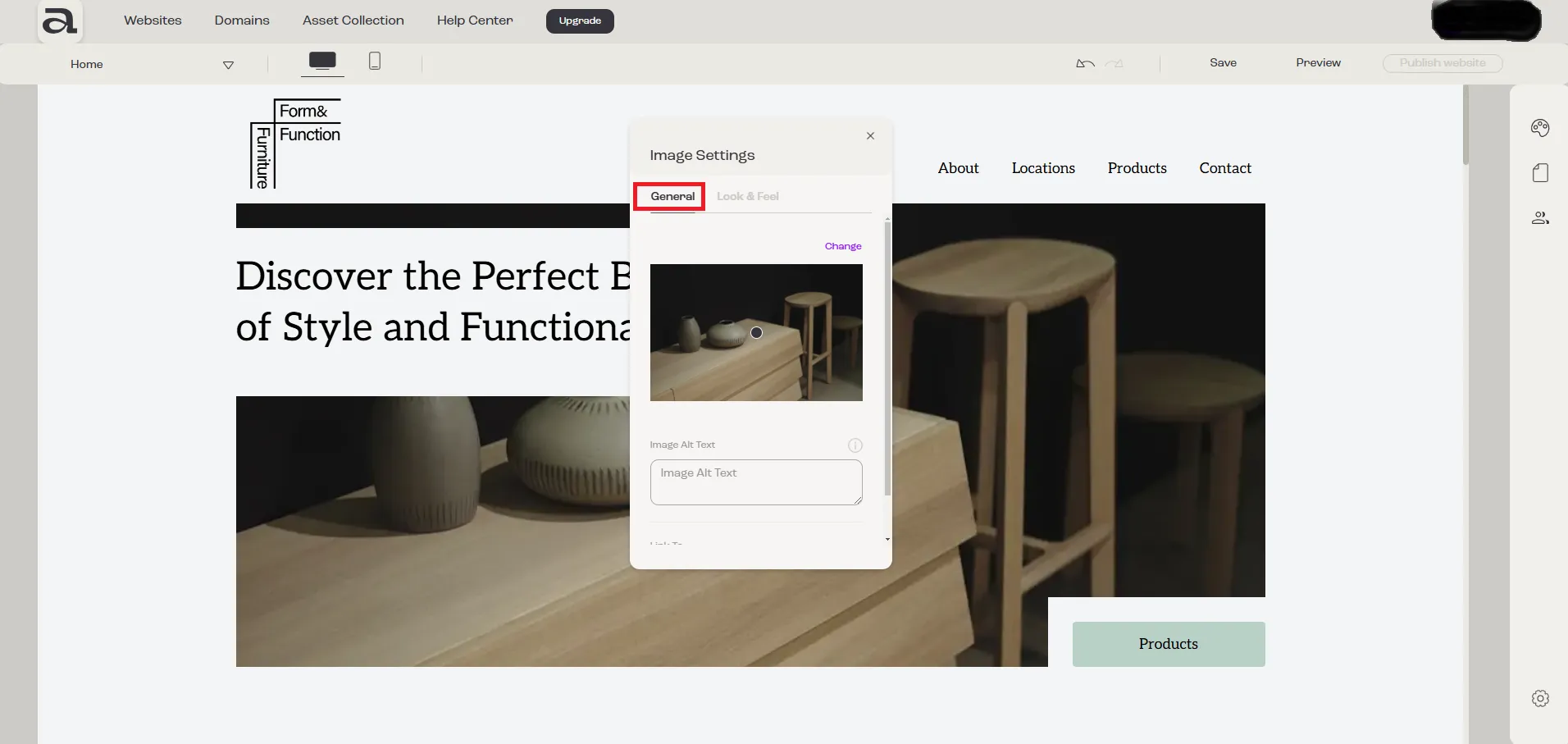
In the “Image Settings” editor, there are two customization categories: “General” and “Look & Feel”.
The settings we are interested in are located under the “General” tab.
Step 2
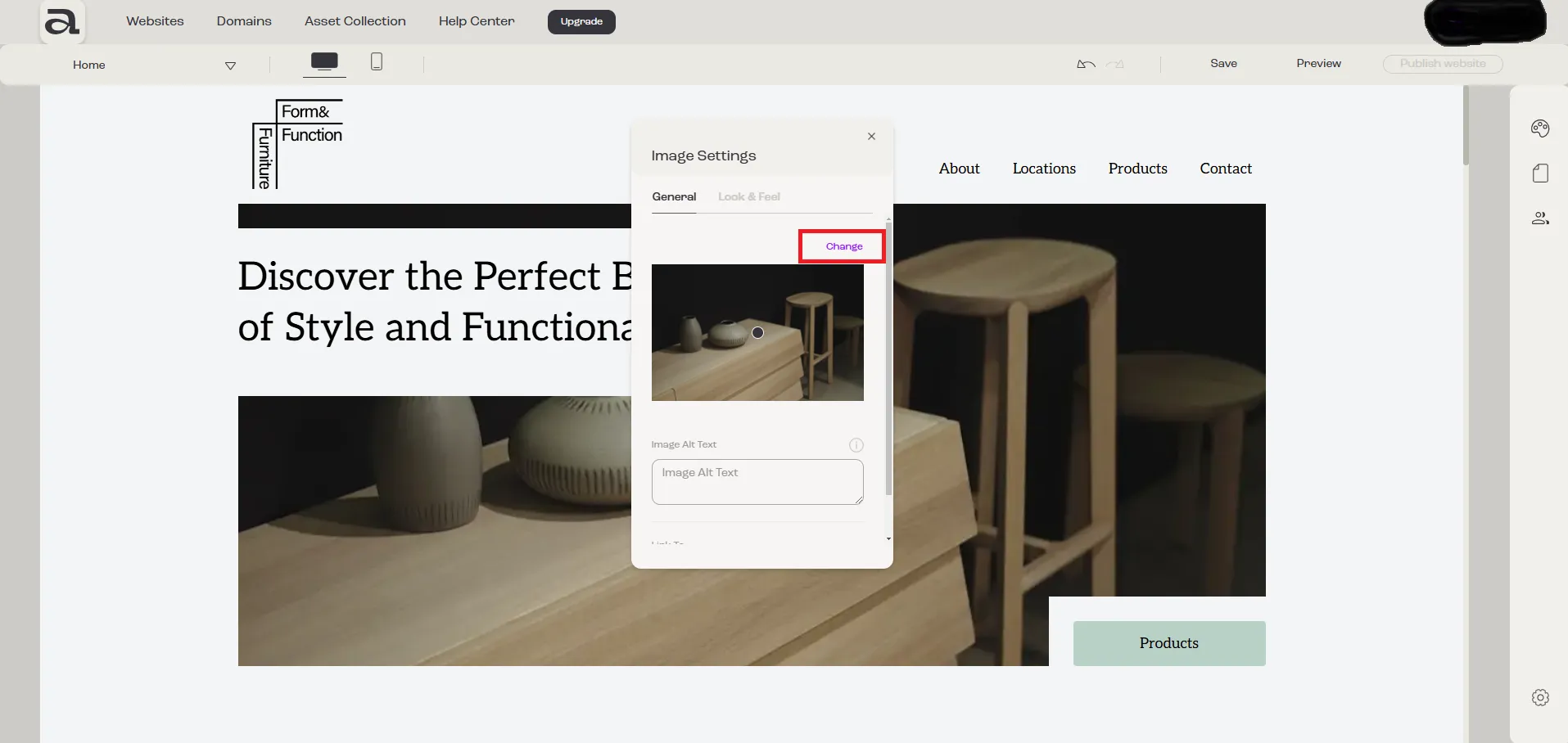
Section titled “Step 2”To replace the image, click on the “Change” button.
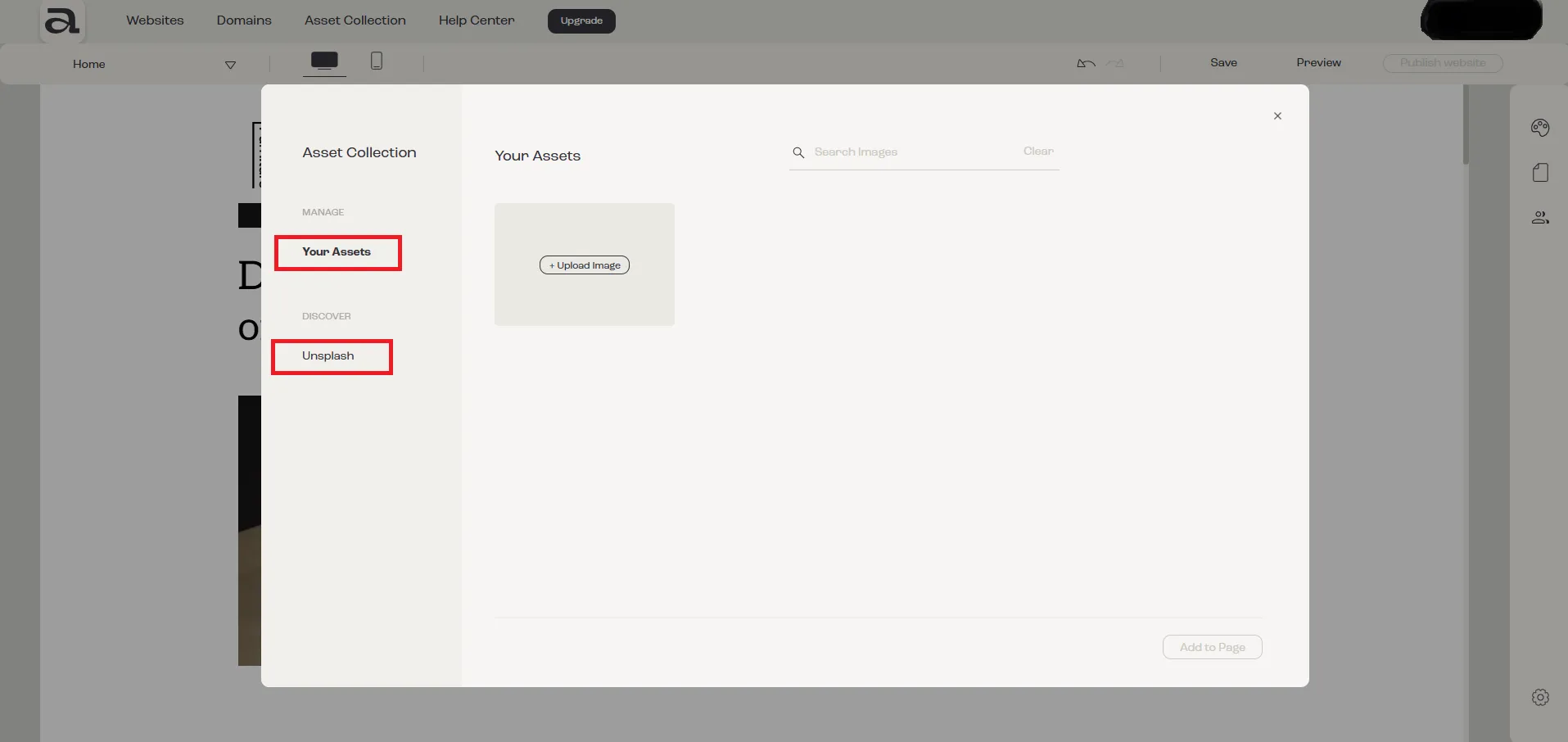
This will open the “Asset Collection” modal where you have two options for selecting a new image: “Your Assets” and “Unsplash”.
Your Assets
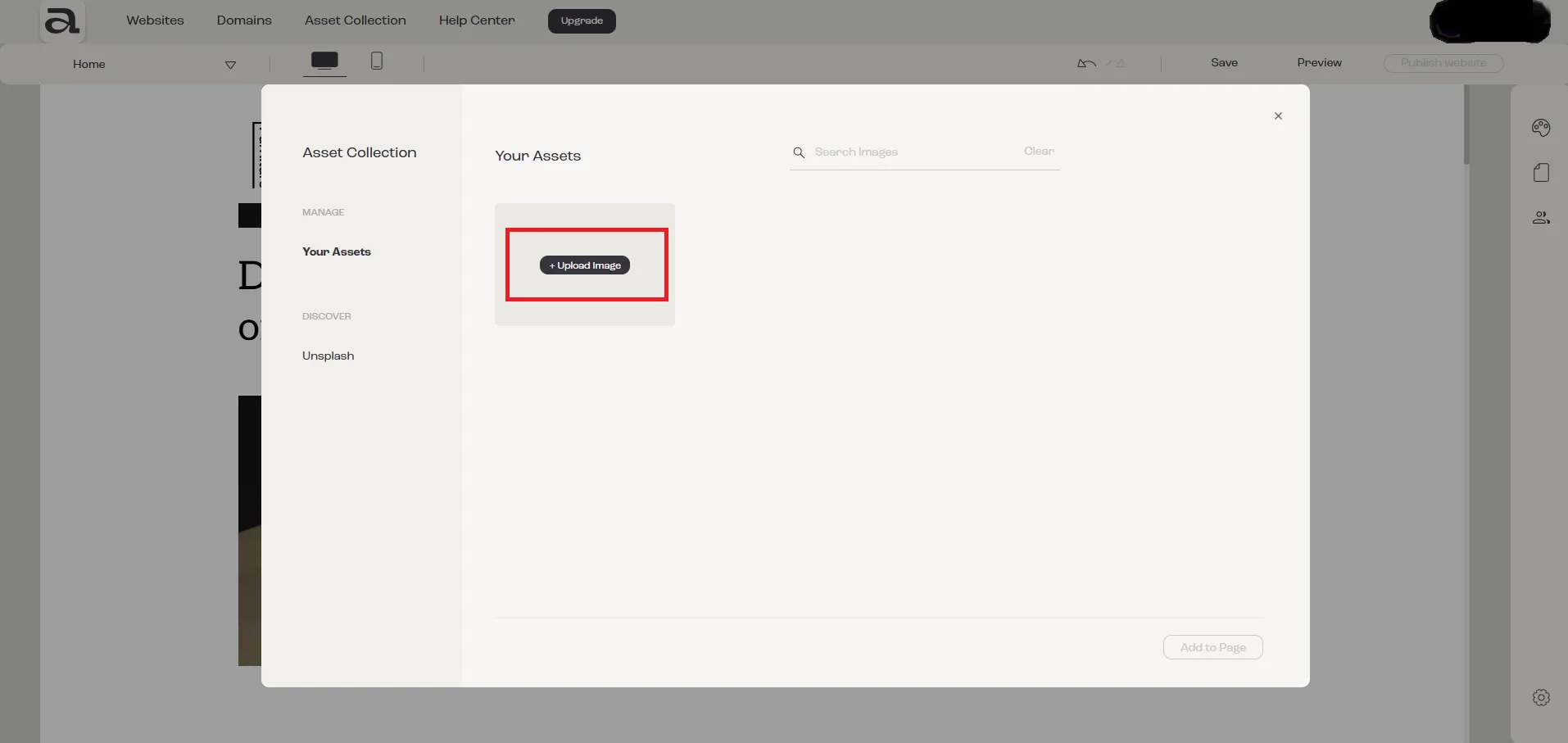
Section titled “Your Assets”If you have an image saved on your computer, click “Upload Image” to add it to your assets.
Unsplash
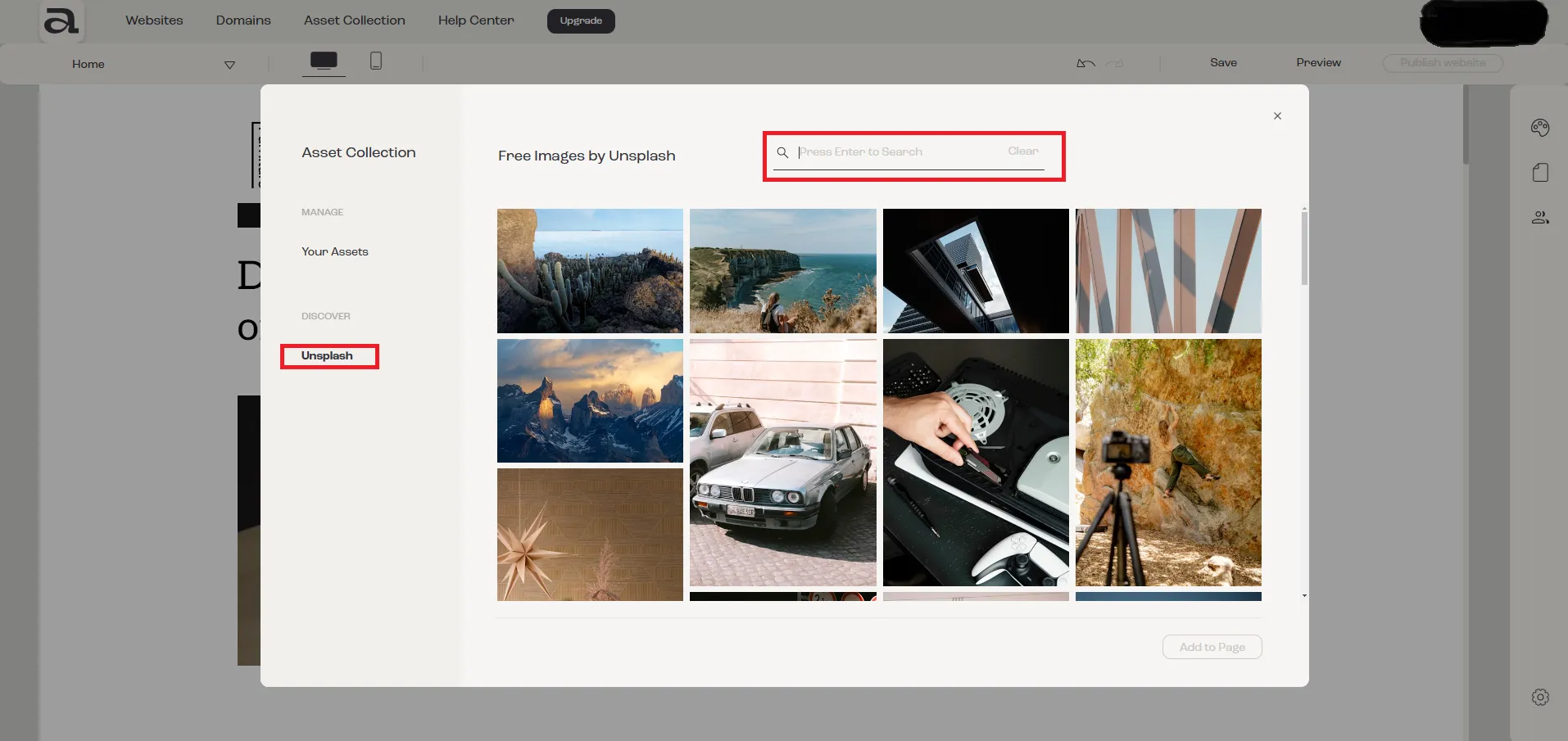
Section titled “Unsplash”If you prefer using copyright free images click on the “Unsplash” option. This will allow you to search and select an image to add.
Aphyo provides these images through integration with Unsplash. Check our Terms and Conditions and Unsplash license.
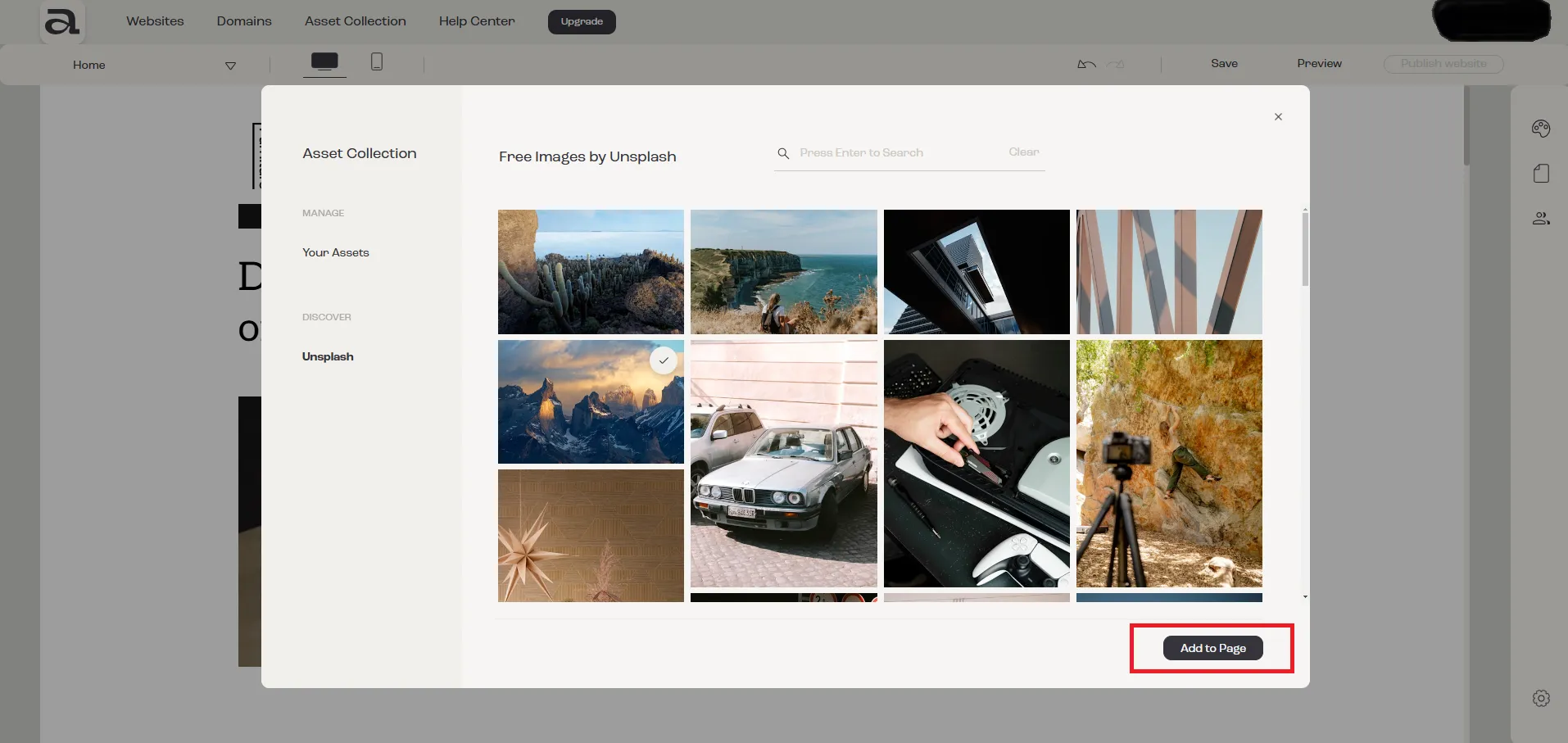
After selecting an image, click the “Add to Page” button to apply the change.
Next steps
Section titled “Next steps”- edit image style
- add or edit image link
- add another element
- crop an image