
How to edit contact forms and add new form fields
In this guide, you will learn how to edit the Form element, manage form fields, and configure various settings to customize your form.
Step 1 - open editor
Section titled “Step 1 - open editor”Open the “Form Settings” editor.
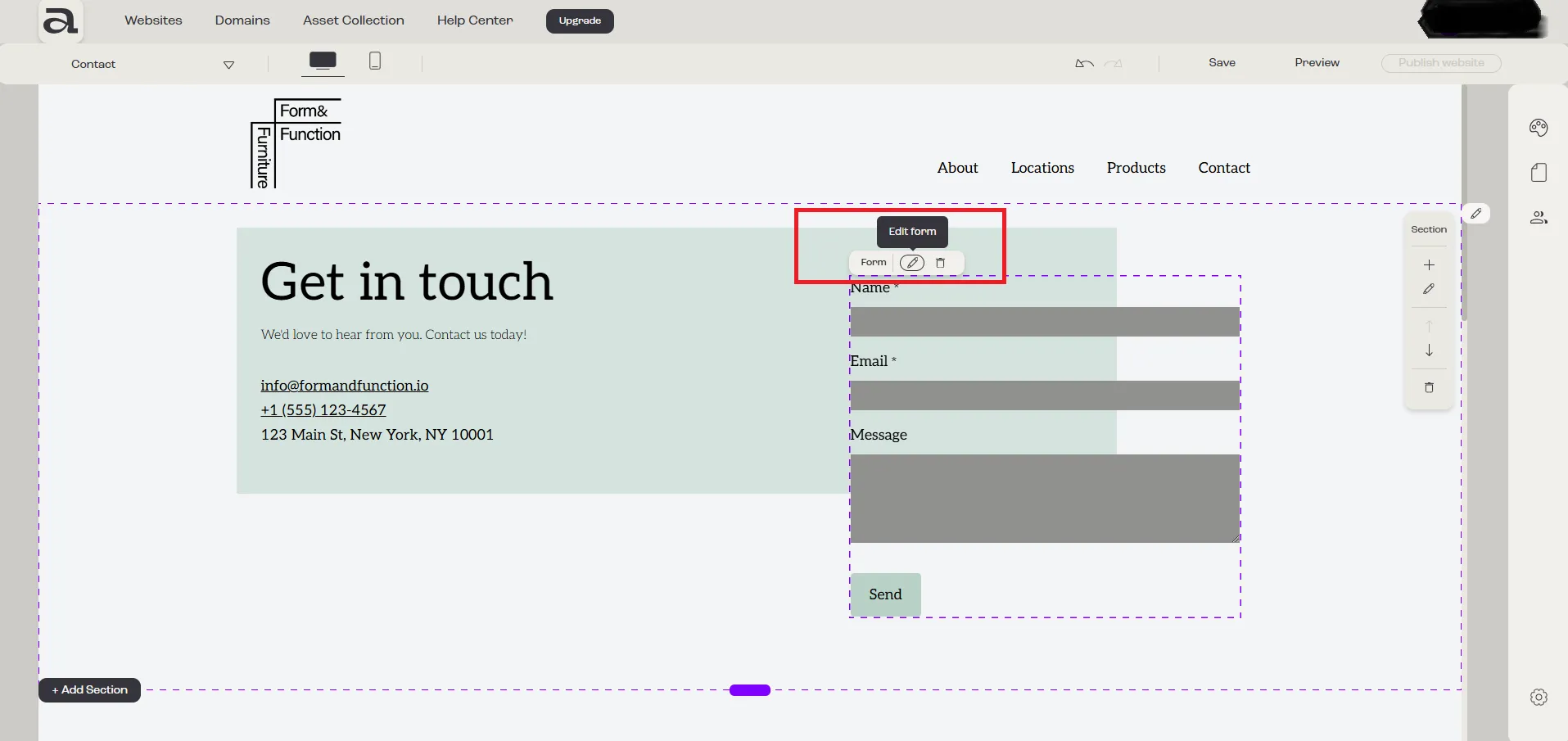
Click “Edit Form” on the hover menu or double-click on the “Form” element you want to customize.
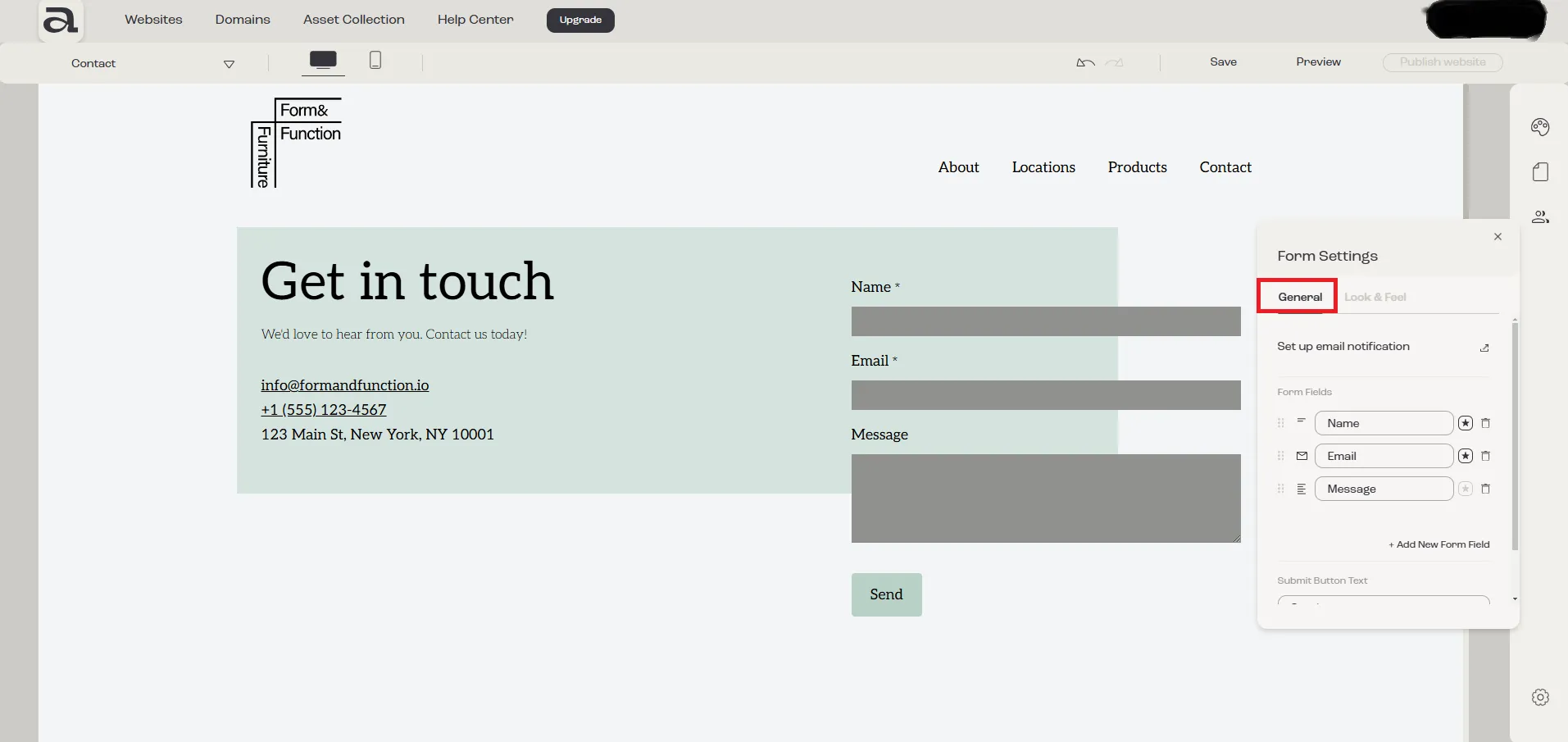
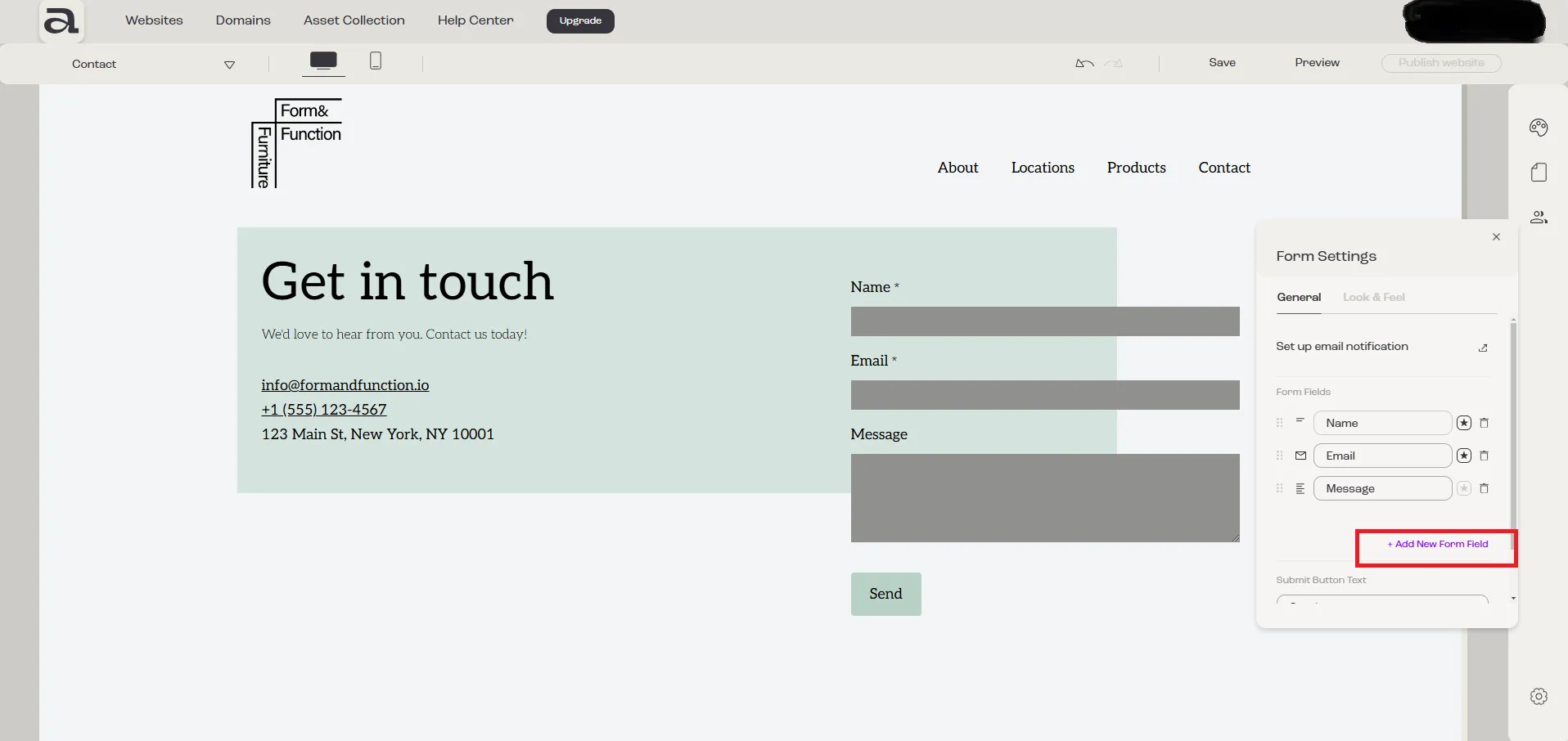
In the “Form Settings” editor, there are two customization categories: “General” and “Look & Feel”.
The settings we are interested in are located under the “General” tab.
Options to edit the “Form” element and manage fields:
Section titled “Options to edit the “Form” element and manage fields:”1. Set Up Email Notifications (Mandatory)
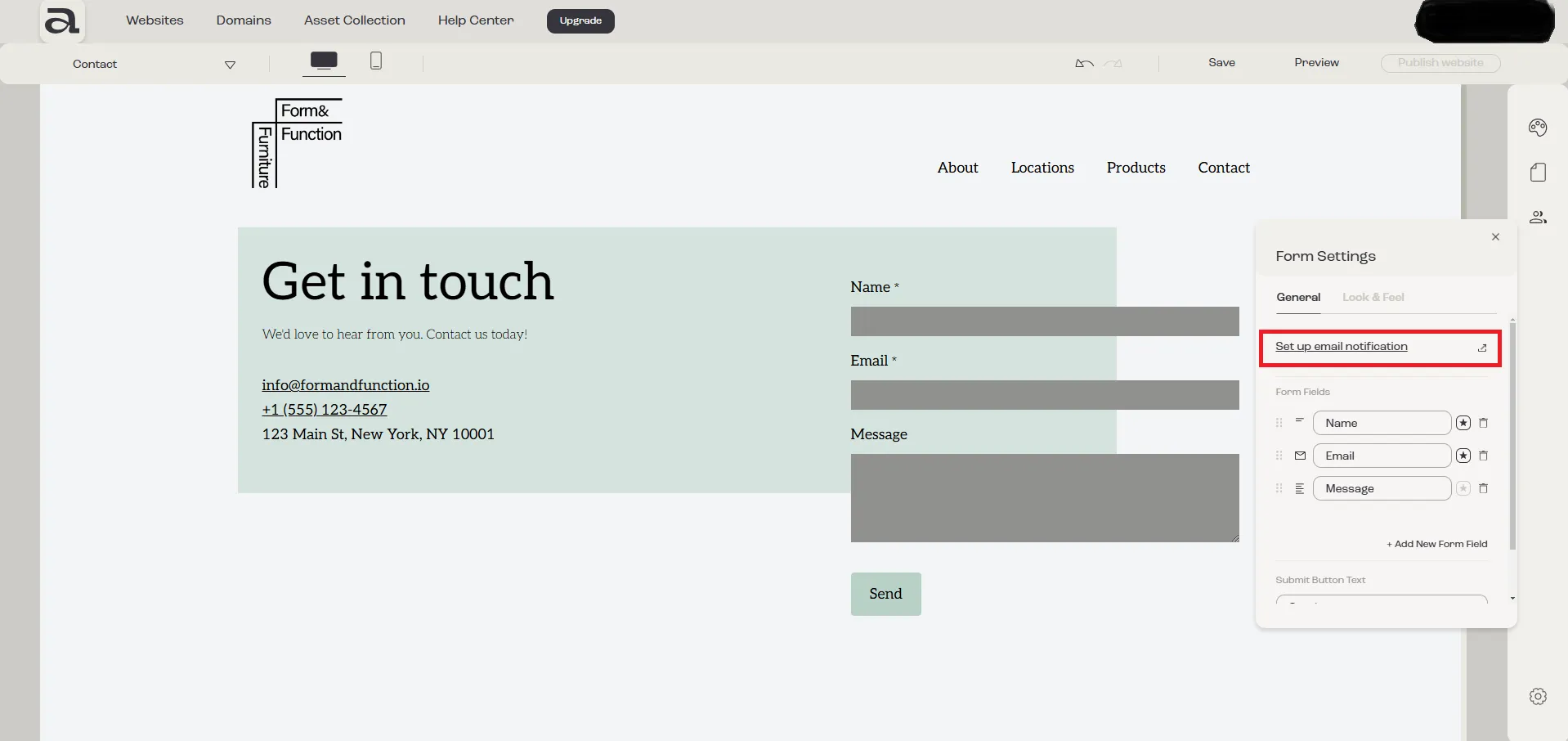
Section titled “1. Set Up Email Notifications (Mandatory)”- To configure email notifications for form submissions, click on the “Set up email notification” button.
It will take you to Website Settings > Form Submission, where you can add an email address (if you haven’t already) to receive messages from your website visitors.
2. Reorder Form Fields (Optional)
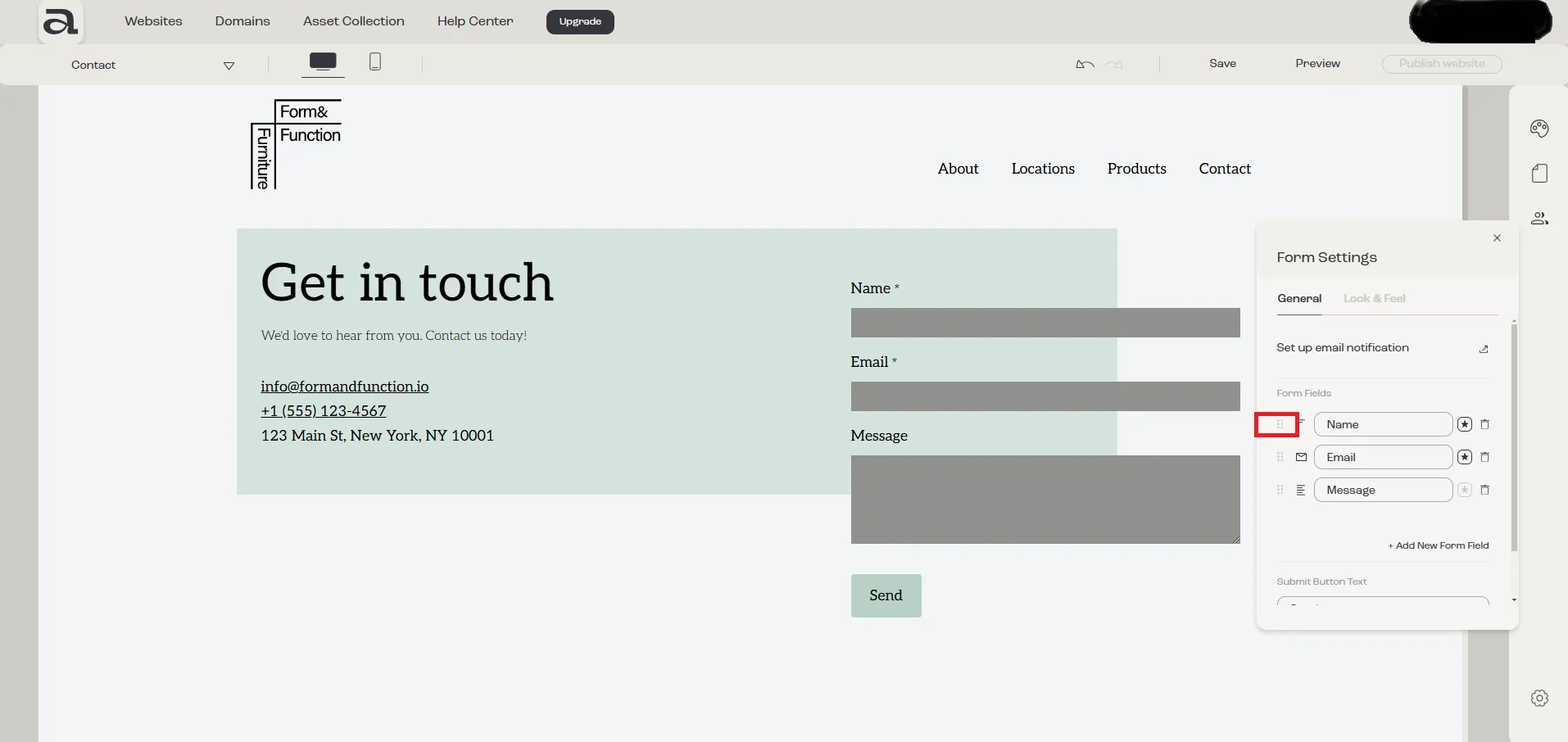
Section titled “2. Reorder Form Fields (Optional)”- To change the order of the fields, use drag and drop by clicking and holding the button on the left side of the field.
3. Rename a Form Field (Optional)
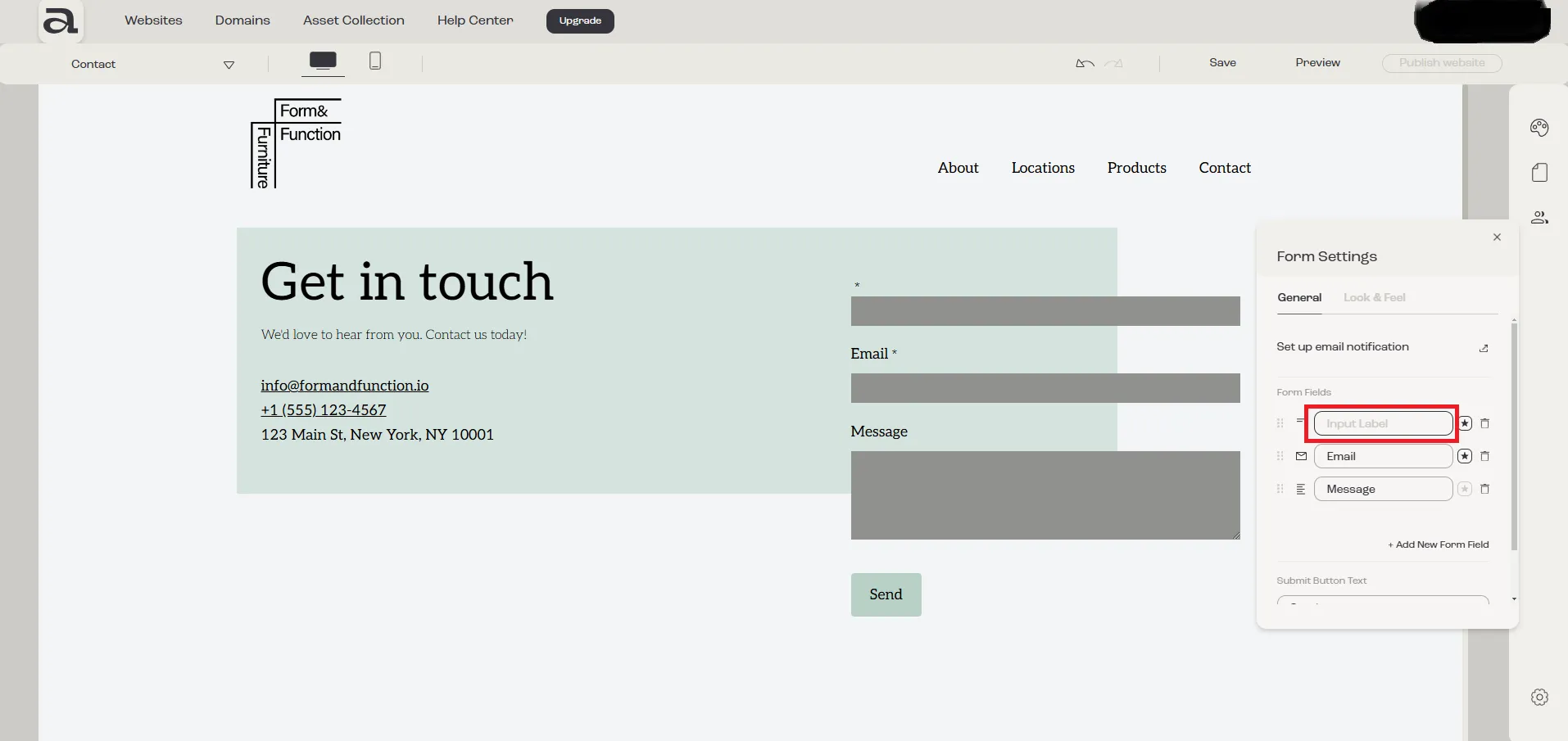
Section titled “3. Rename a Form Field (Optional)”- To rename a form field, click on the specific input field you want to edit and type in the desired name.
4. Mark a Field as Required (Optional)
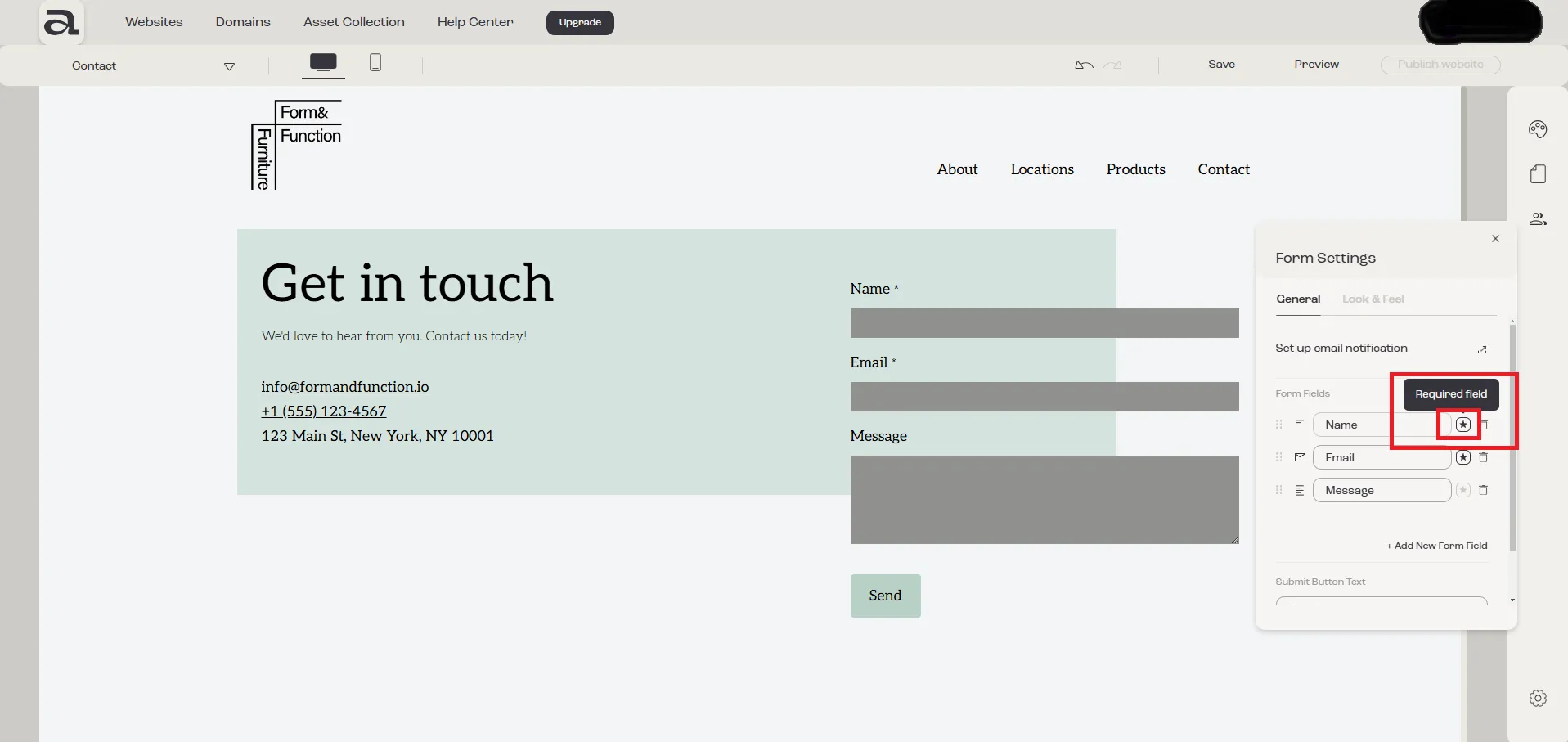
Section titled “4. Mark a Field as Required (Optional)”- To make a field required, click on the star-shaped button next to the field. This will add a
*character next to the field label.
5. Delete a Form Field (Optional)
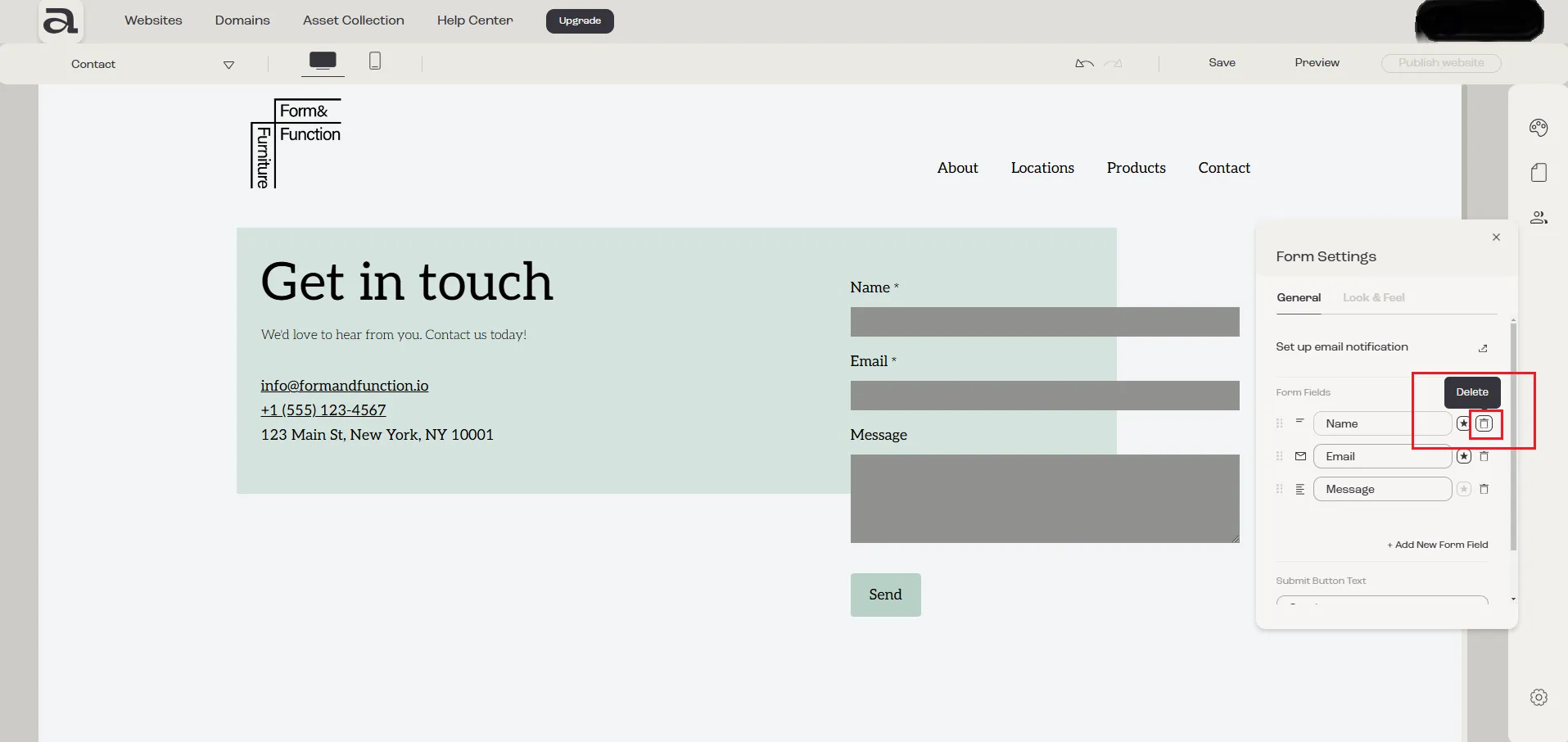
Section titled “5. Delete a Form Field (Optional)”- To remove a form field, click on the recycle bin icon associated with the field.
6. Add a New Form Field (Optional)
Section titled “6. Add a New Form Field (Optional)”- To add a new field to your form, click on the “Add New Form Field” button and configure the field details.
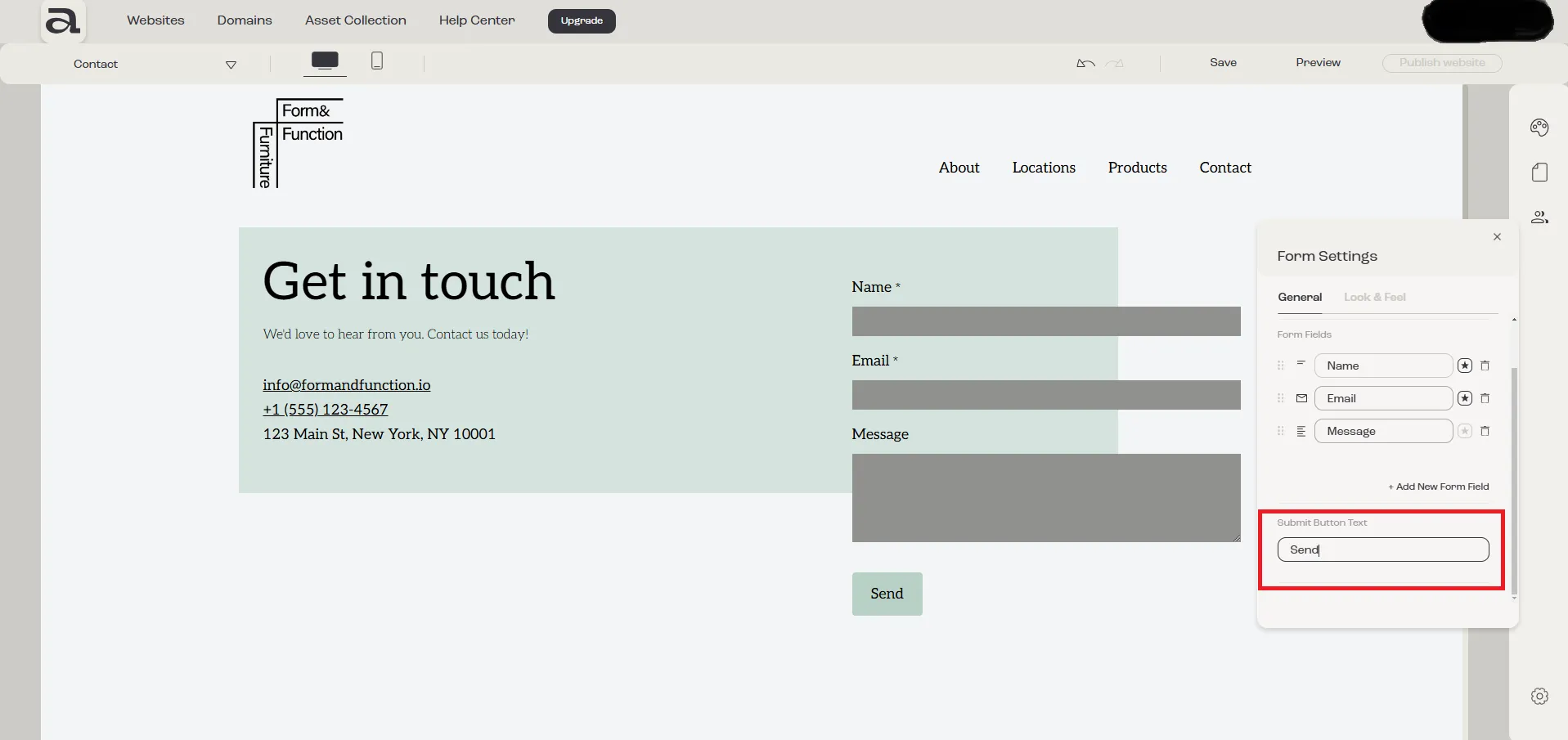
7. Change the Submit Button Text (Optional)
Section titled “7. Change the Submit Button Text (Optional)”- To edit the text on the submit button, click on the input box under “Submit Button Text” and type in the desired text.