

How to edit navigation link target
In this guide, you will learn how to edit a navigation link target in your website’s navigation menu.
Step 1 - open editor
Section titled “Step 1 - open editor”Open the “Navigation Settings” editor.
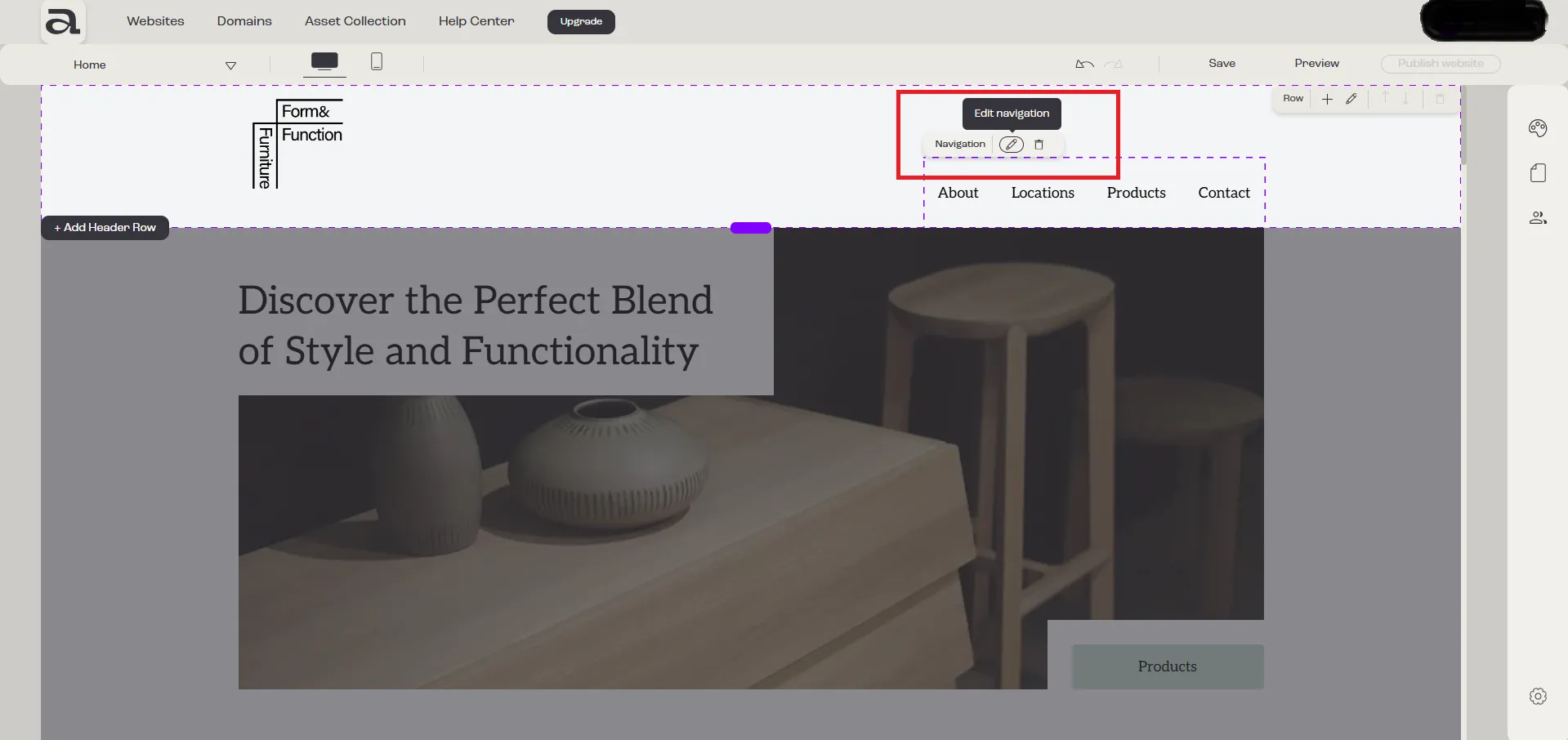
Click “Edit Navigation” on the hover menu or double-click on the “Navigation” element you want to customize.
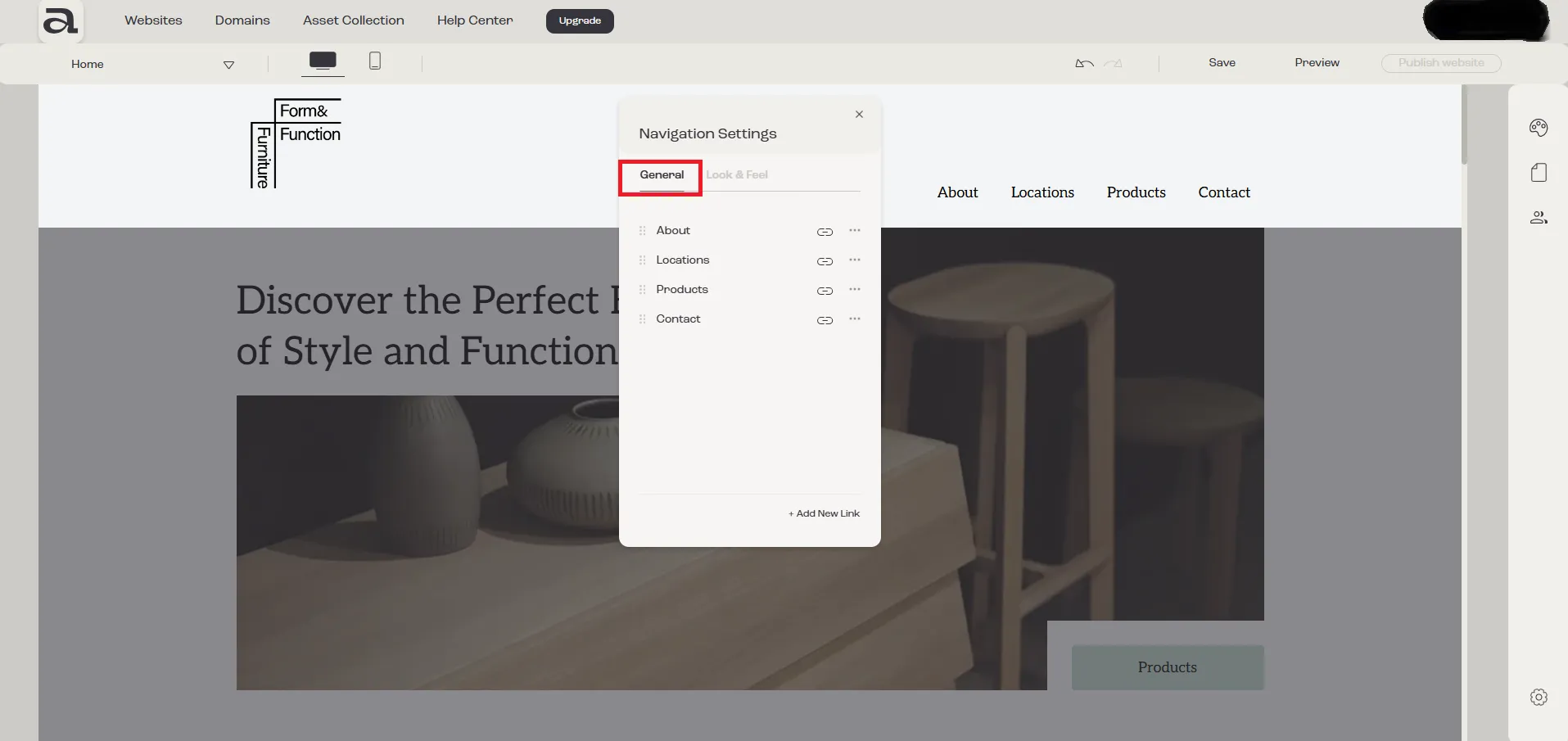
In the “Navigation Settings” editor, there are two customization categories: “General” and “Look & Feel”.
The settings we are interested in are located under the “General” tab.
Step 2 - open “Link To” options
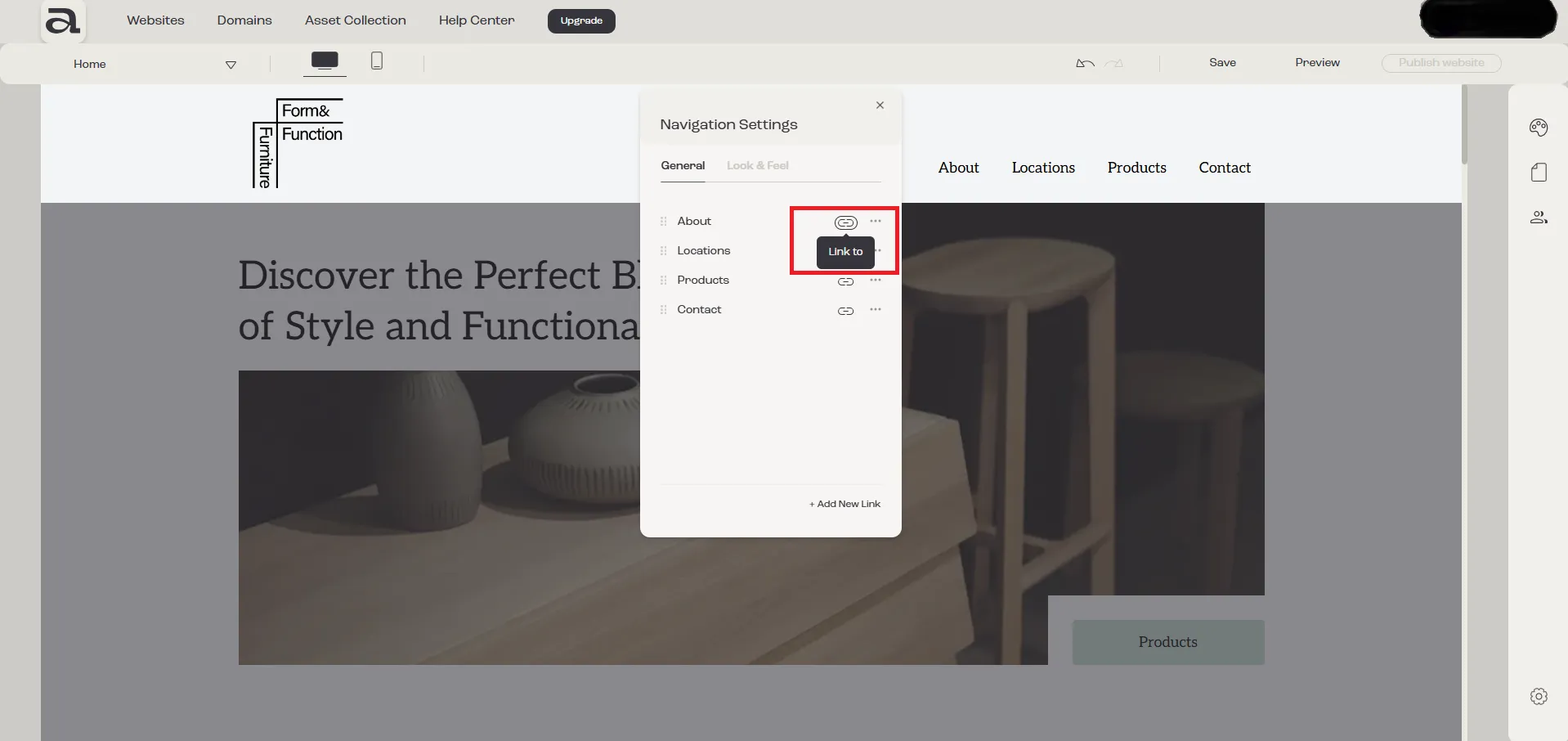
Section titled “Step 2 - open “Link To” options”Click on the “Link to” button in the navigation settings.
Step 3
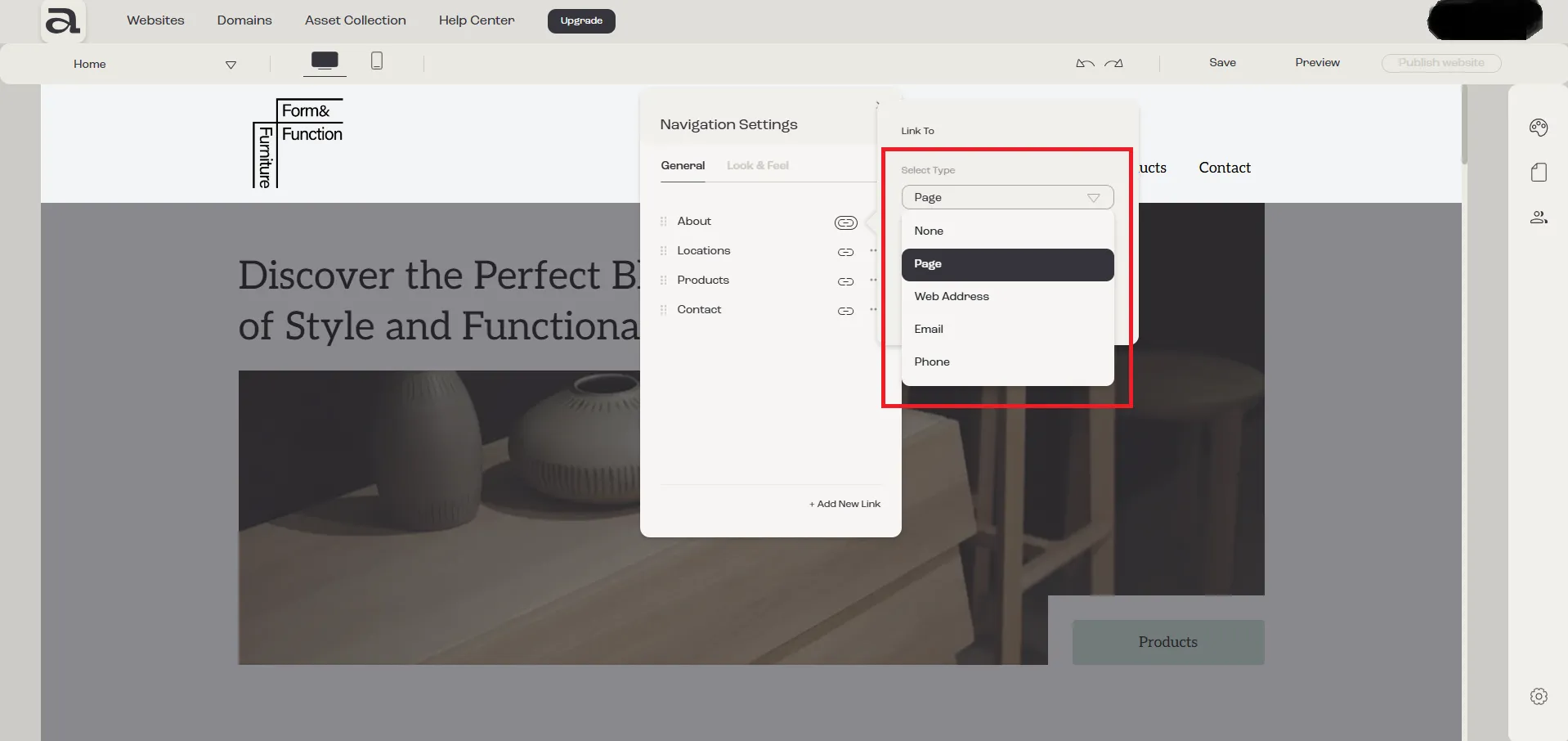
Section titled “Step 3”You will see a dropdown with five options. To add a link, select one of the following two options:
- Page
- Web Address
1. Page
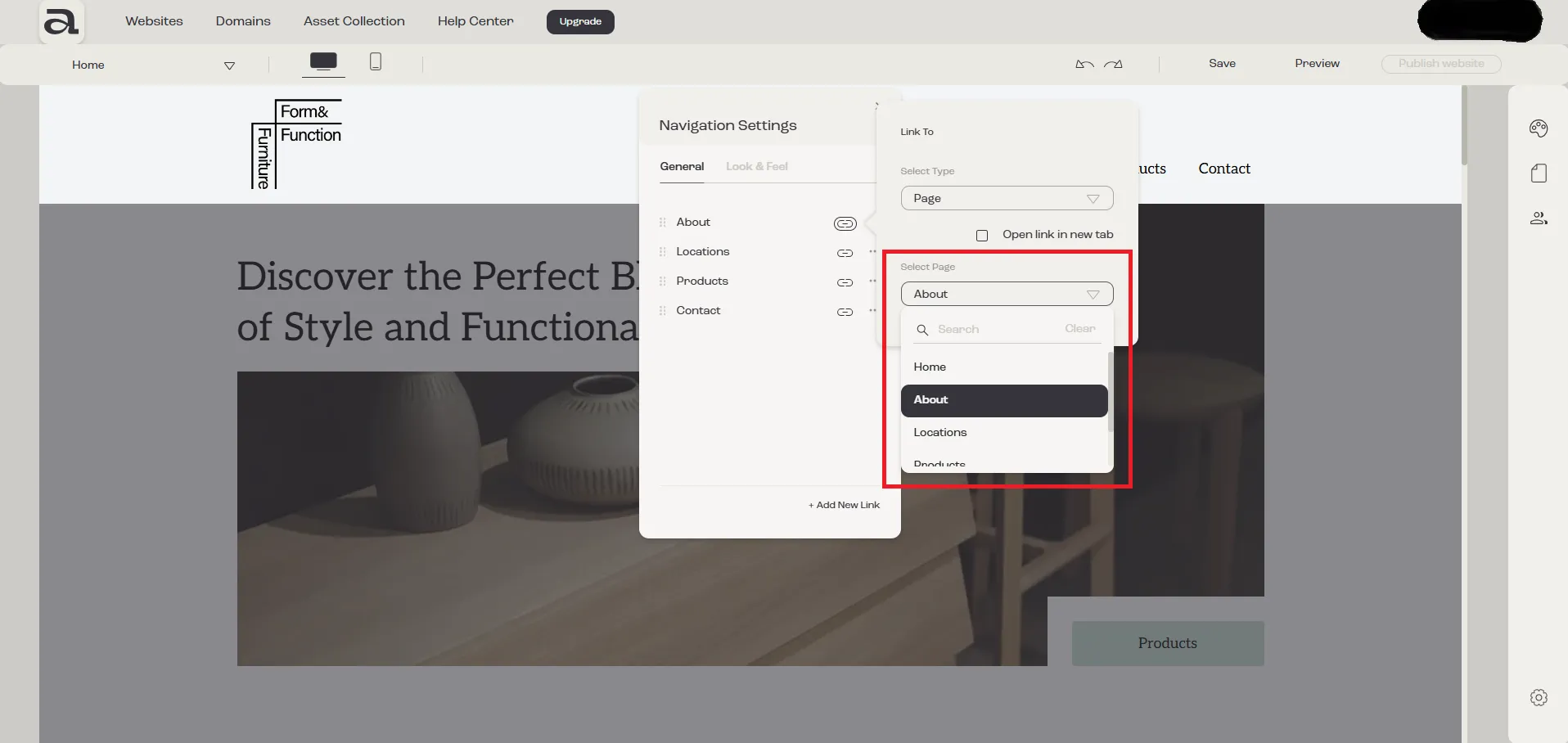
Section titled “1. Page”If you select “Page”, an additional dropdown “Select Page” will appear, allowing you to link the button to a specific page on the website.
2. Web Address
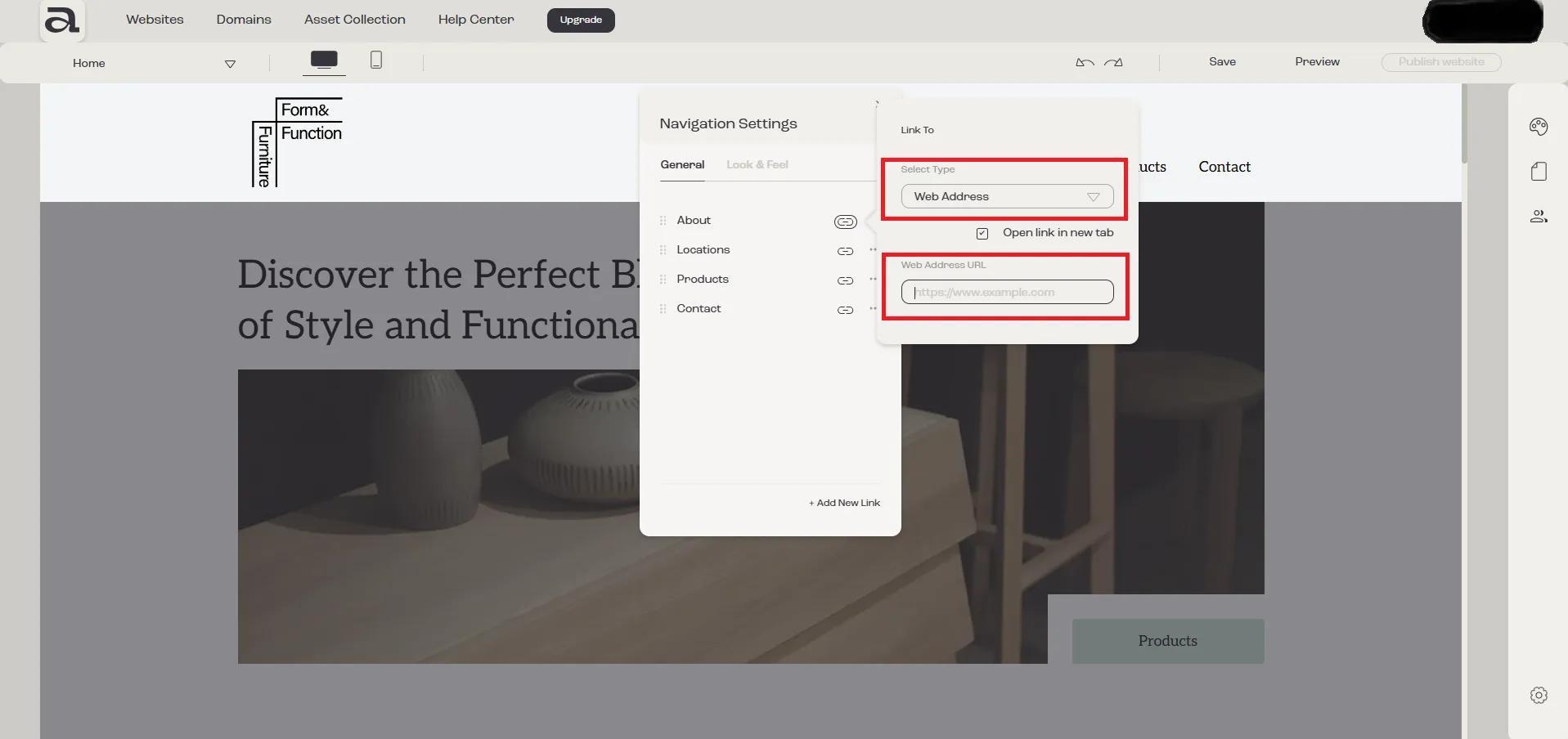
Section titled “2. Web Address”If you select “Web Address”, an input field labeled “Web Address URL” will appear, where you can enter the desired web address.
You can enter an address with or without https://; if omitted, Aphyo will automatically add it.
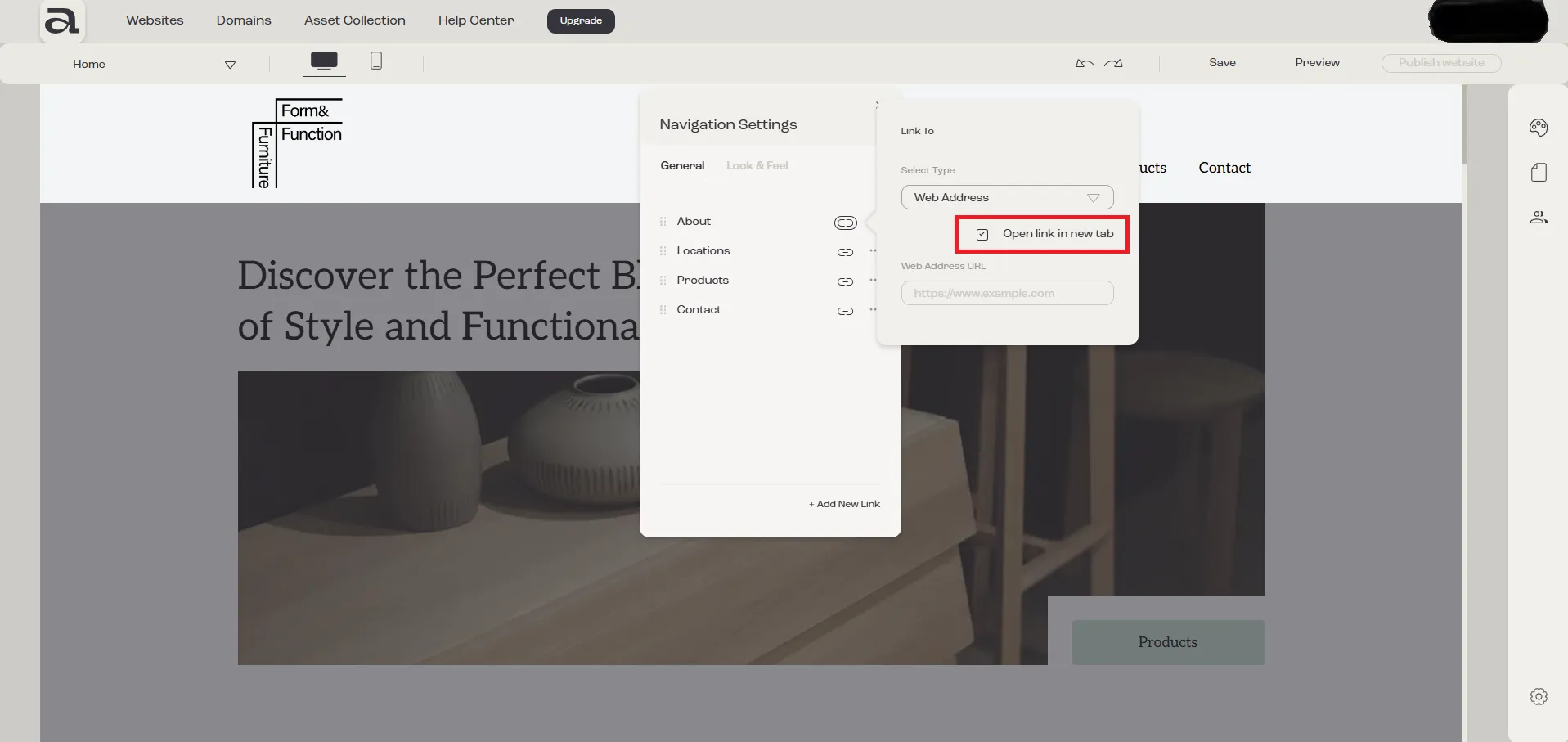
Additionally, there is an “Open link in a new tab” checkbox that you can select if you want the link to open in a new browser tab.
Next steps
Section titled “Next steps”- rename navigation link
- change navigation links order
- create navigation dropdown
- change navigation links style