

How to delete a navigation link
In this tutorial you will learn how to delete a link in the navigation element.
Step 1 - open editor
Section titled “Step 1 - open editor”Open the “Navigation Settings” editor.
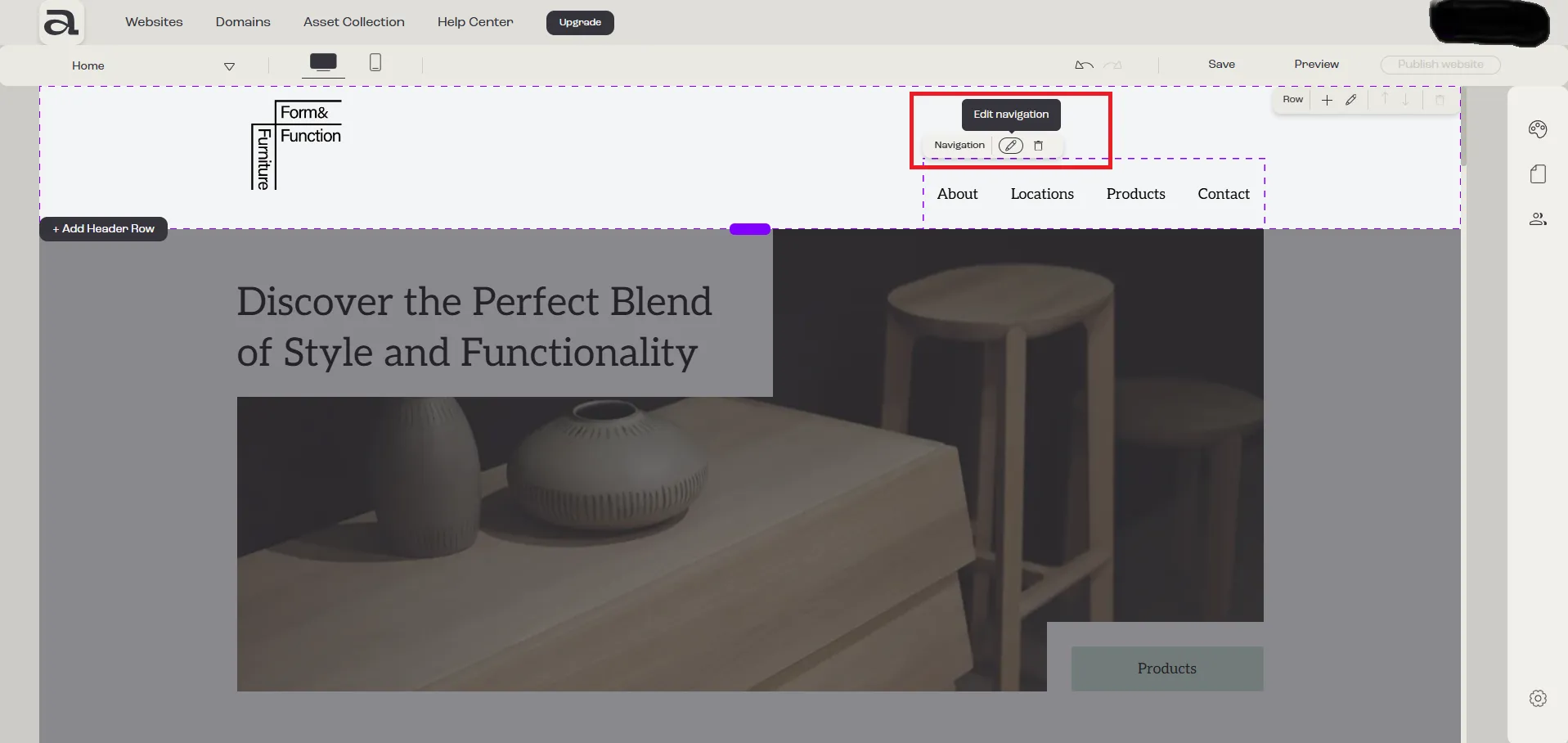
Click “Edit Navigation” on the hover menu or double-click on the “Navigation” element you want to customize.
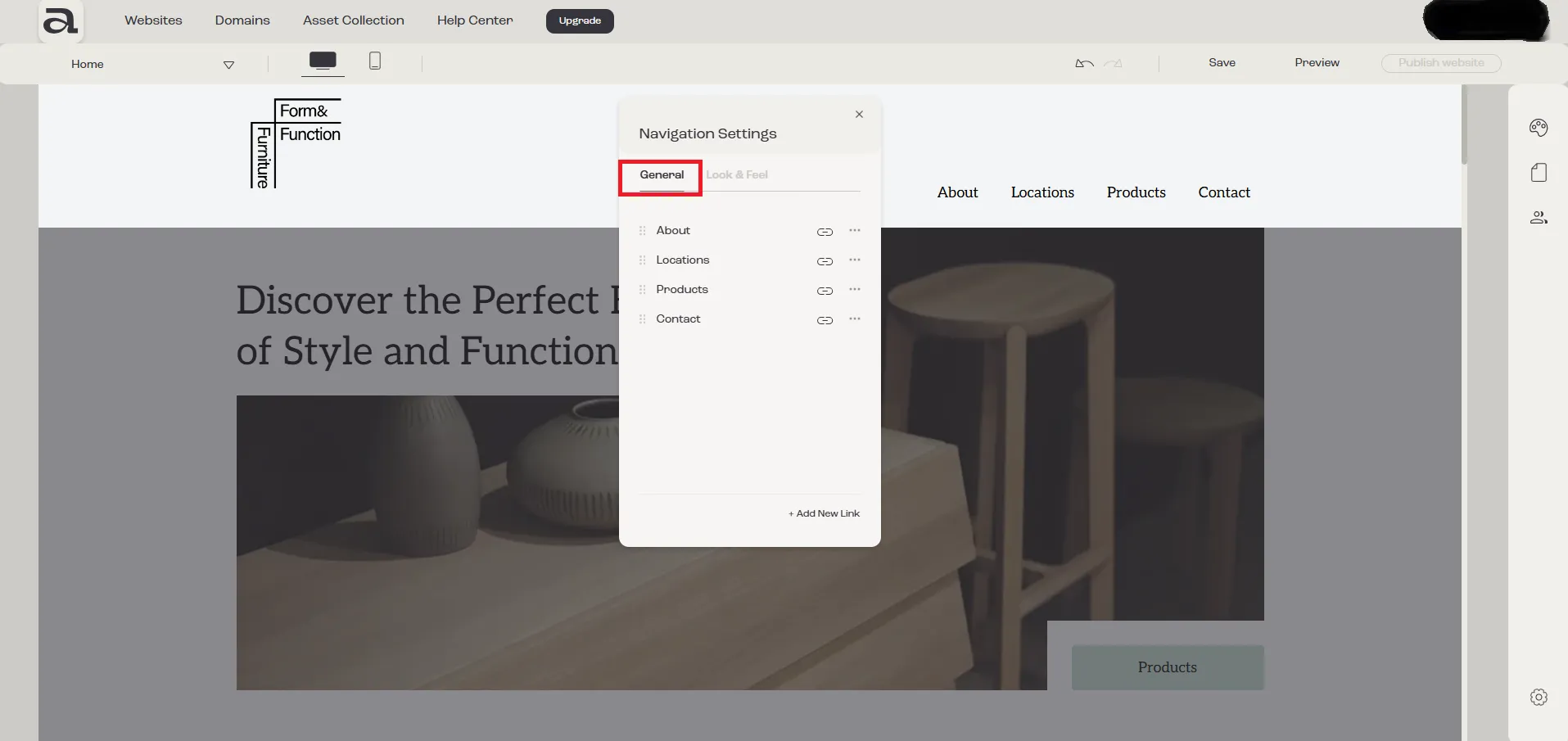
In the “Navigation Settings” editor, there are two customization categories: “General” and “Look & Feel”.
The settings we are interested in are located under the “General” tab.
Step 2 - access more actions menu
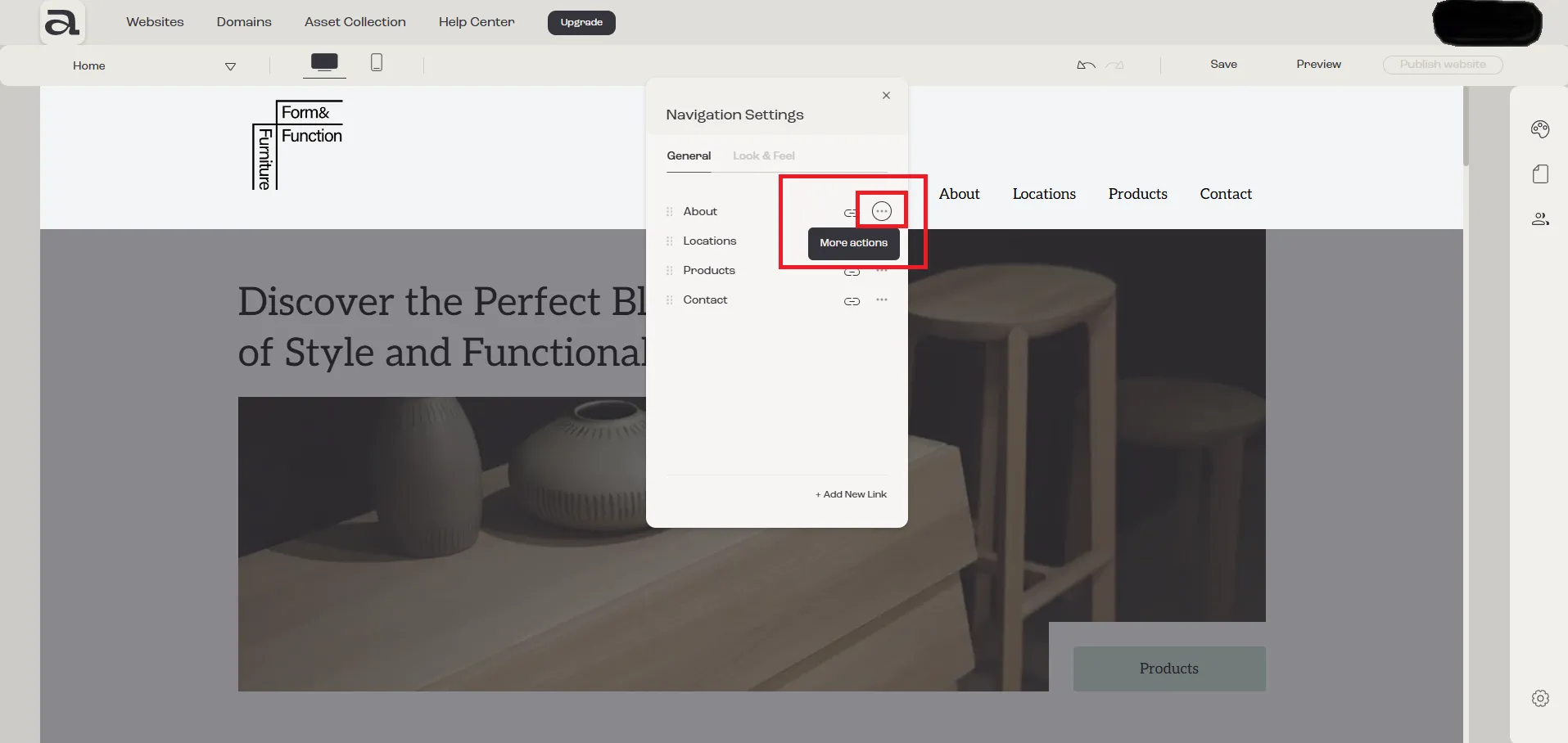
Section titled “Step 2 - access more actions menu”Click on the “More Actions” button next to the link you want to delete.
Step 3 - delete
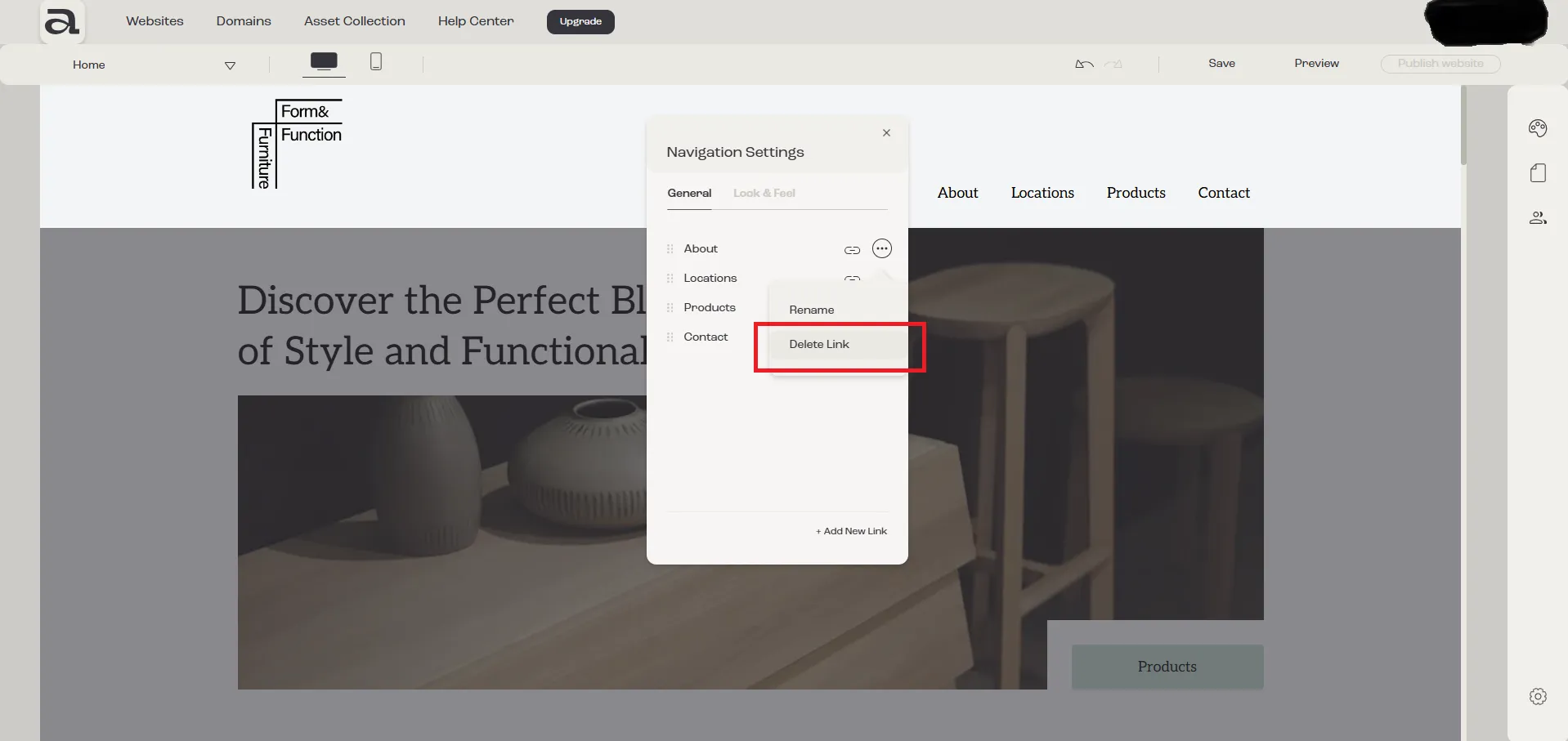
Section titled “Step 3 - delete”Select “Delete” to delete the link ☺.
Next steps
Section titled “Next steps”- change navigation links order
- change navigation links style
- add another navigation link
- rename a navigation link