
How to customize a box style
This tutorial will guide you on how to customize a box style.
Step 1 - Open Website Styles
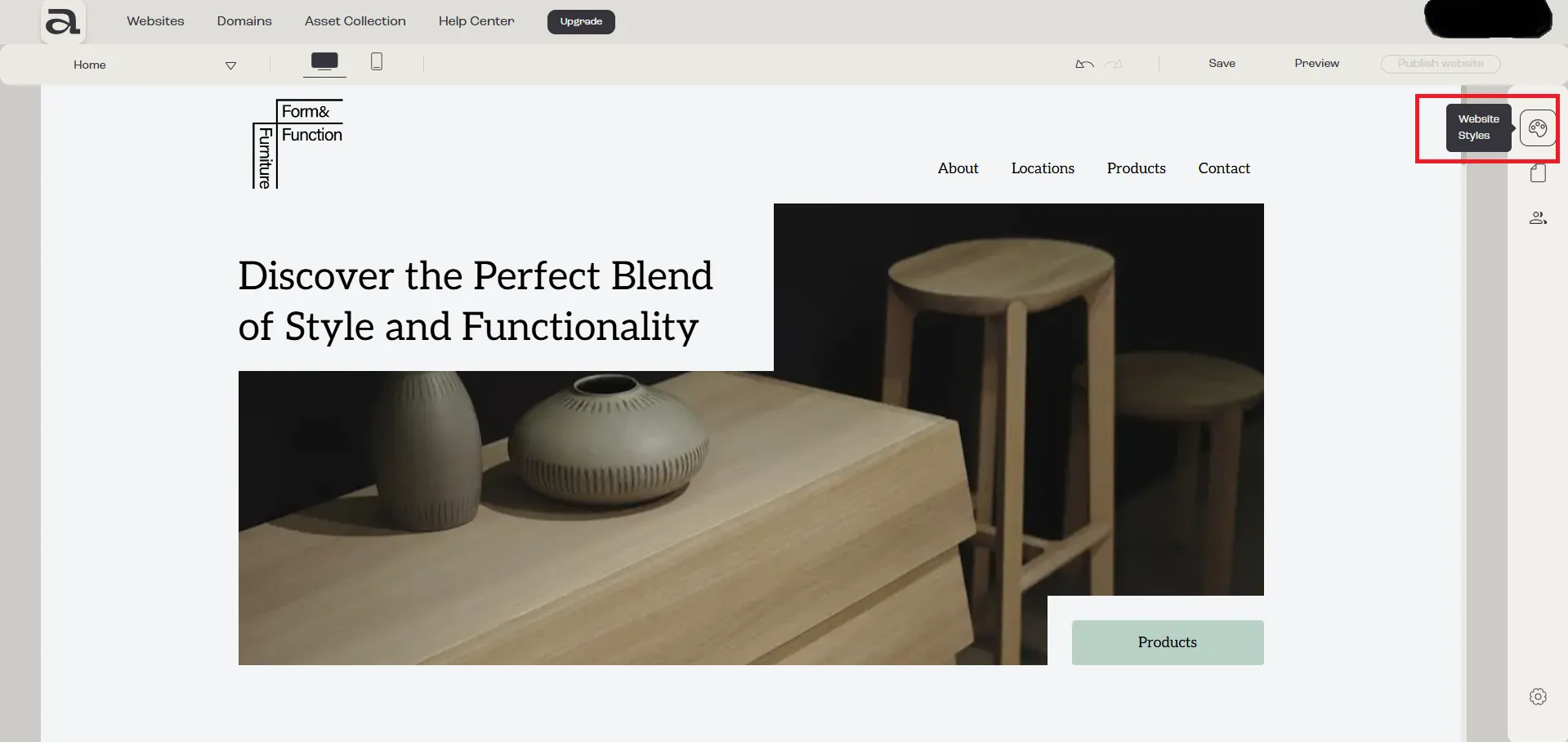
Section titled “Step 1 - Open Website Styles”Click on the “Website Styles” button.
Step 2 - Open Box Style
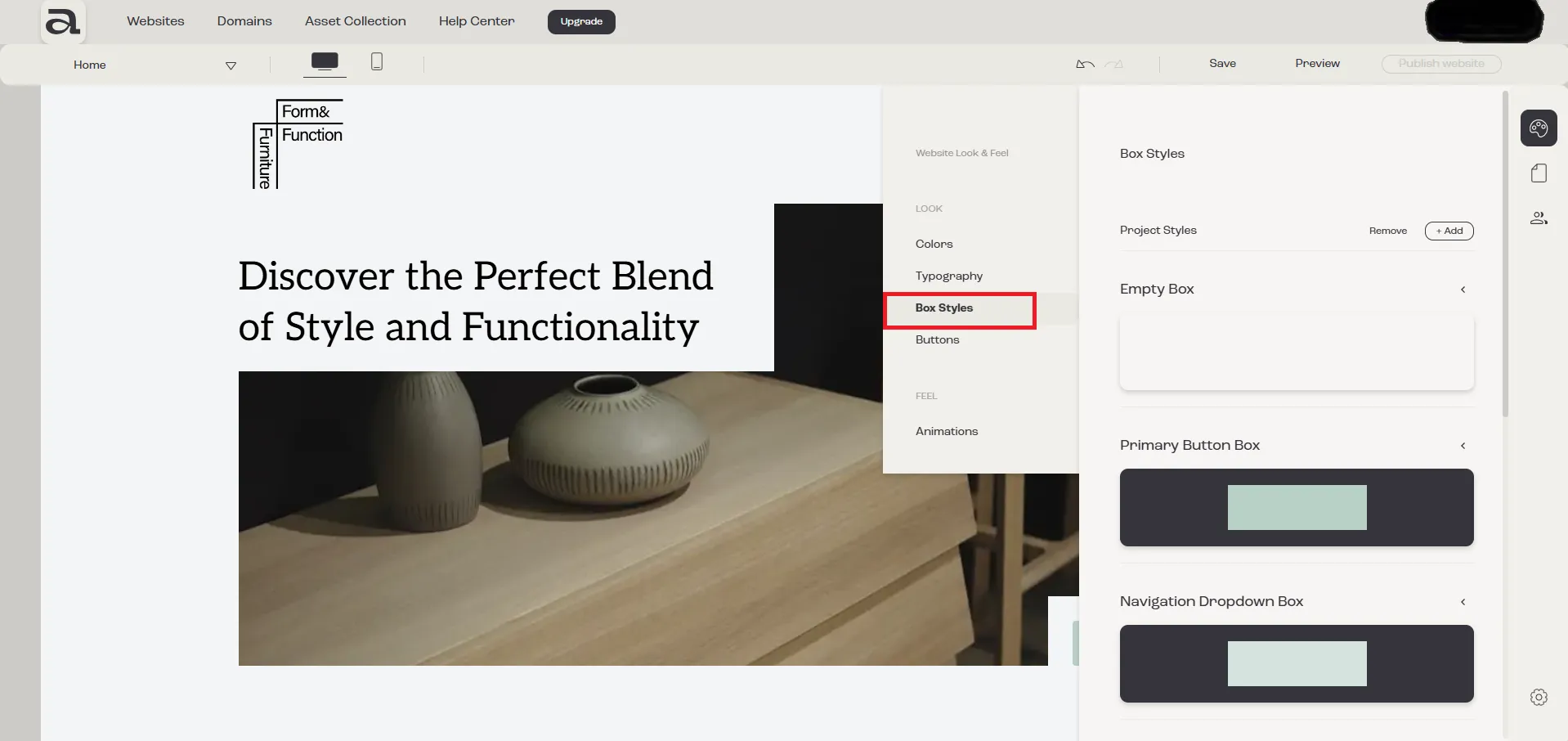
Section titled “Step 2 - Open Box Style”In the “Website Look & Feel” menu, select “Box Style”
Step 3 - Customize
Section titled “Step 3 - Customize”3.1 - Naming the Box Style
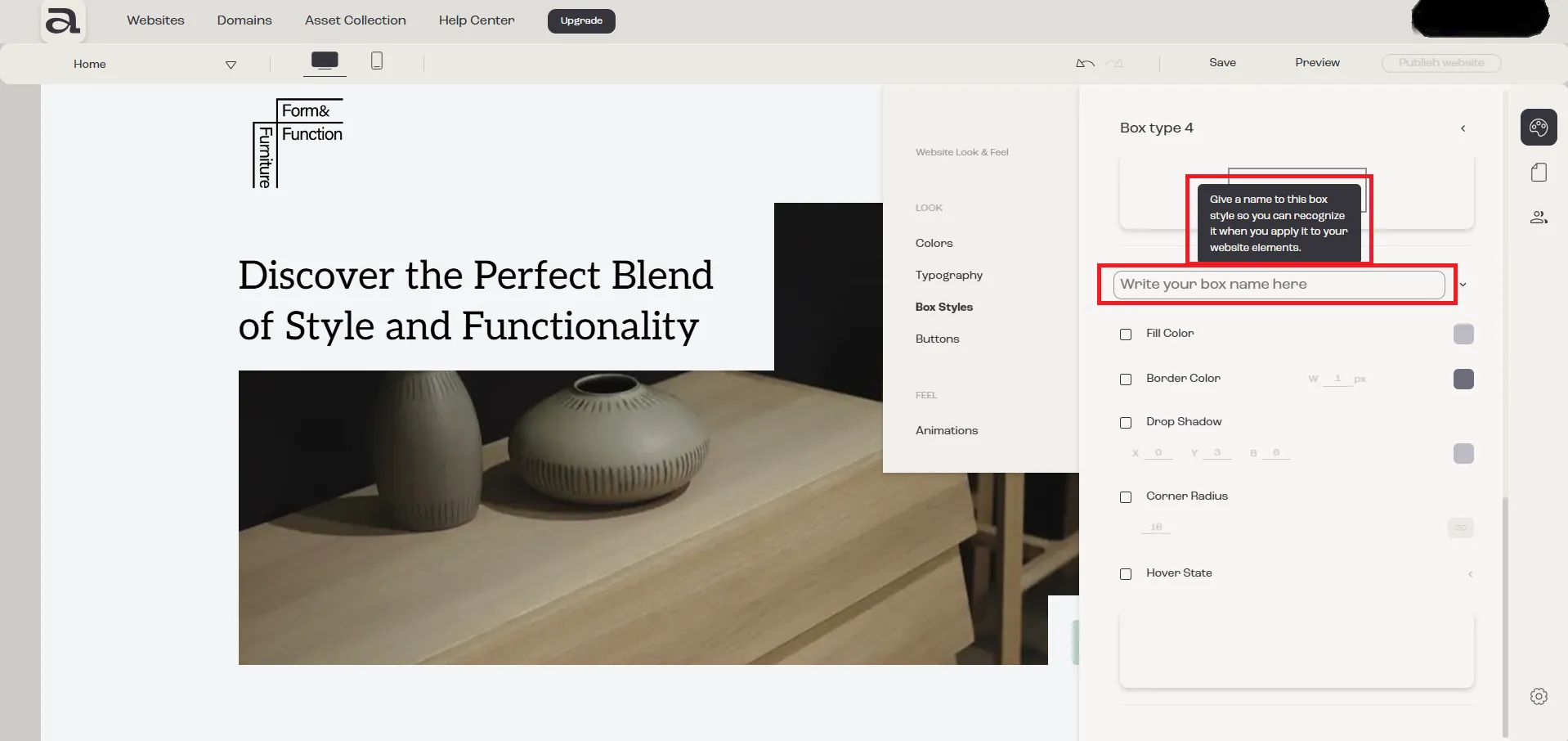
Section titled “3.1 - Naming the Box Style”First, you need to give your box style a name so you can easily recognize it when using it in your project.
Click on the “Write your box name here” input field to name it.
3.2 - Fill Color
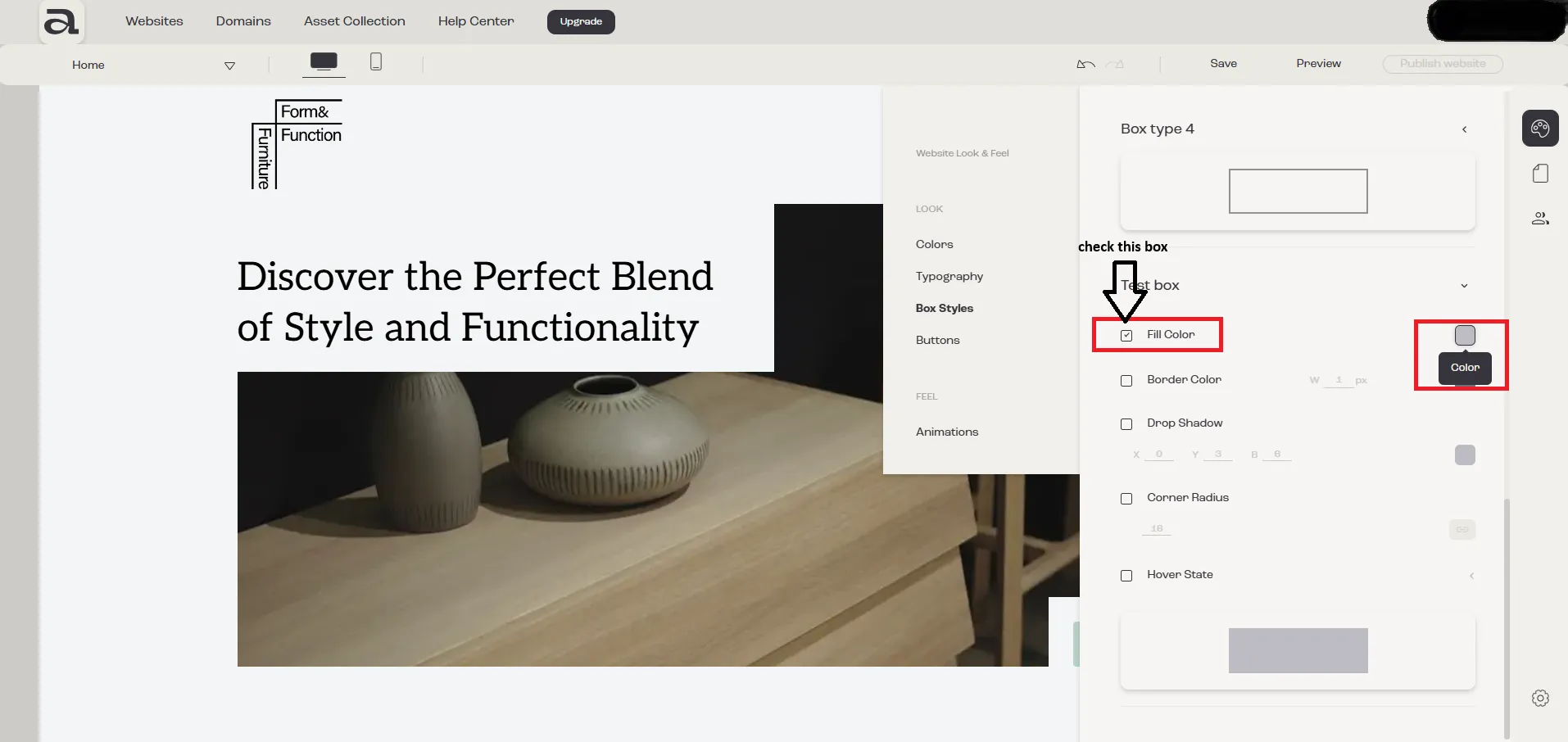
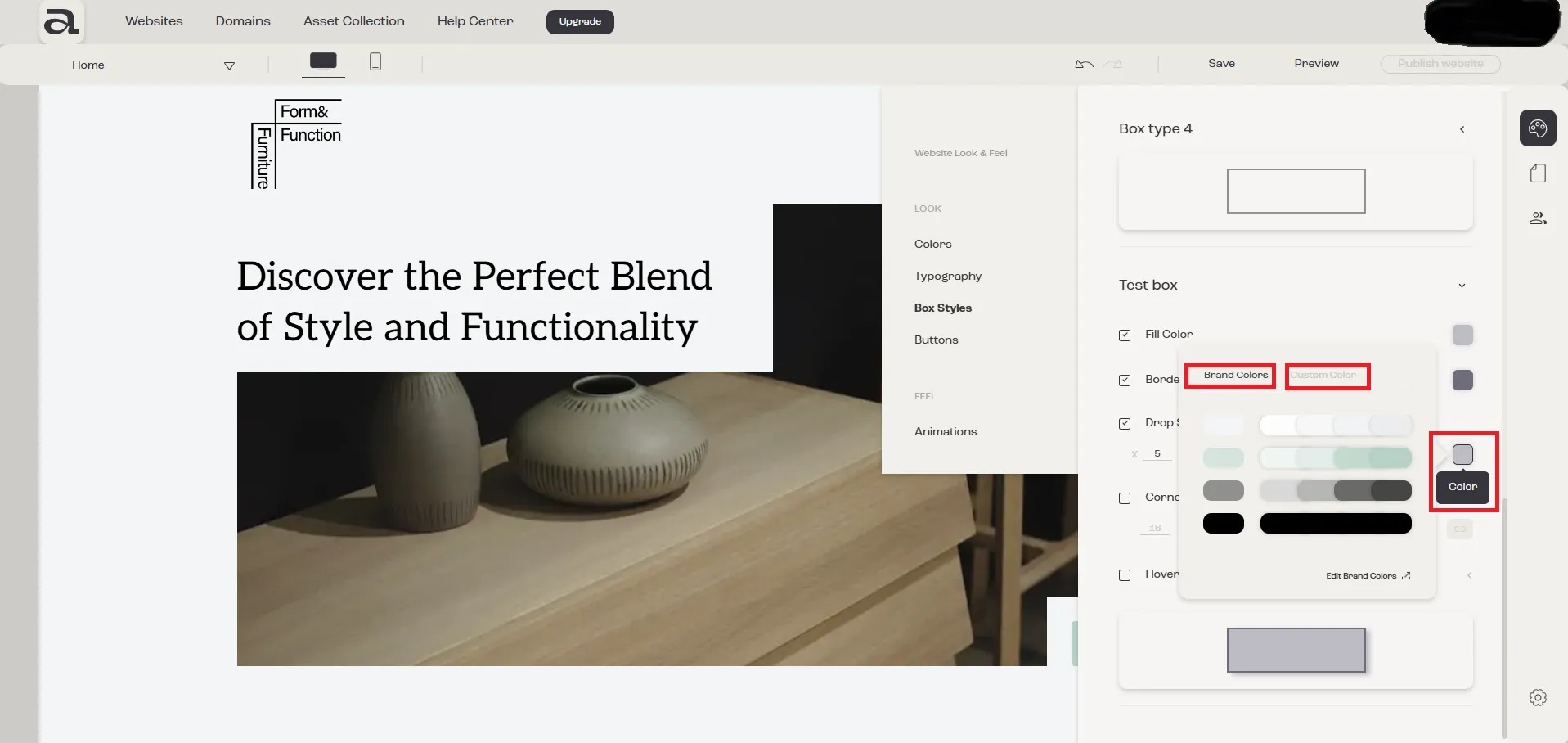
Section titled “3.2 - Fill Color”To select a fill color, you must first check the “Fill Color” checkbox.
After enabling it, click on the “Color” icon. Here, you have two options for selecting a color:
- Brand Colors
- Custom Colors
3.3 - Border Color and Thickness
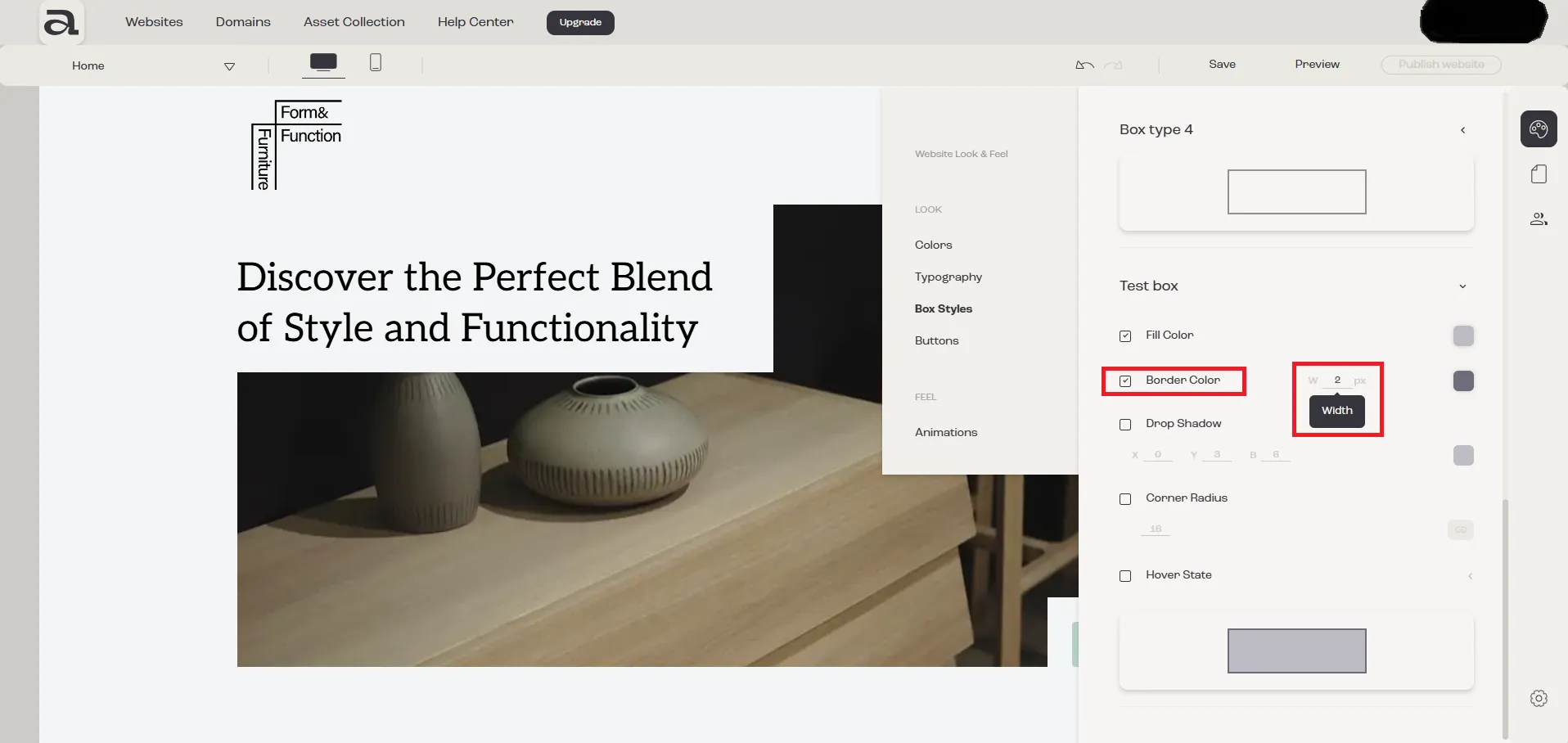
Section titled “3.3 - Border Color and Thickness”To enable and customize the border, check the “Border Color” checkbox.
Once enabled, you can modify both the border thickness and its color.
a) Border Thickness
Click on the “Width” input field and enter a value between 1 and 100 pixels.
b) Border Color
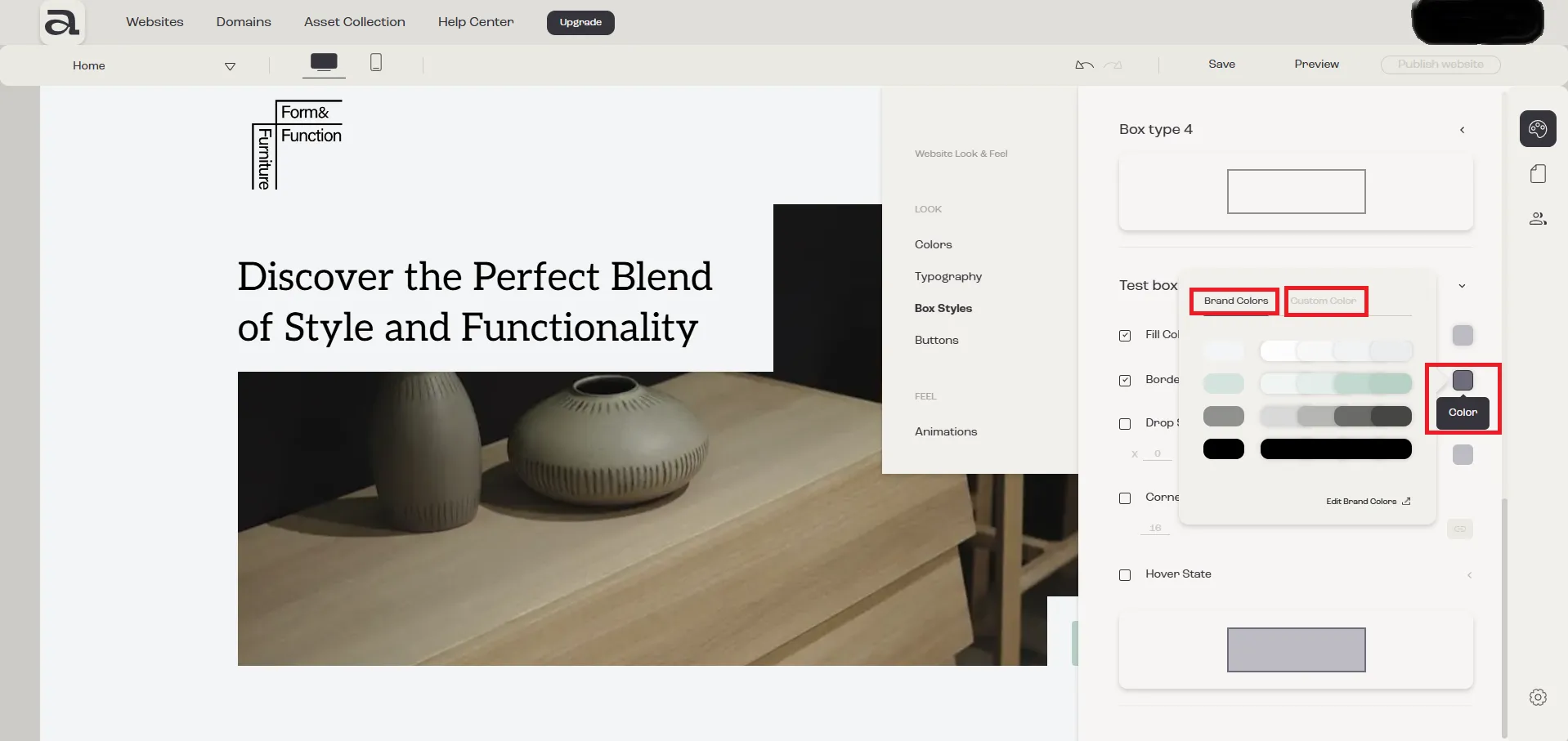
Click on the “Color” icon to select a color. You have two options:
- Brand Colors
- Custom Colors
3.4 - Drop Shadow
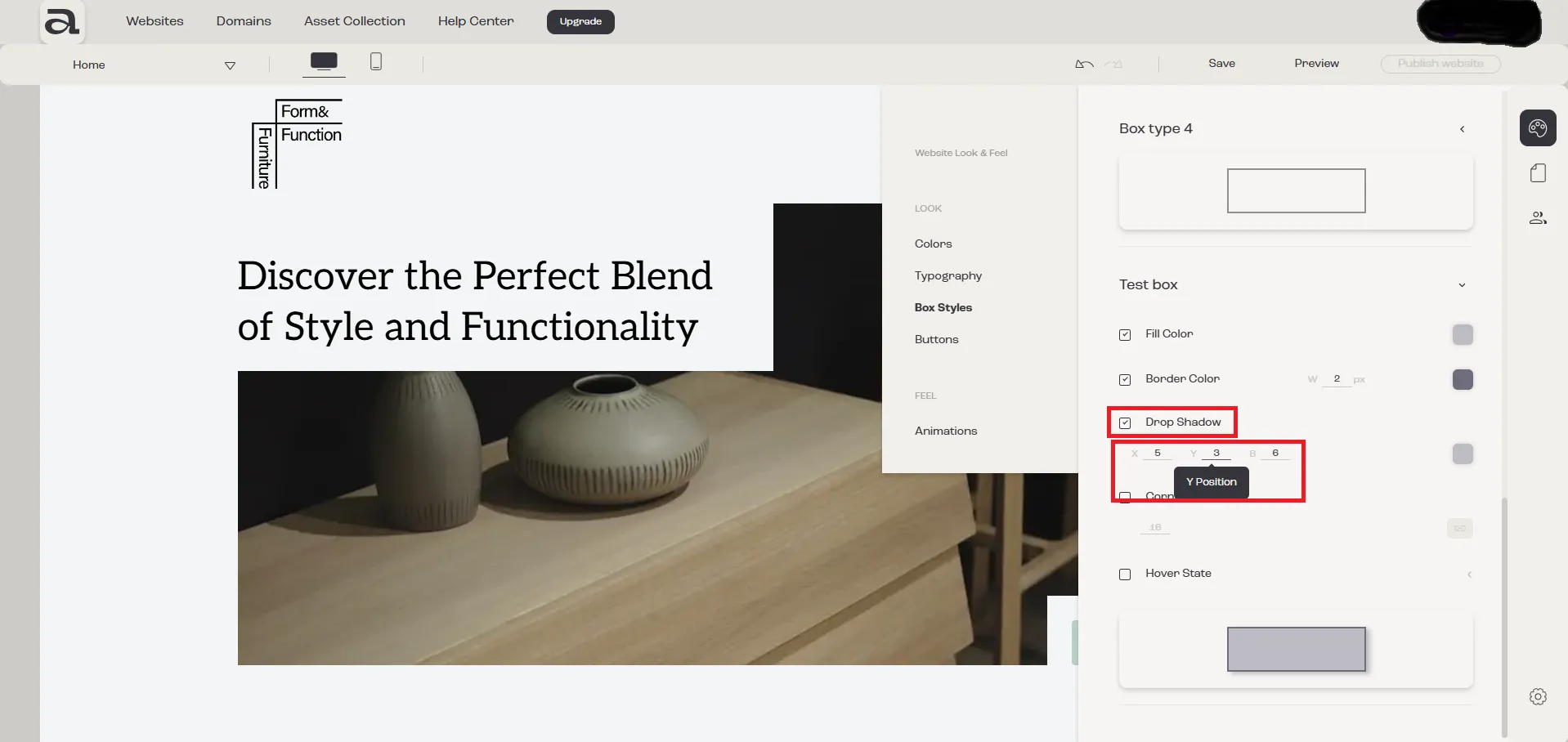
Section titled “3.4 - Drop Shadow”To enable and customize the drop shadow, check the “Drop Shadow” checkbox.
a) Adjusting Horizontal and Vertical Position
- Modify the Horizontal Position by entering a value in the “X” input field (min: -100 pixels, max: 100 pixels).
- Modify the Vertical Position by entering a value in the “Y” input field (min: -100 pixels, max: 100 pixels).
b) Adjusting Blur
Set the “Blur” level by clicking on the “B” input field (min: 0 pixels, max: 100 pixels).
c) Drop Shadow Color
Click on the “Color” icon to choose a shadow color. You have two options:
- Brand Colors
- Custom Colors
3.5 - Corner Radius
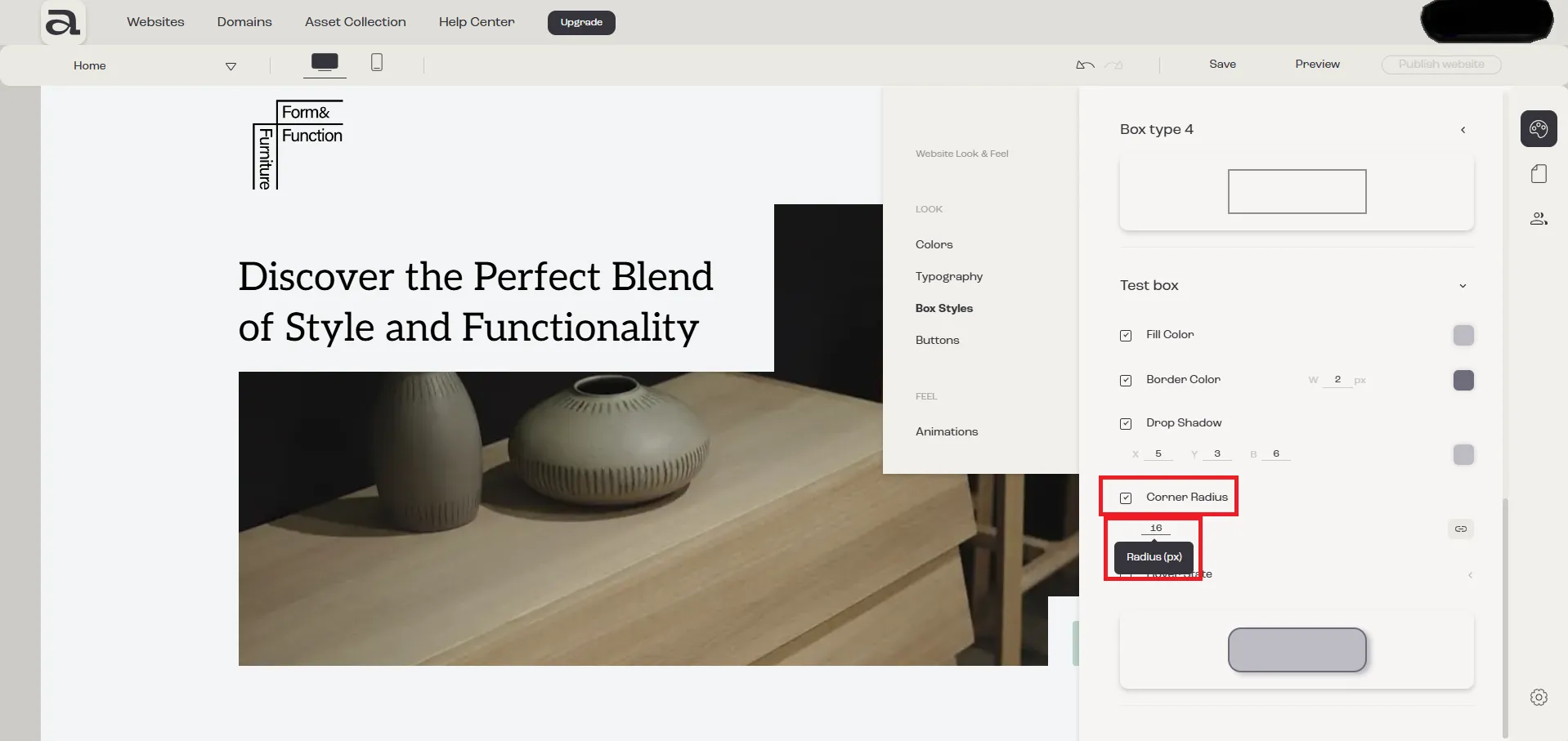
Section titled “3.5 - Corner Radius”To adjust the Corner Radius, check the “Corner Radius” checkbox.
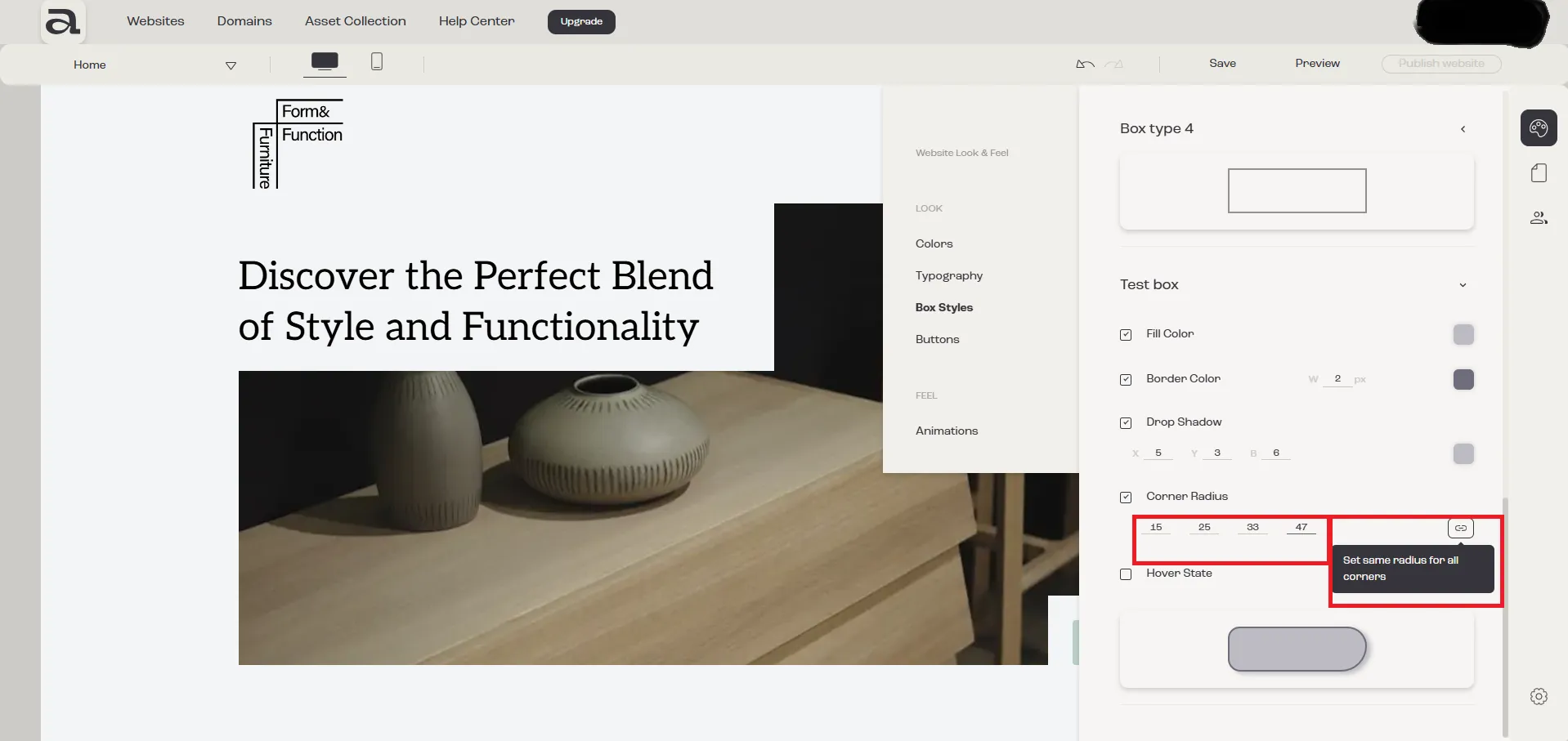
After enabling it, you have two options:
a) Use the same value for all corners.
b) Customize each corner individually with different values.
3.6 - Hover State
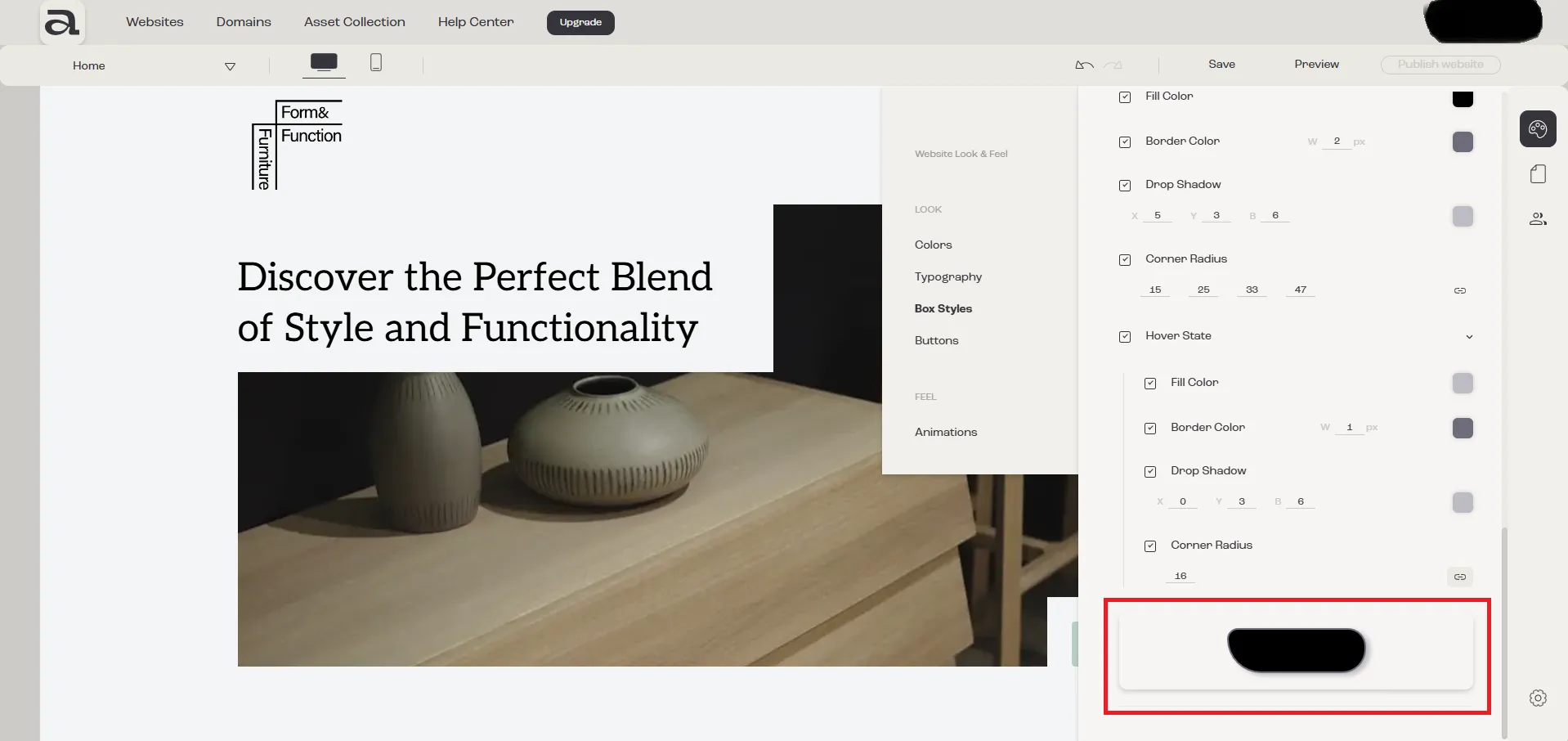
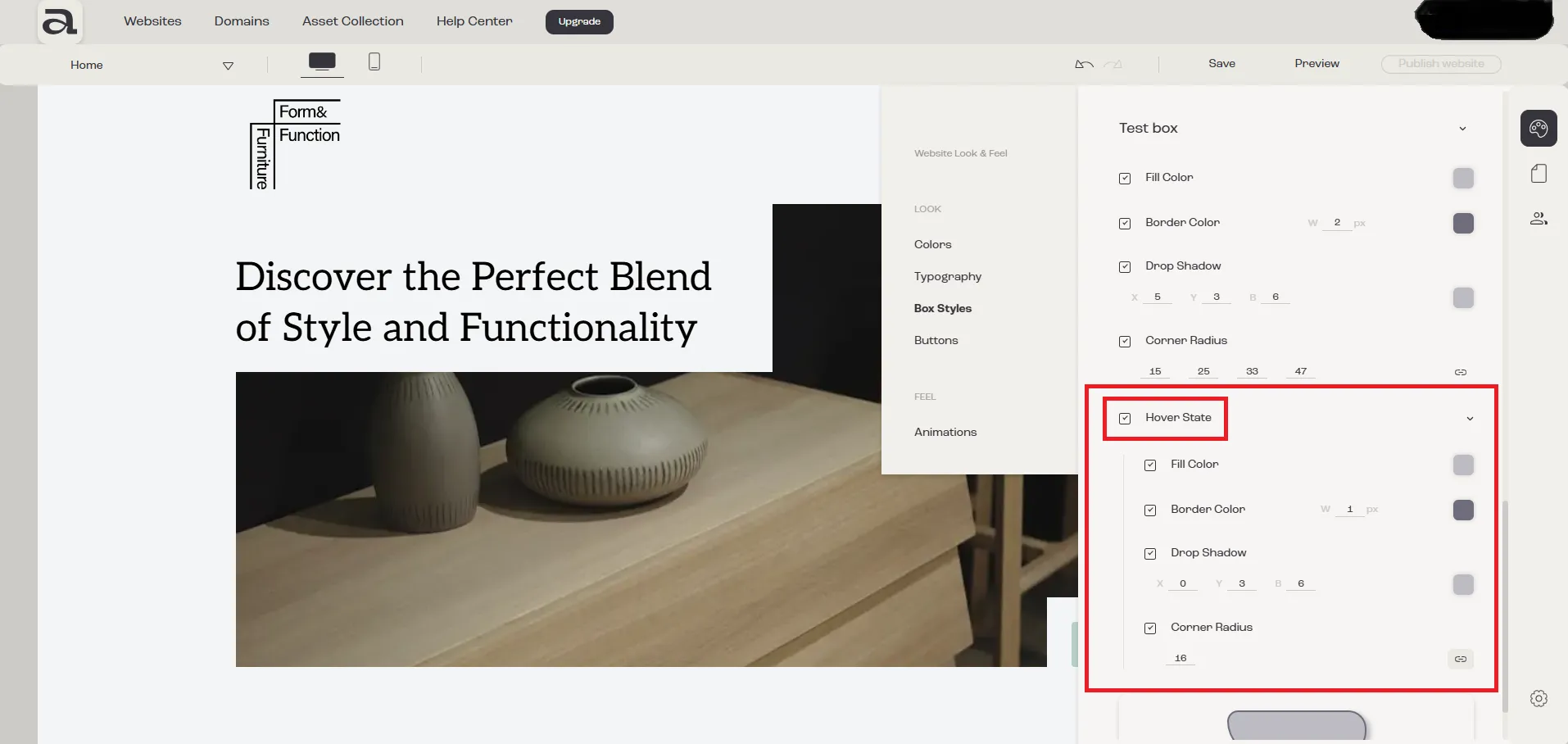
Section titled “3.6 - Hover State”The configuration process mirrors that of “Fill Color”, “Border Color”, “Drop Shadow”, and “Corner Radius”.
Step 4 - Preview Box Style
Section titled “Step 4 - Preview Box Style”In the Preview Box, the background color adjusts automatically for better visibility.
a) If the box color is light, the background color will be dark.
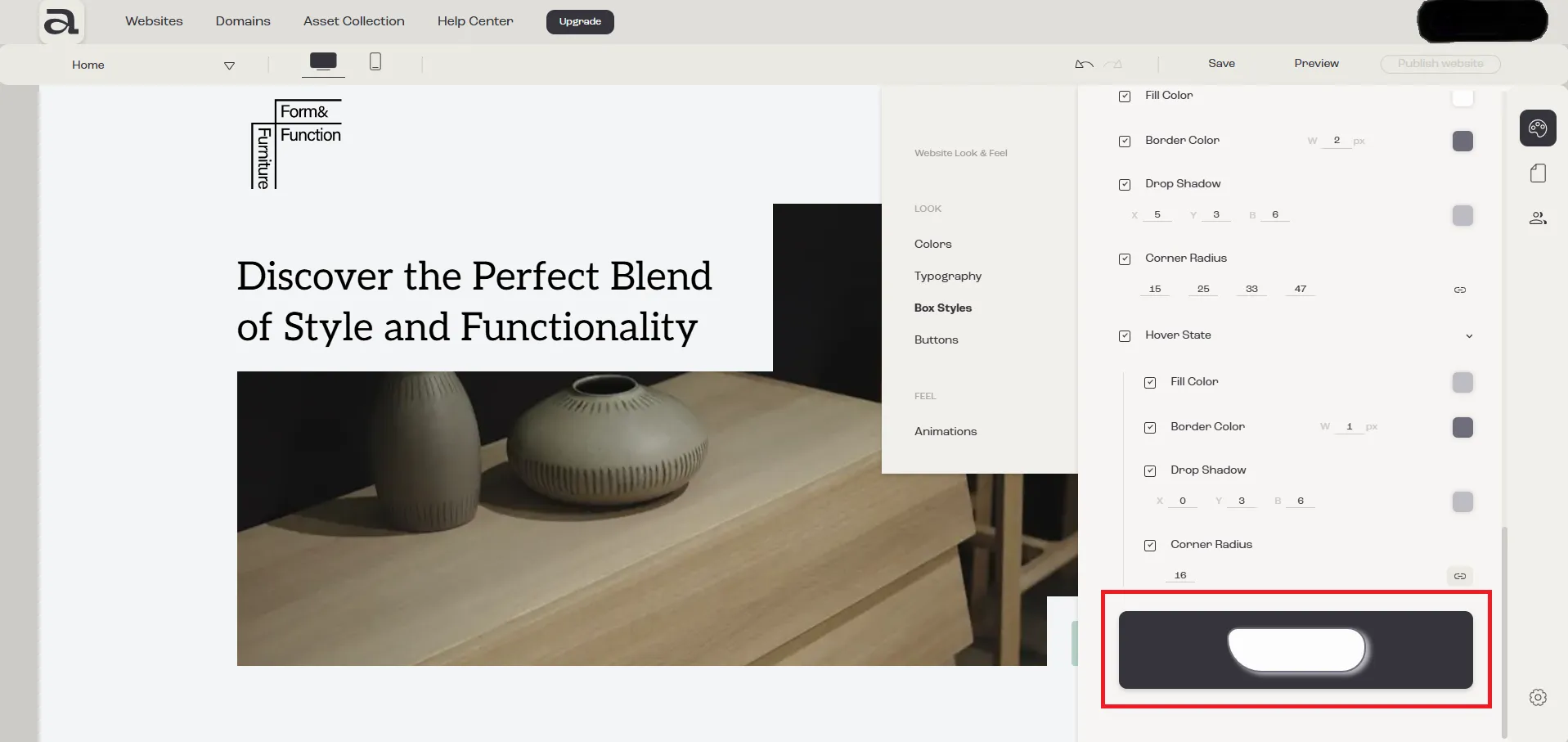
b) If the box color is dark, the background color will be light.