

How to create a dropdown in navigation
In this guide, you will learn how to create a dropdown menu in your website’s navigation.
Step 1 - open editor
Section titled “Step 1 - open editor”Open the “Navigation Settings” editor.
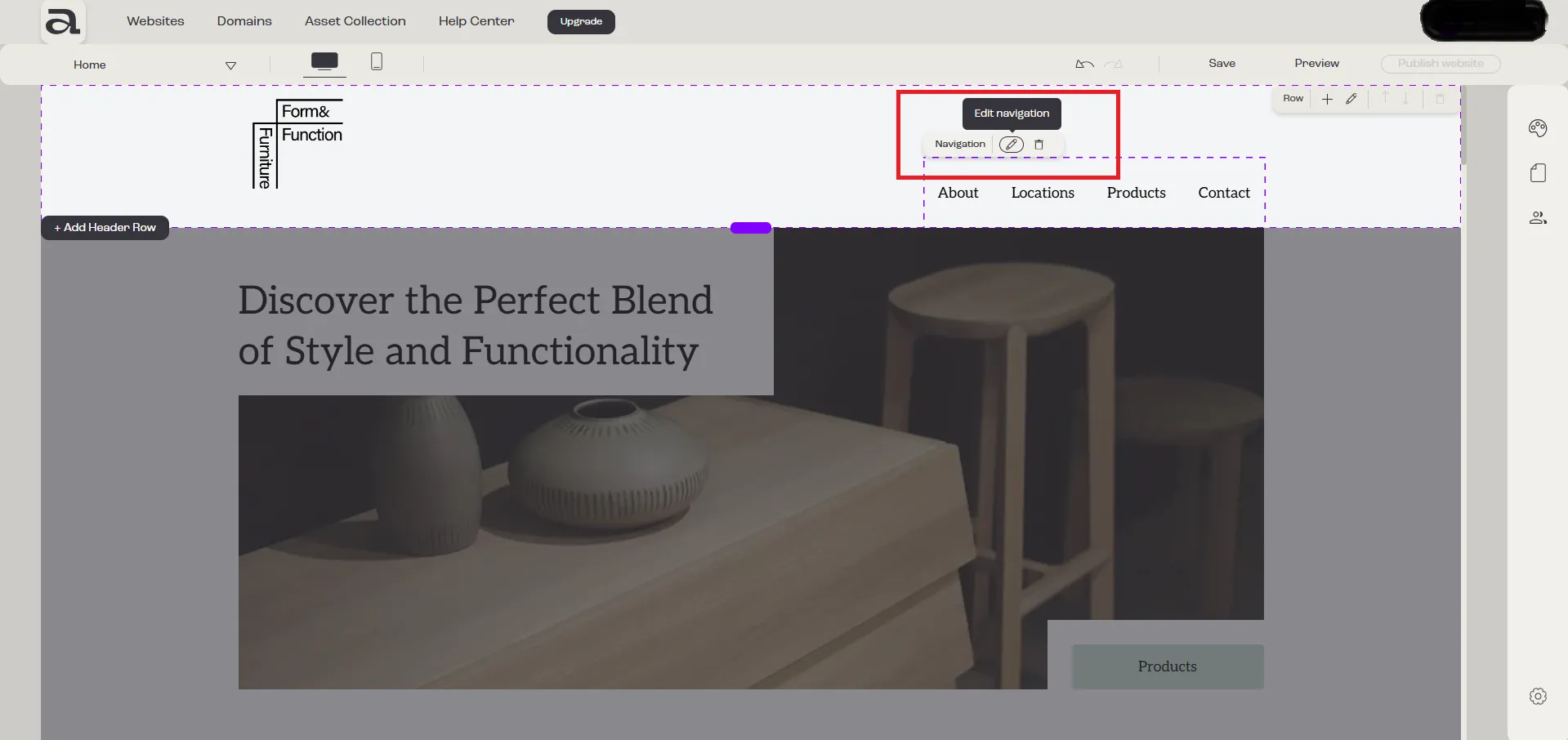
Click “Edit Navigation” on the hover menu or double-click on the “Navigation” element you want to customize.
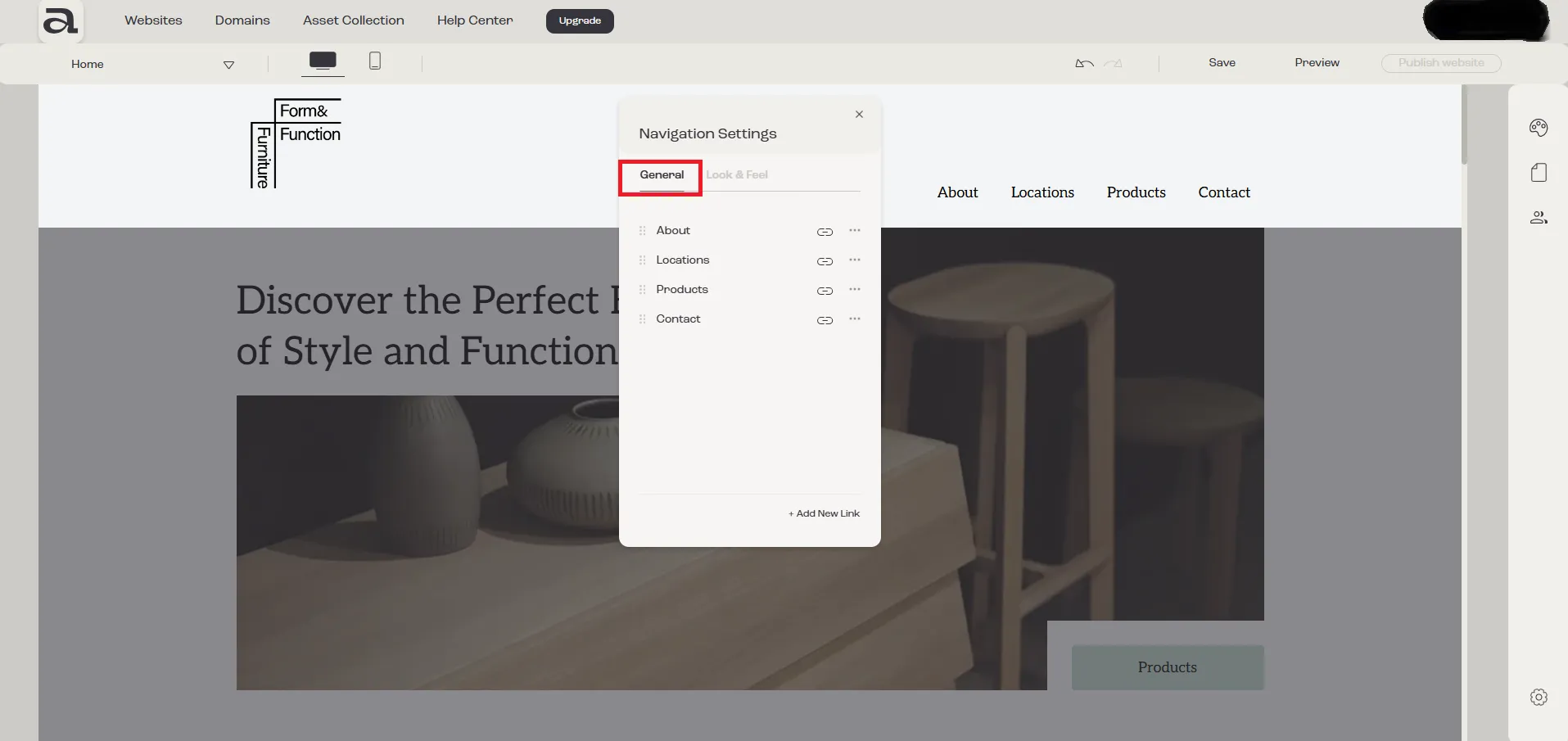
In the “Navigation Settings” editor, there are two customization categories: “General” and “Look & Feel”.
The settings we are interested in are located under the “General” tab.
Step 2 - drag & drop
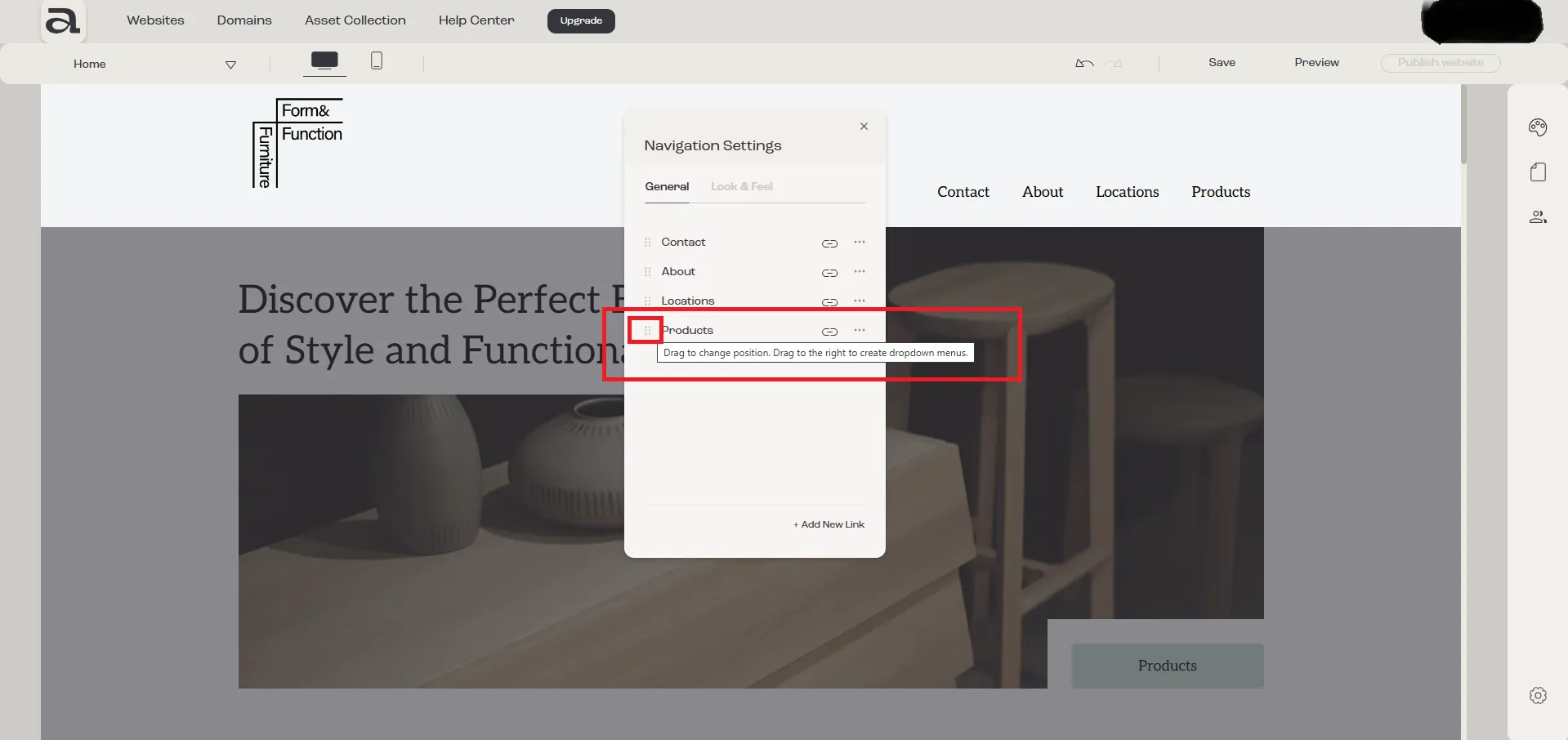
Section titled “Step 2 - drag & drop”To create a dropdown we will make use of the drag and drop functionality.
Click on the icon to the left of the link you want to move.
Drag the link to the right and then upwards or downwards, dropping it over the link where you want to create the dropdown.
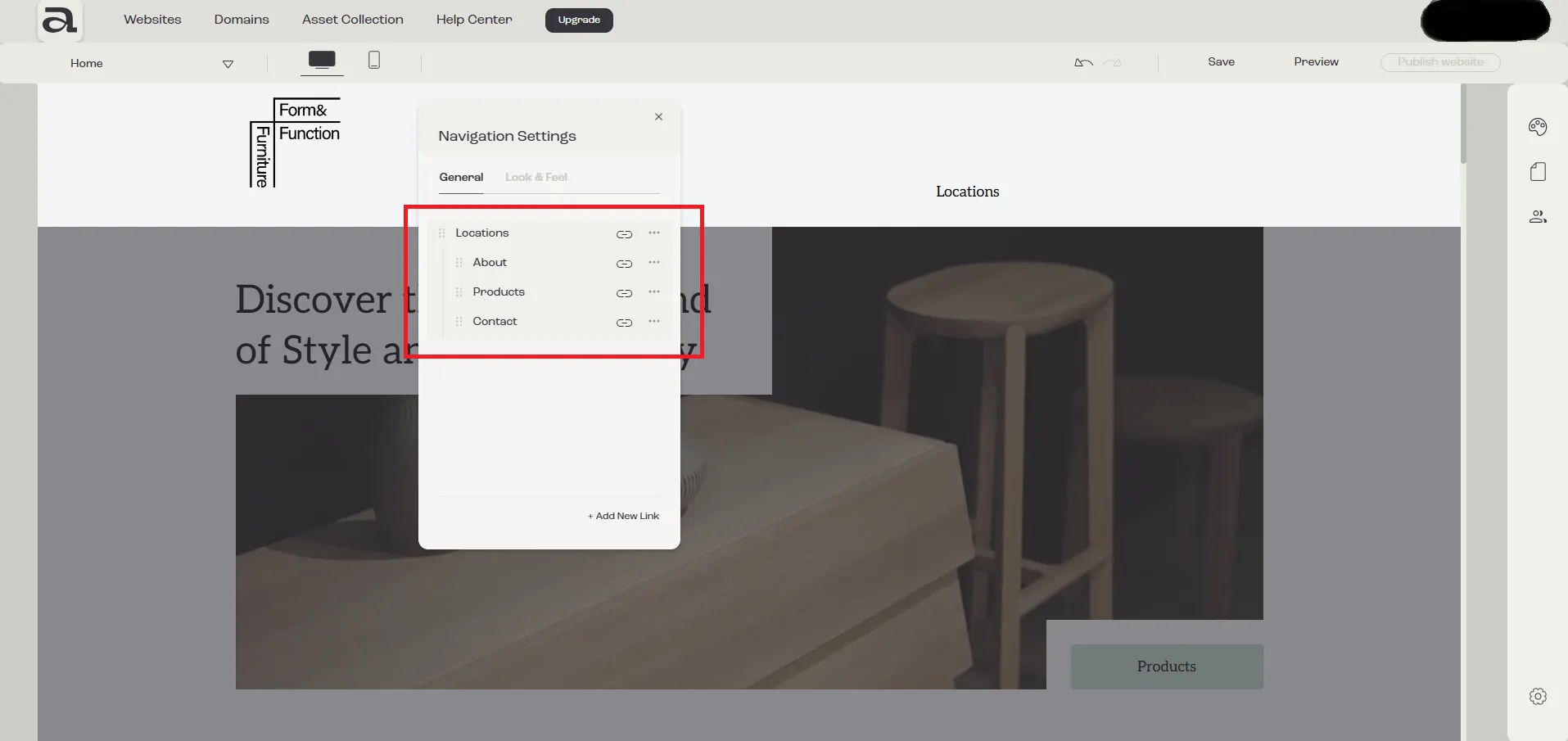
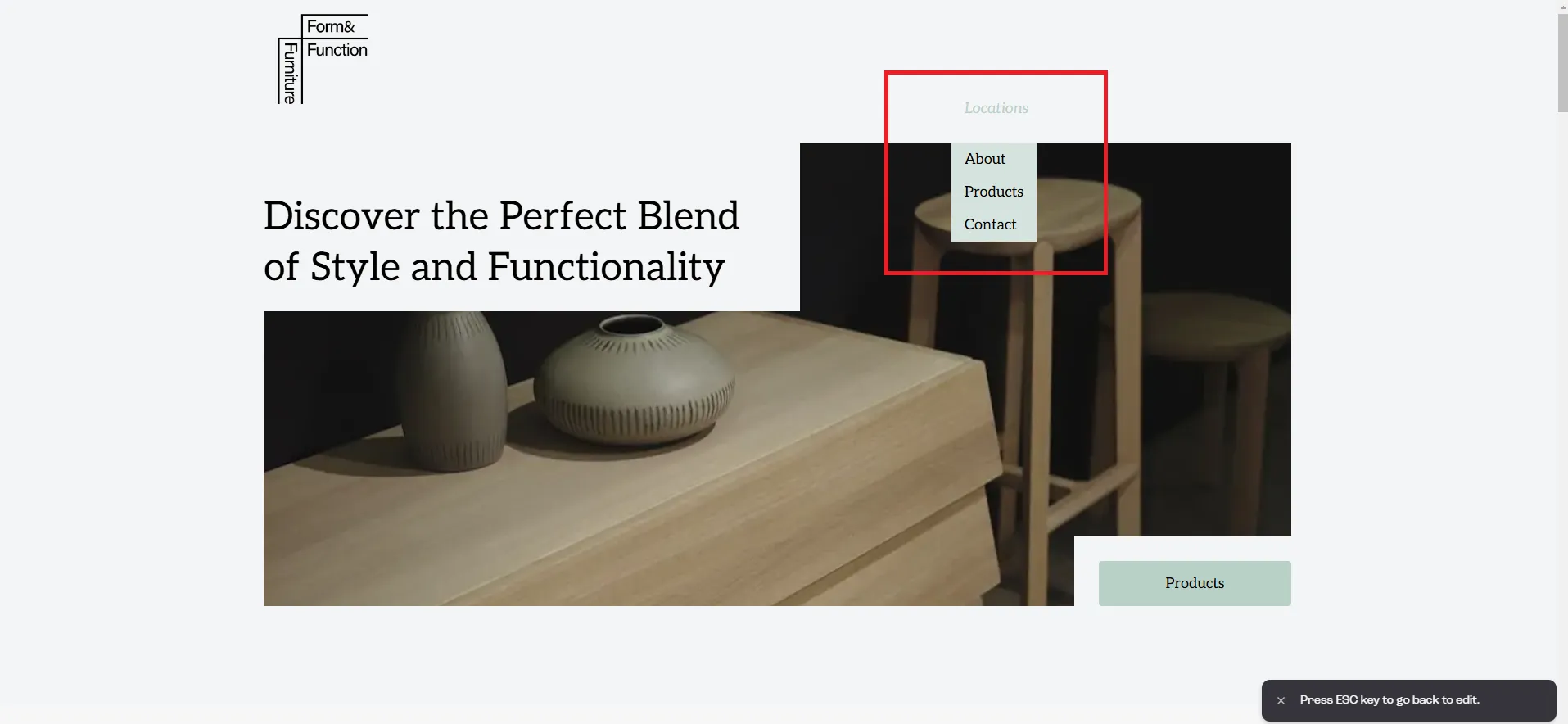
If you followed the steps correctly, the navigation menu should now display the dropdown structure as intended.
Switch to “Preview” mode to see how the dropdown will look to visitors.
Next steps
Section titled “Next steps”- rename navigation link
- change navigation links order
- change navigation links style
- add a another navigation link