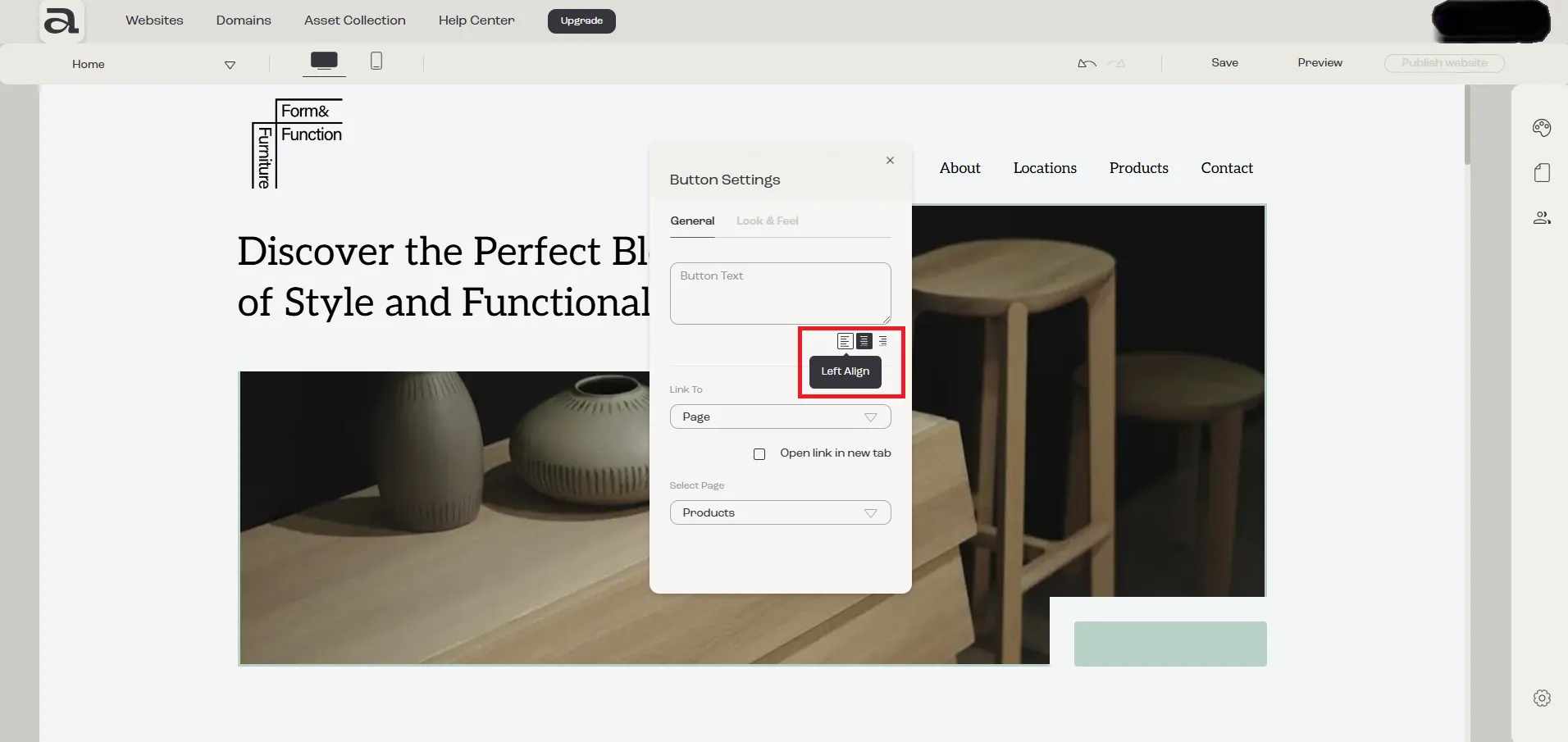

How to change button text
This tutorial will guide you on how to change the text on a “Button” element.
Step 1
Section titled “Step 1”Open the “Button Settings” editor.
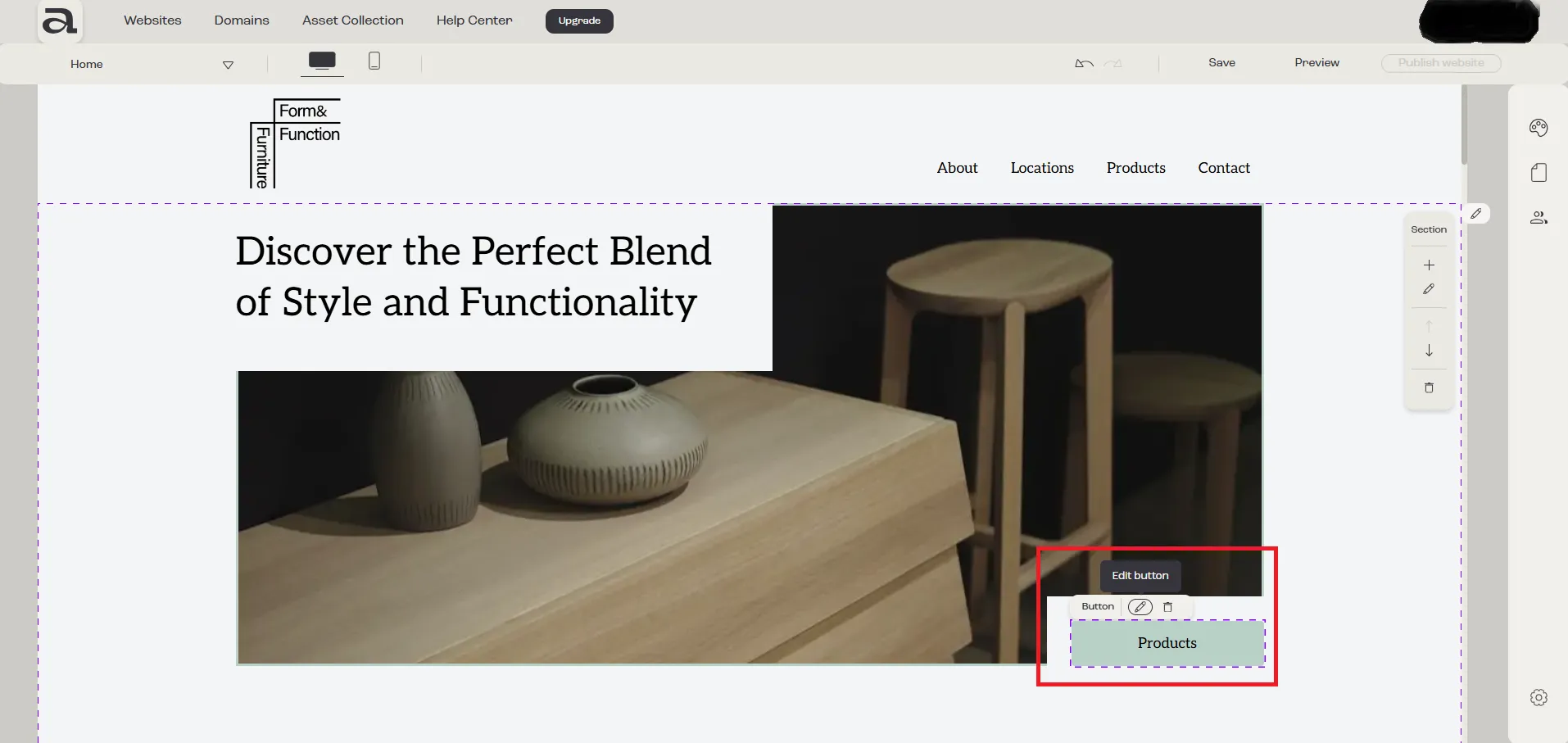
Click “Edit Button” on the hover menu or double-click on the “Button” element you want to customize.
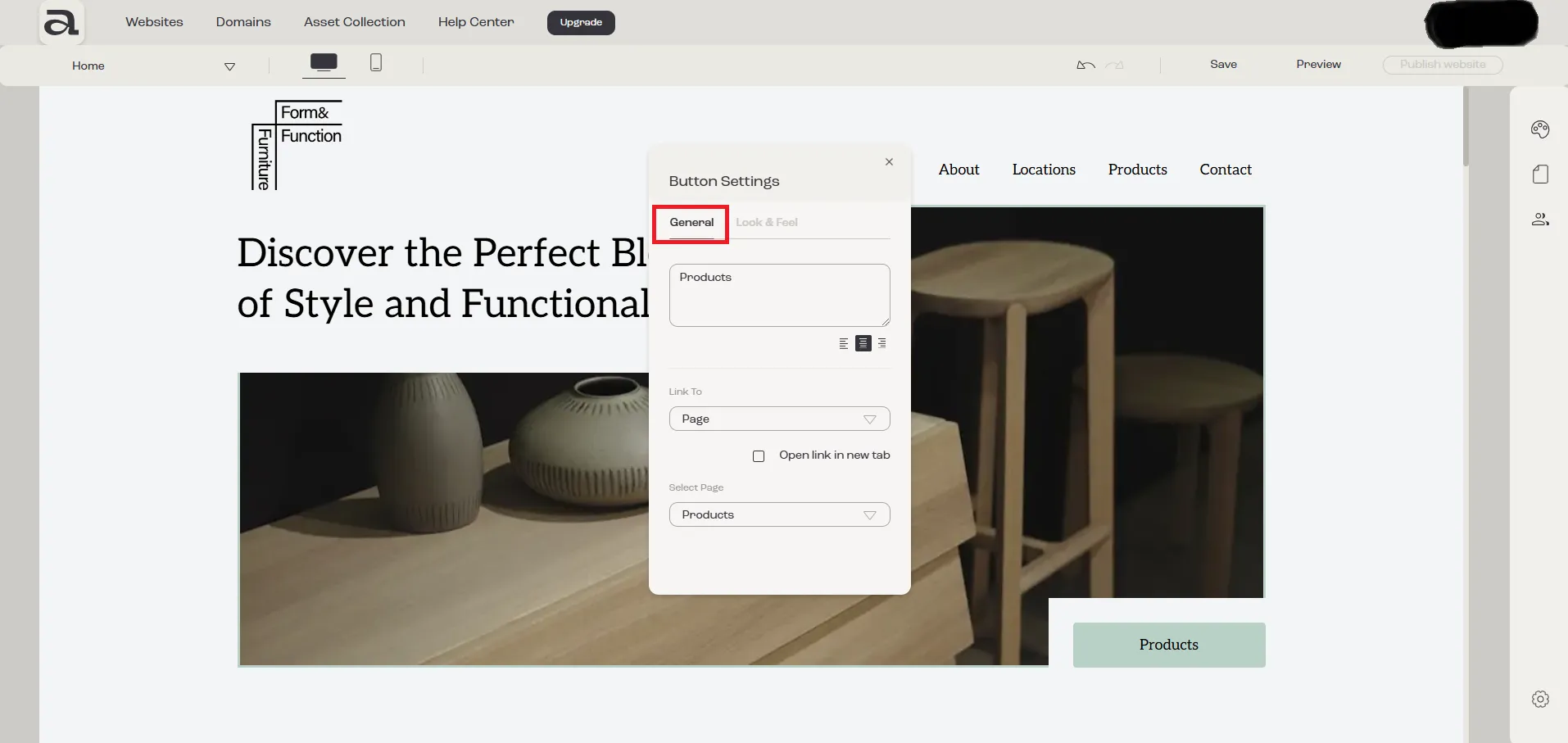
In the “Button Settings” editor, there are two customization categories: “General” and “Look & Feel”.
The settings we are interested in are located under the “General” tab.
Step 2
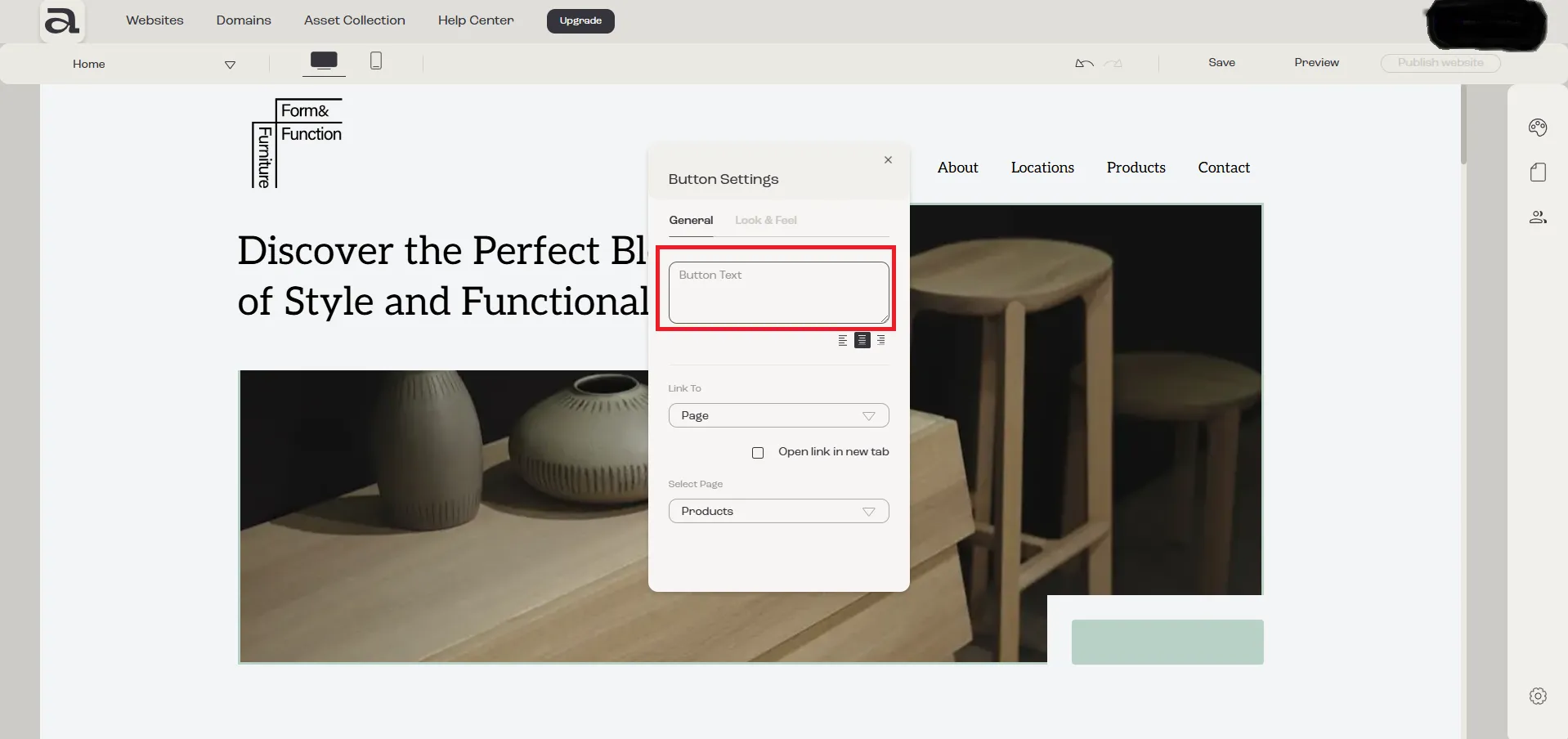
Section titled “Step 2”Click on the “Button Text” input field.
Here, you can modify the text of the “Button” element.
You can also adjust the text alignment to left, center, or right using the alignment buttons.