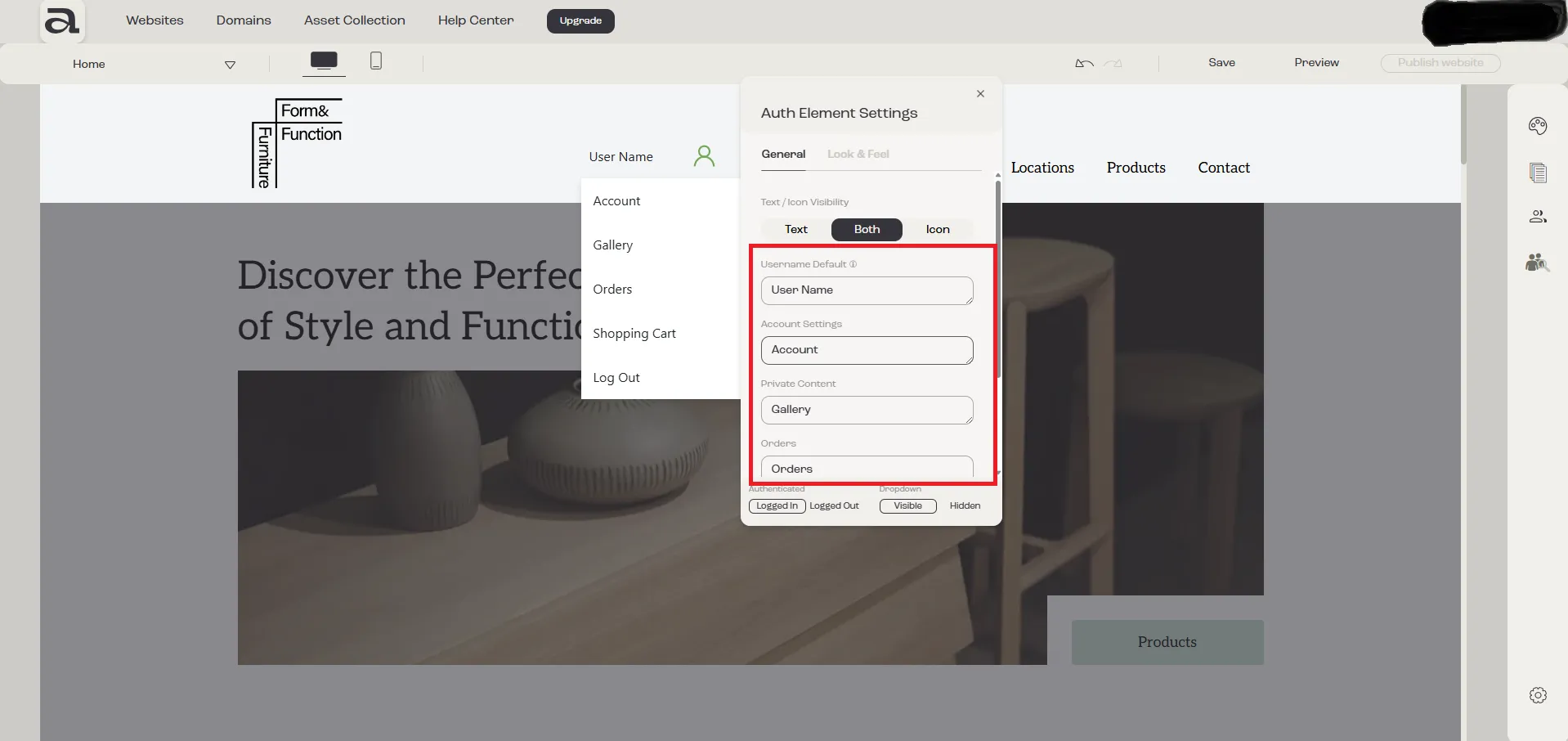

How to edit authentication element texts
In this tutorial, you’ll learn how to edit the texts of the authentication element.
Step 1 - Open Authentication Element Settings
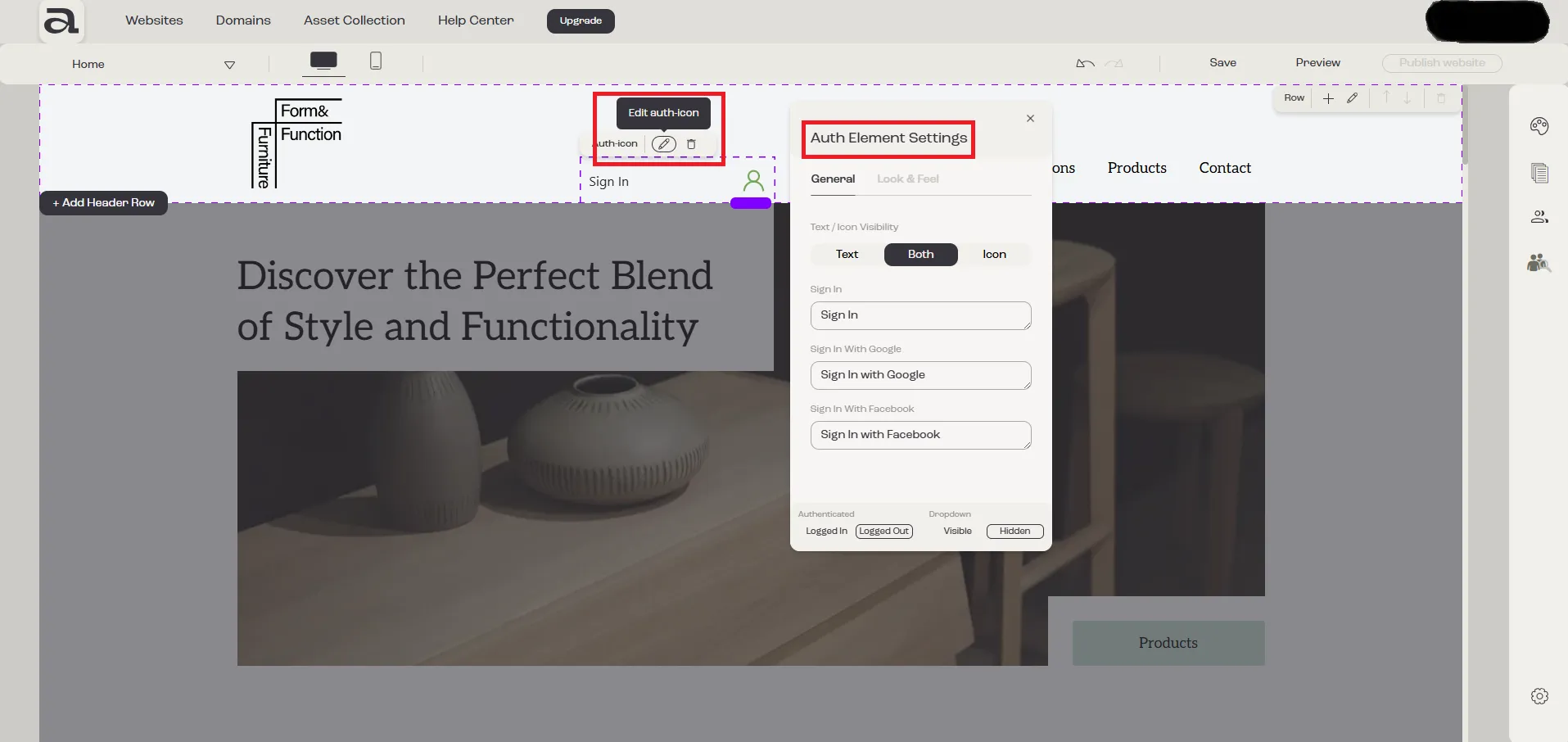
Section titled “Step 1 - Open Authentication Element Settings”To open the Auth Element Settings menu, you have two options:
- Hover over the Auth-icon element and click the “Edit Auth-icon” button;
- Double-click on the Auth-icon element.
Step 2 - General Tab
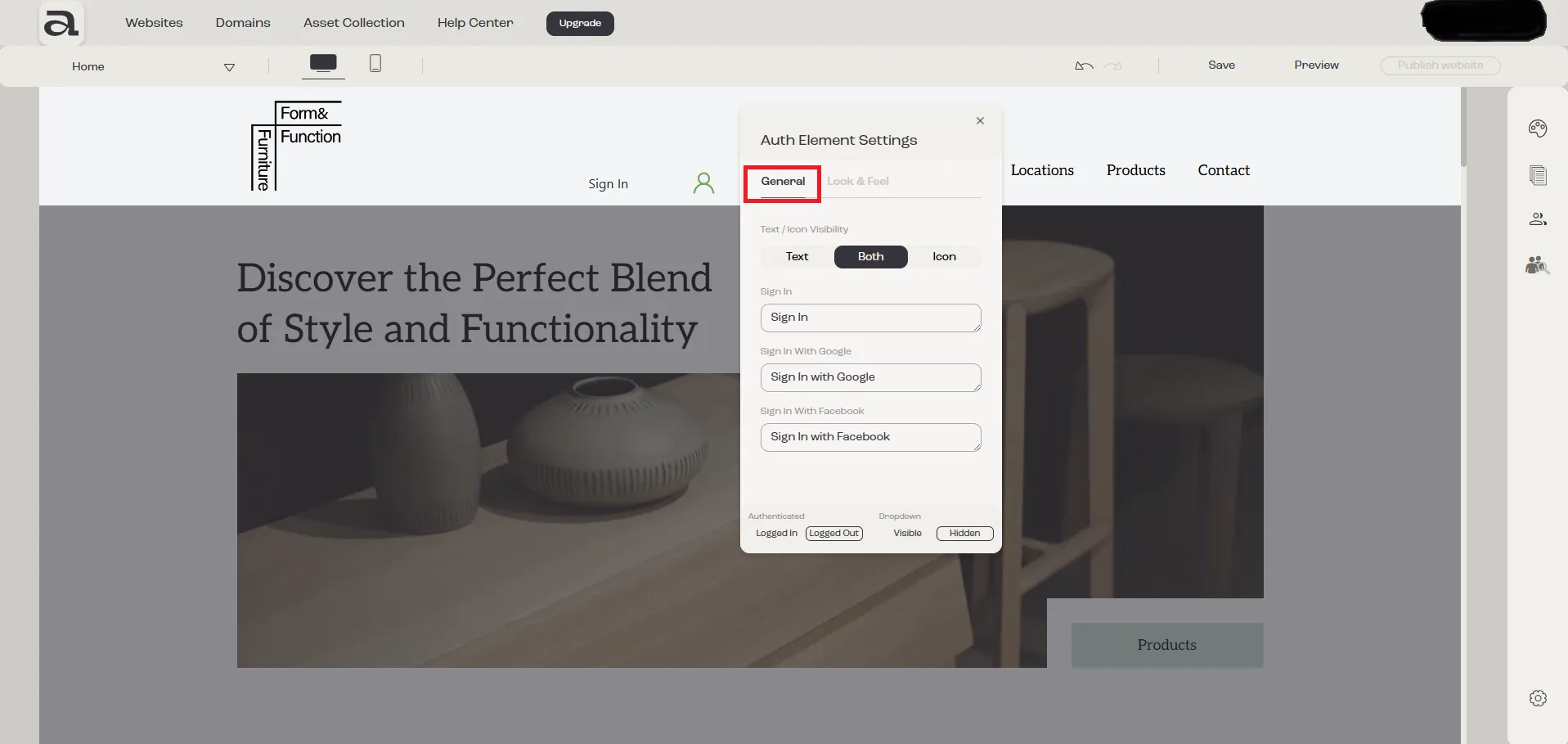
Section titled “Step 2 - General Tab”In the Auth Element Settings editor, you’ll find two tabs: General and Look & Feel.
The settings we’re interested in are under the General tab.
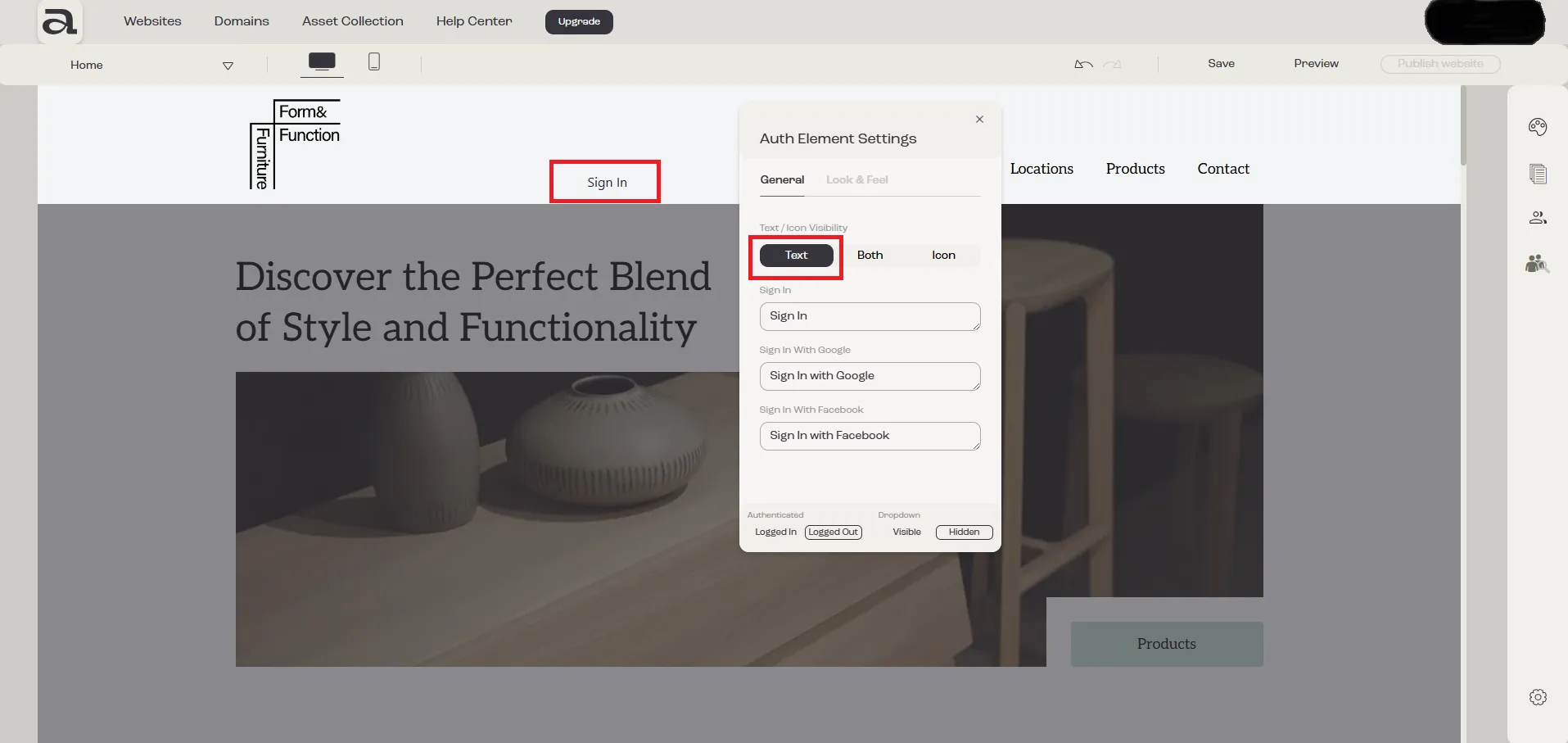
Step 3 - Show Text and/or Icon
Section titled “Step 3 - Show Text and/or Icon”To display text, icon or both use the switch for visibility.
Step 4 - Edit Texts
Section titled “Step 4 - Edit Texts”To edit the texts, simply update the values in the input fields.