

How to edit form styles
In this guide, you will learn how to style the Form element to match your website’s design.
Step 1 - open editor
Section titled “Step 1 - open editor”Open the “Form Settings” editor.
Click “Edit Form” on the hover menu or double-click on the “Form” element you want to customize.
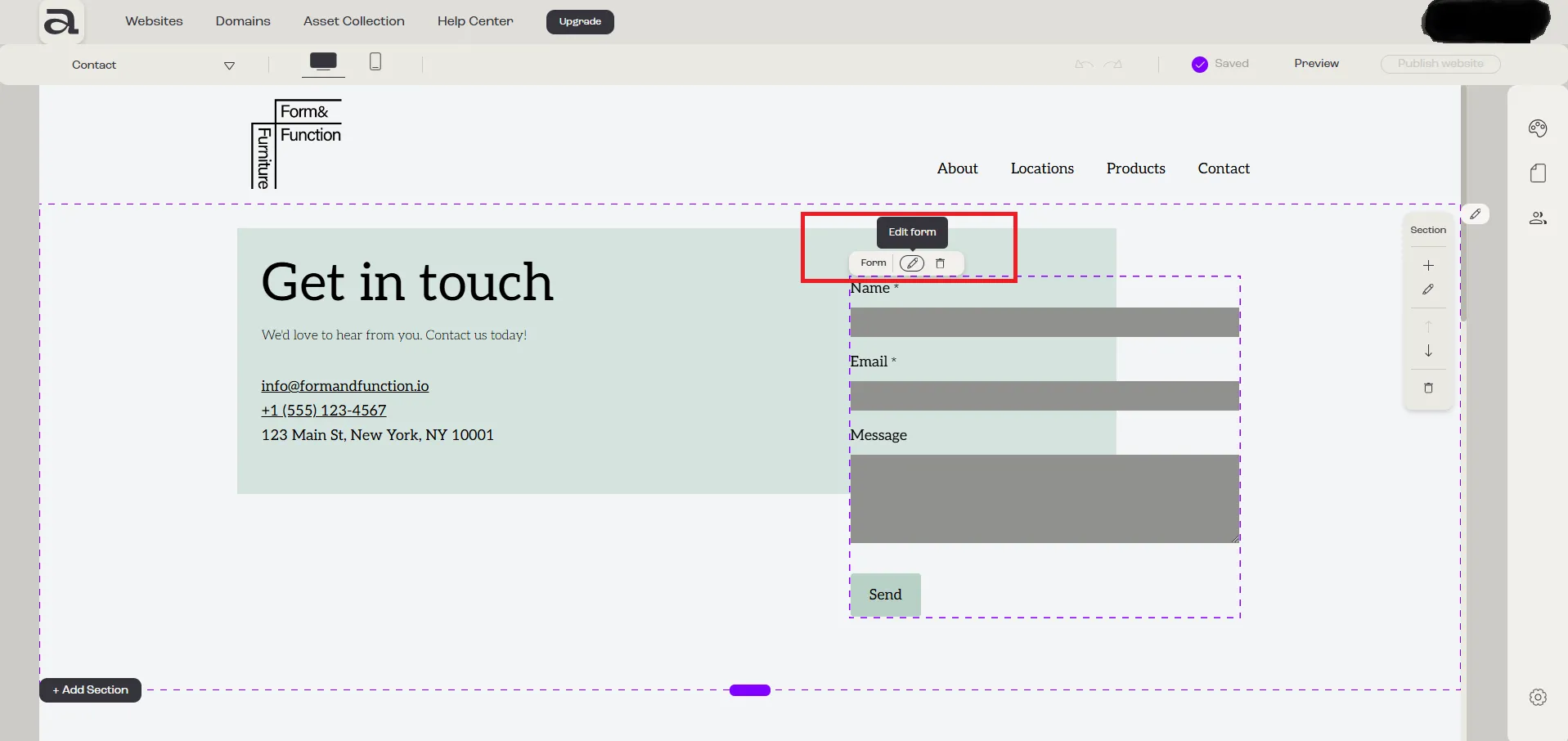
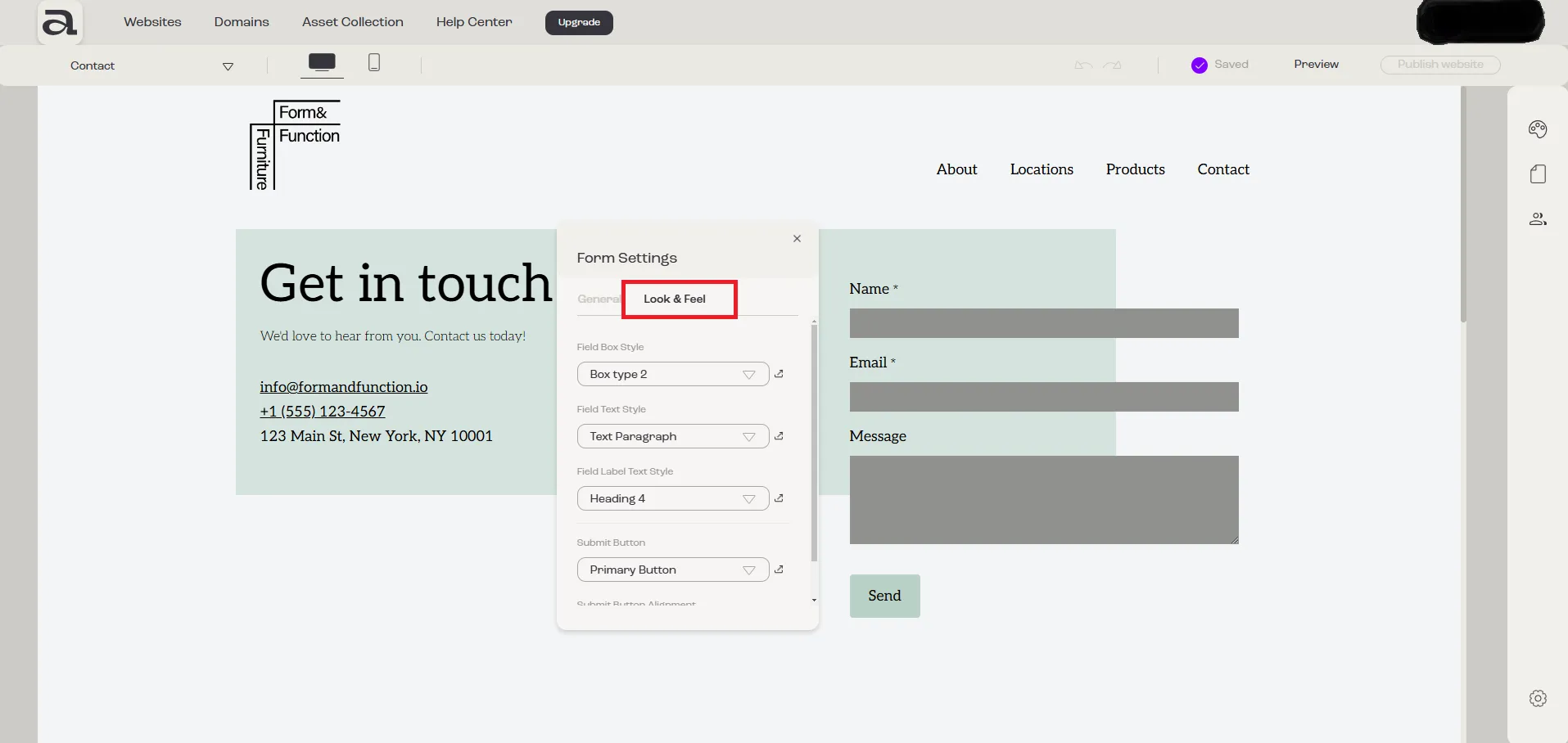
In the “Form Settings” editor, there are two customization categories: “General” and “Look & Feel”.
The settings we are interested in are located under the “Look & Feel” tab.
Step 2 - change styles
Section titled “Step 2 - change styles”For the Form element there are the following available styling options:
1. Field Box Style
Section titled “1. Field Box Style”Use the “Field Box Style” dropdown to customize the appearance of the form input fields.
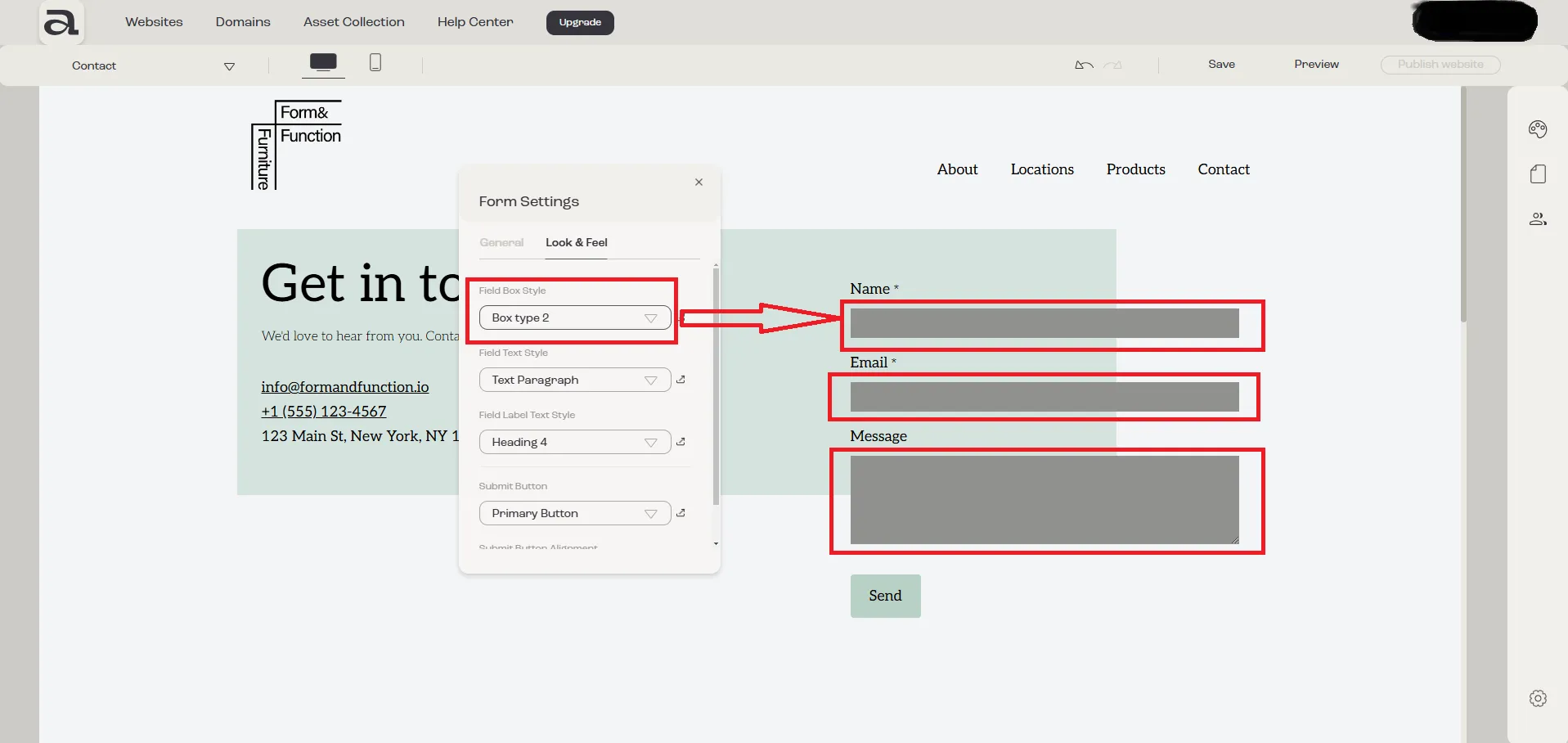
In this dropdown, you have all the predefined styles in “Website Look & Feel -> Box Styles”. You can select one of the predefined styles.
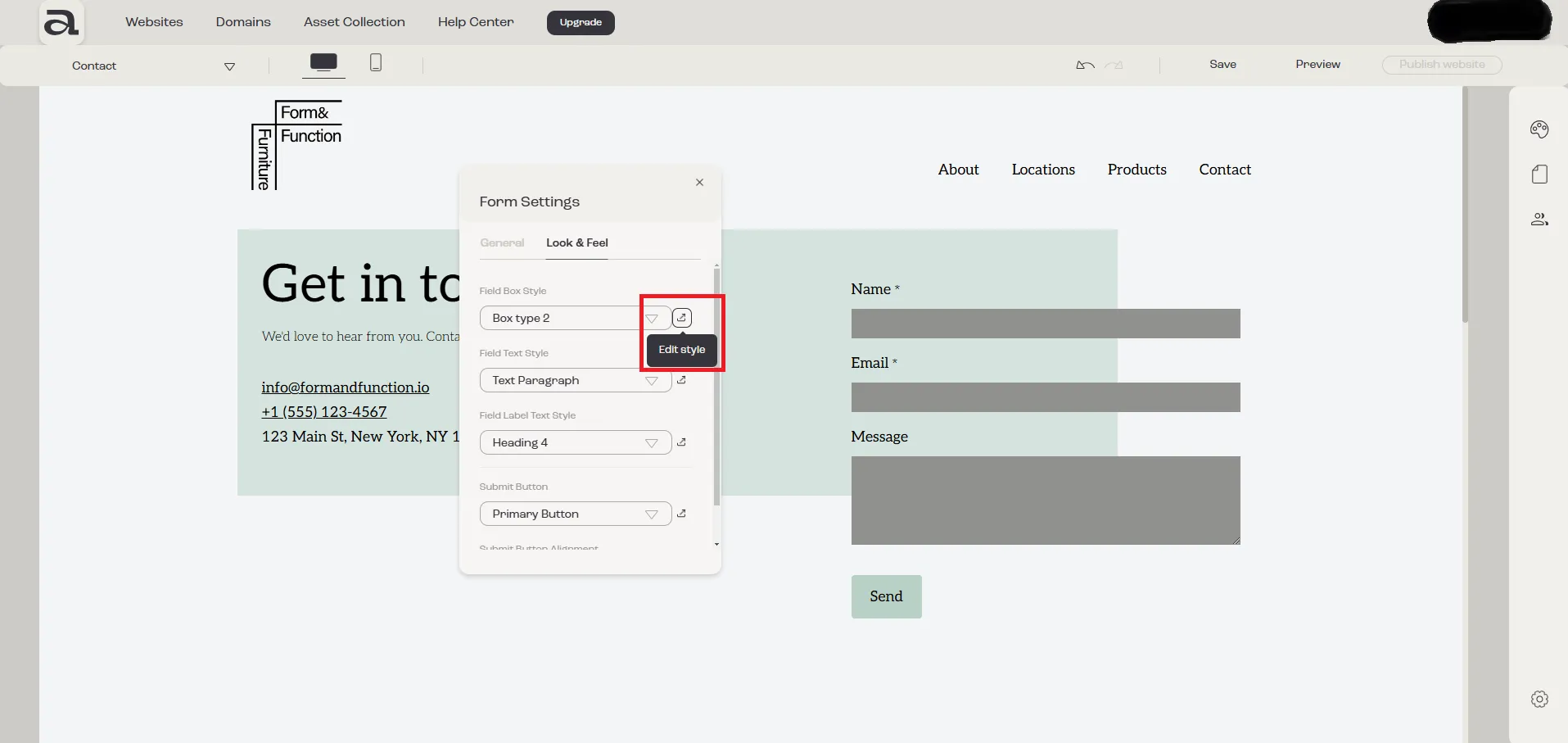
If you want to edit an existing style or create your own style, click on the “Edit Style” button which will open the “Website Look & Feel -> Box Styles” sidebar.
2. Field Text Style
Section titled “2. Field Text Style”Use the “Field Text Style” dropdown to adjust the font, size, and color of the text entered into the fields.
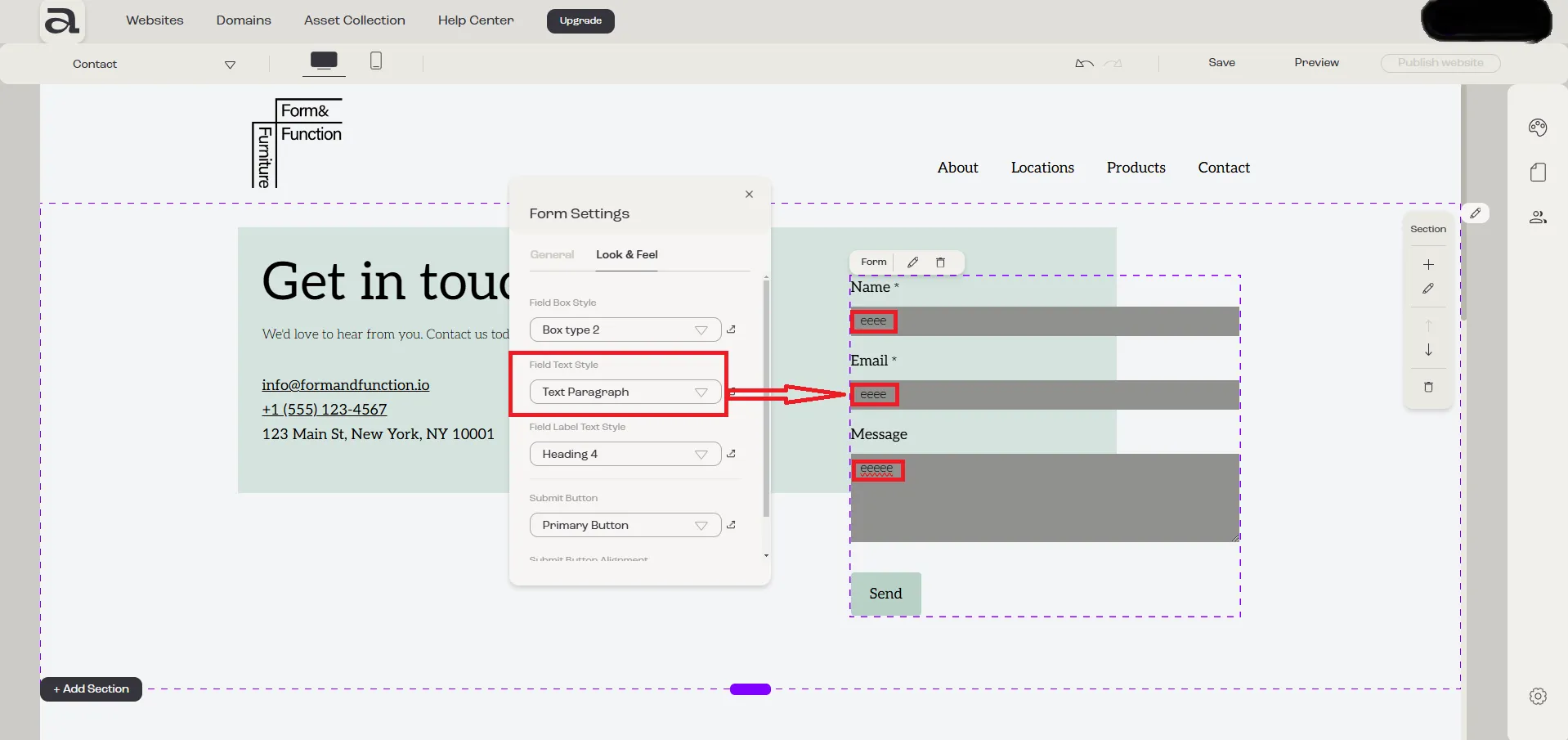
In this dropdown, you have all the predefined styles in “Website Look & Feel -> Typography”. You can select one of the predefined styles.
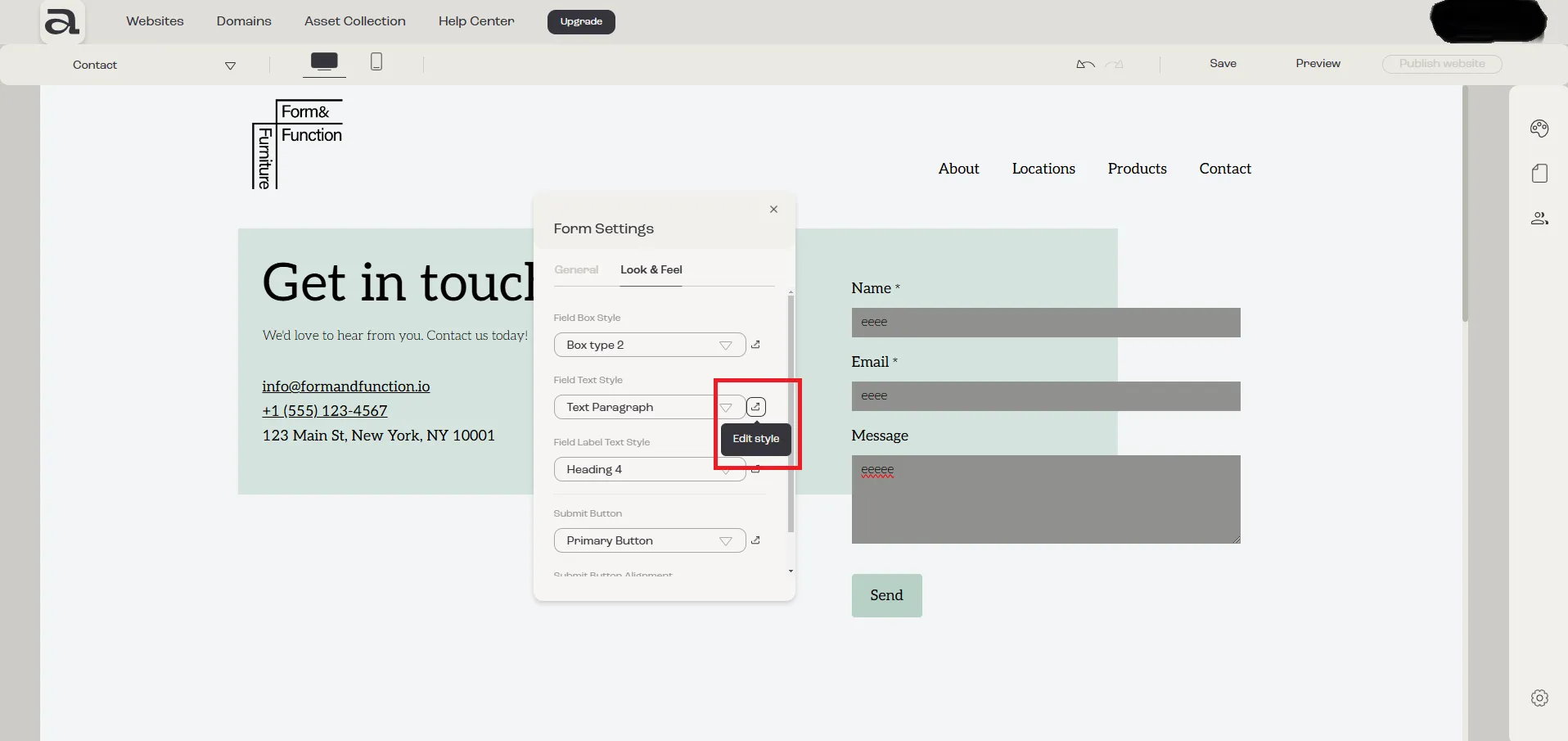
If you want to edit an existing style or create your own style, click on the “Edit Style” button which will open the “Website Look & Feel -> Typography” sidebar.
3. Field Label Text Style
Section titled “3. Field Label Text Style”Use the “Field Label Text Style” dropdown to style the labels associated with each form field.
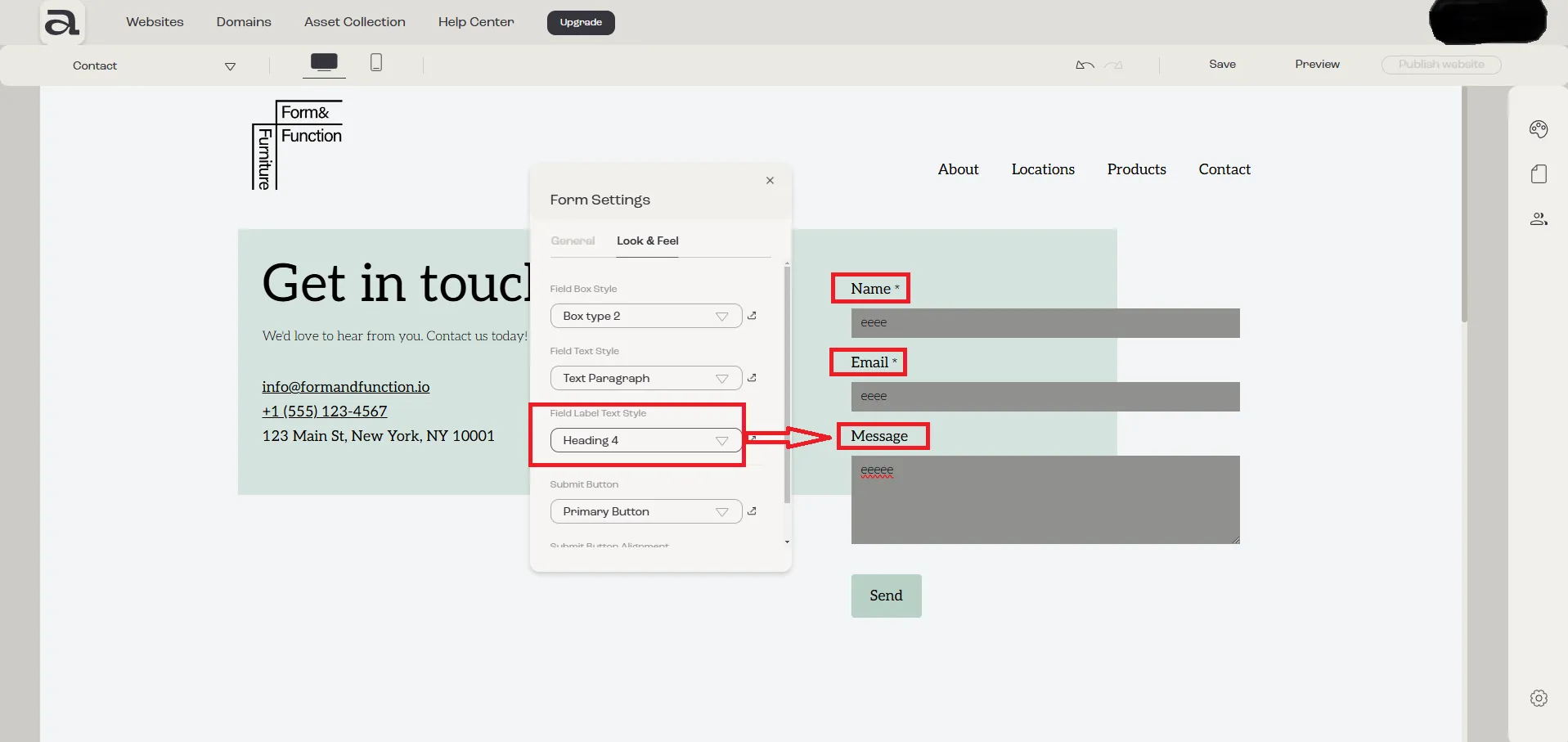
In this dropdown, you have all the predefined styles in “Website Look & Feel -> Typography”. You can select one of the predefined styles.
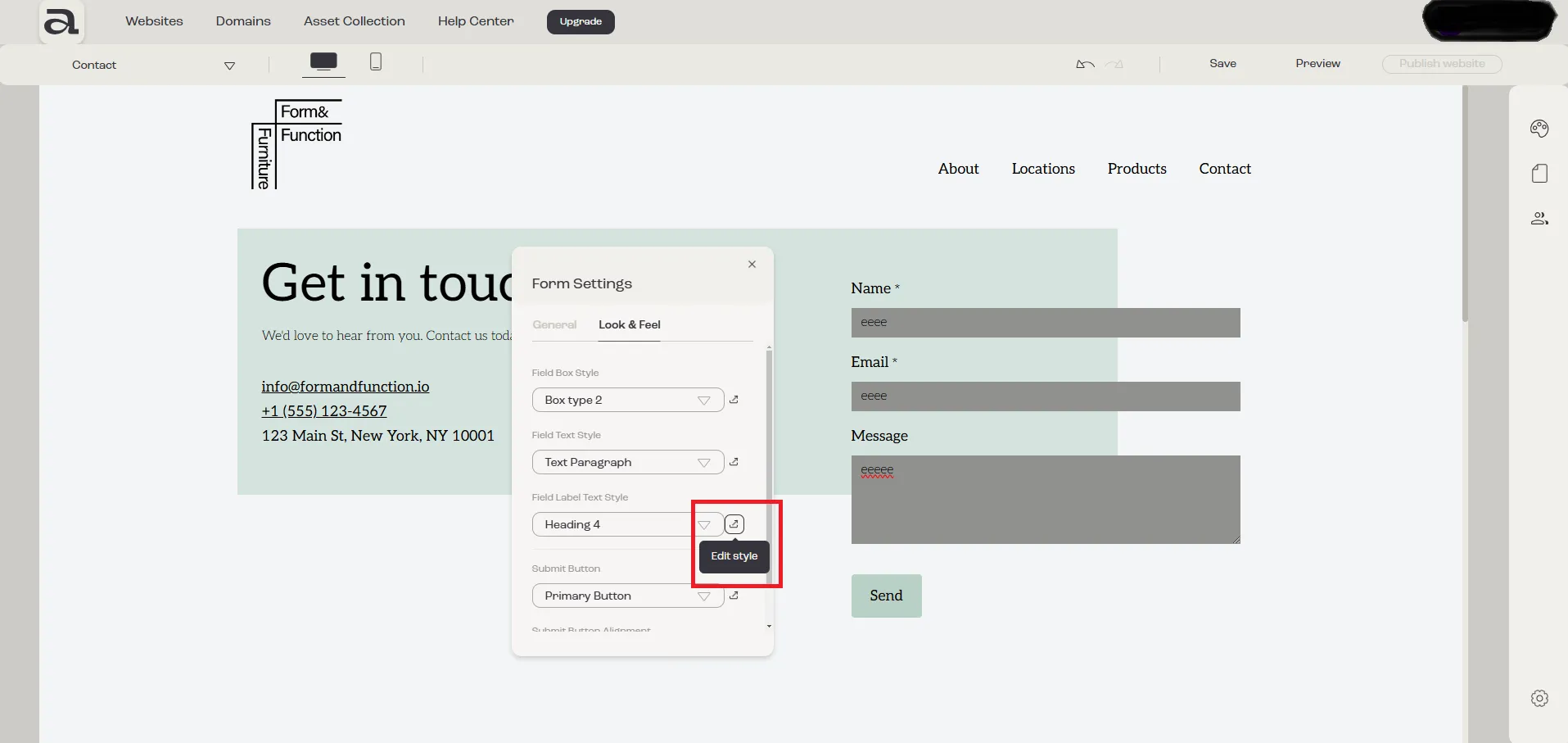
If you want to edit an existing style or create your own style, click on the “Edit Style” button which will open the “Website Look & Feel -> Typography” sidebar.
4. Submit Button
Section titled “4. Submit Button”Use the “Submit Button” dropdown to customize the button’s appearance, including colors and shape.
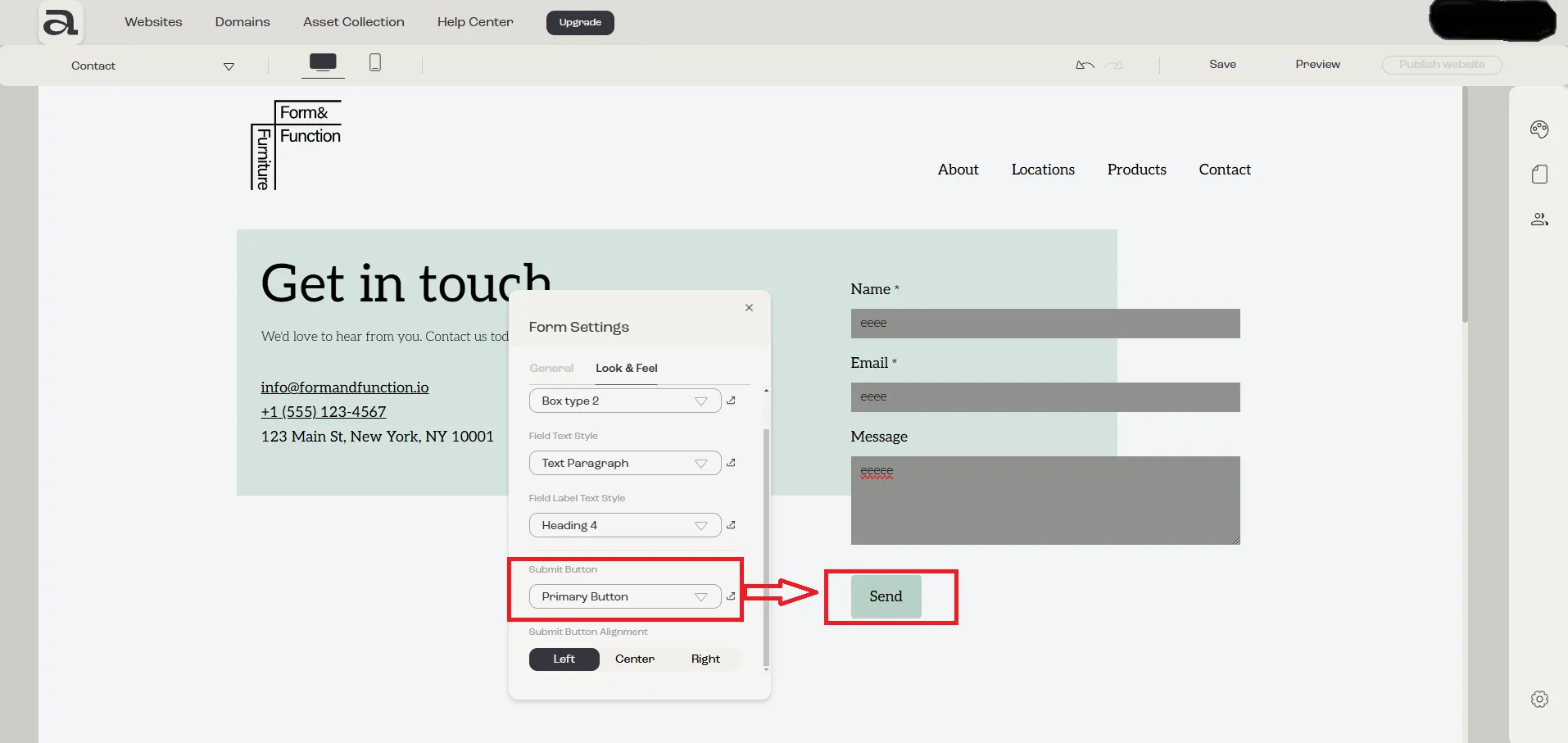
In this dropdown, you have all the predefined styles in “Website Look & Feel -> Buttons”. You can select one of the predefined styles.
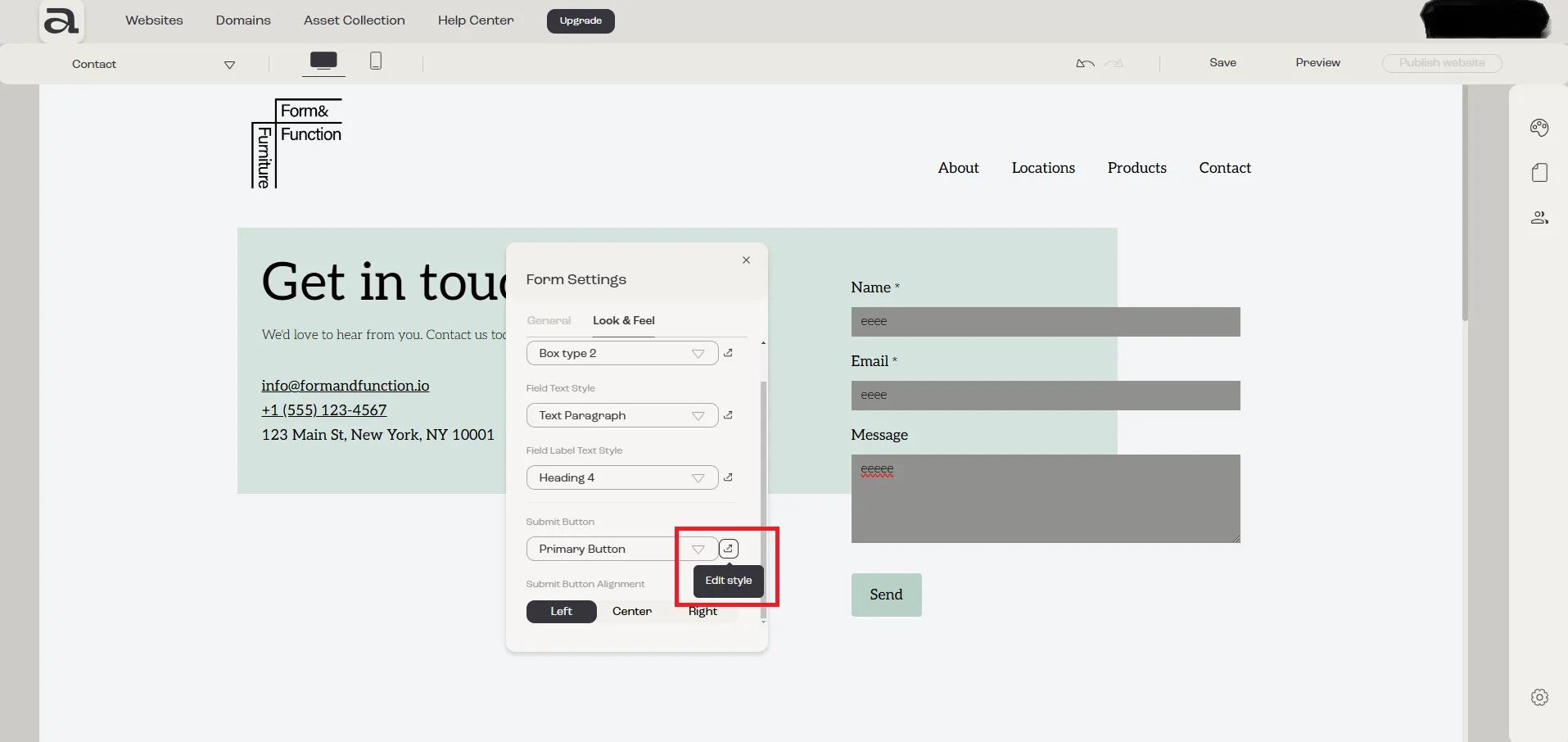
If you want to edit an existing style or create your own style, click on the “Edit Style” button which will open the “Website Look & Feel -> Buttons” sidebar.
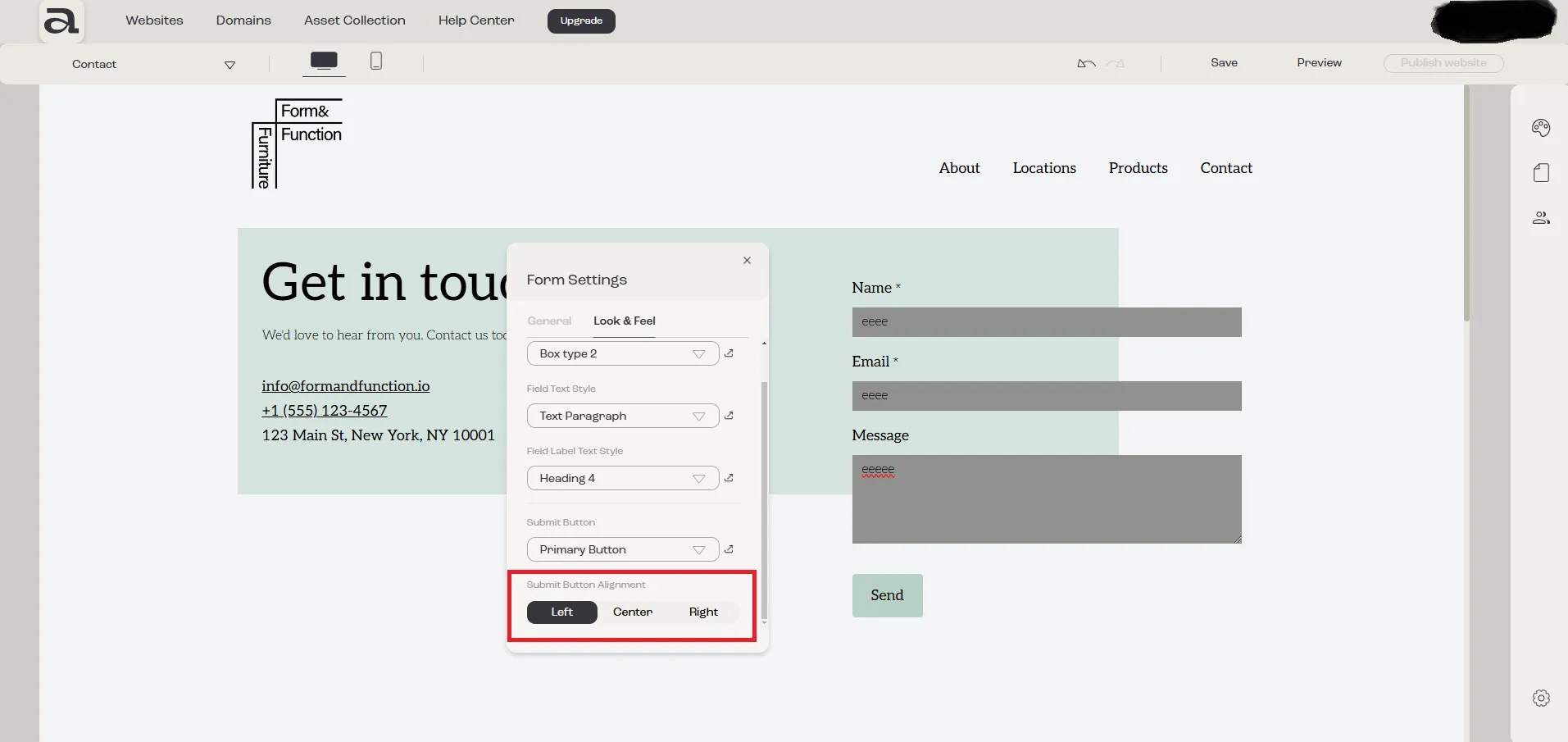
The “Submit Button” can be aligned in three ways: “Left”, “Center”, or “Right”.
Next steps
Section titled “Next steps”- add or edit form fields
- set up your form submission email
- add another element