
How to change navigation links style
In this tutorial you will learn on how to change the style of navigation links.
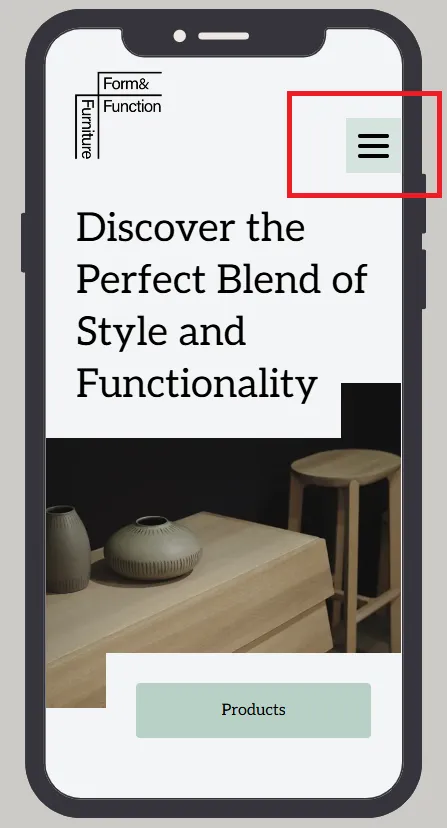
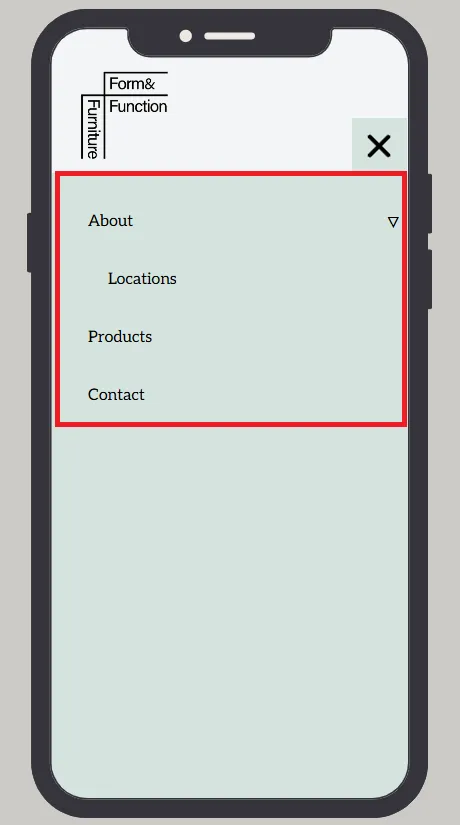
This will be different for desktop and for mobile.
All navigation links are in fact buttons, but usually they have no style or minimal style.
Step 1 - open editor
Section titled “Step 1 - open editor”Open the “Navigation Settings” editor.
Click “Edit Navigation” on the hover menu or double-click on the “Navigation” element you want to customize.
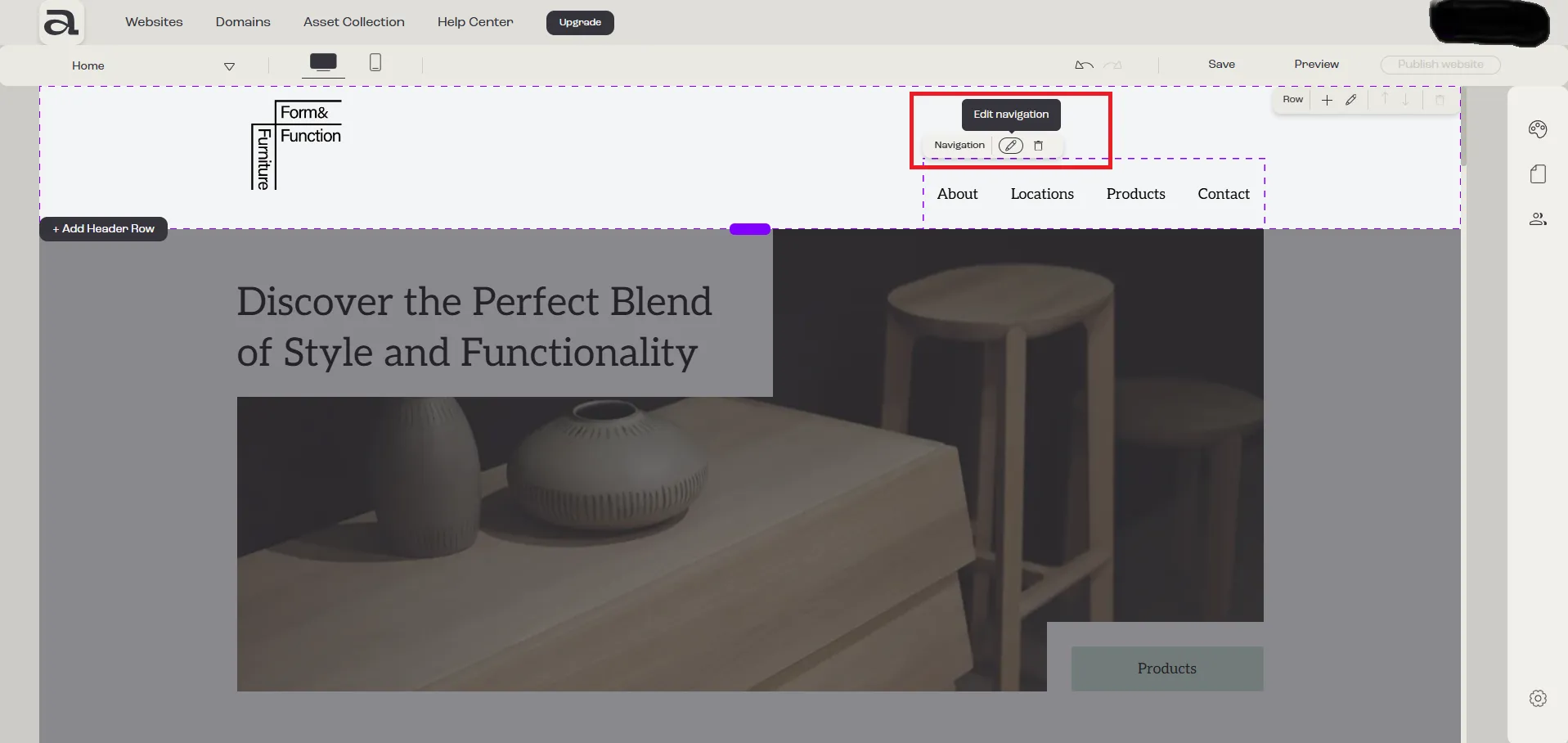
In the “Navigation Settings” editor, there are two customization categories: “General” and “Look & Feel”.
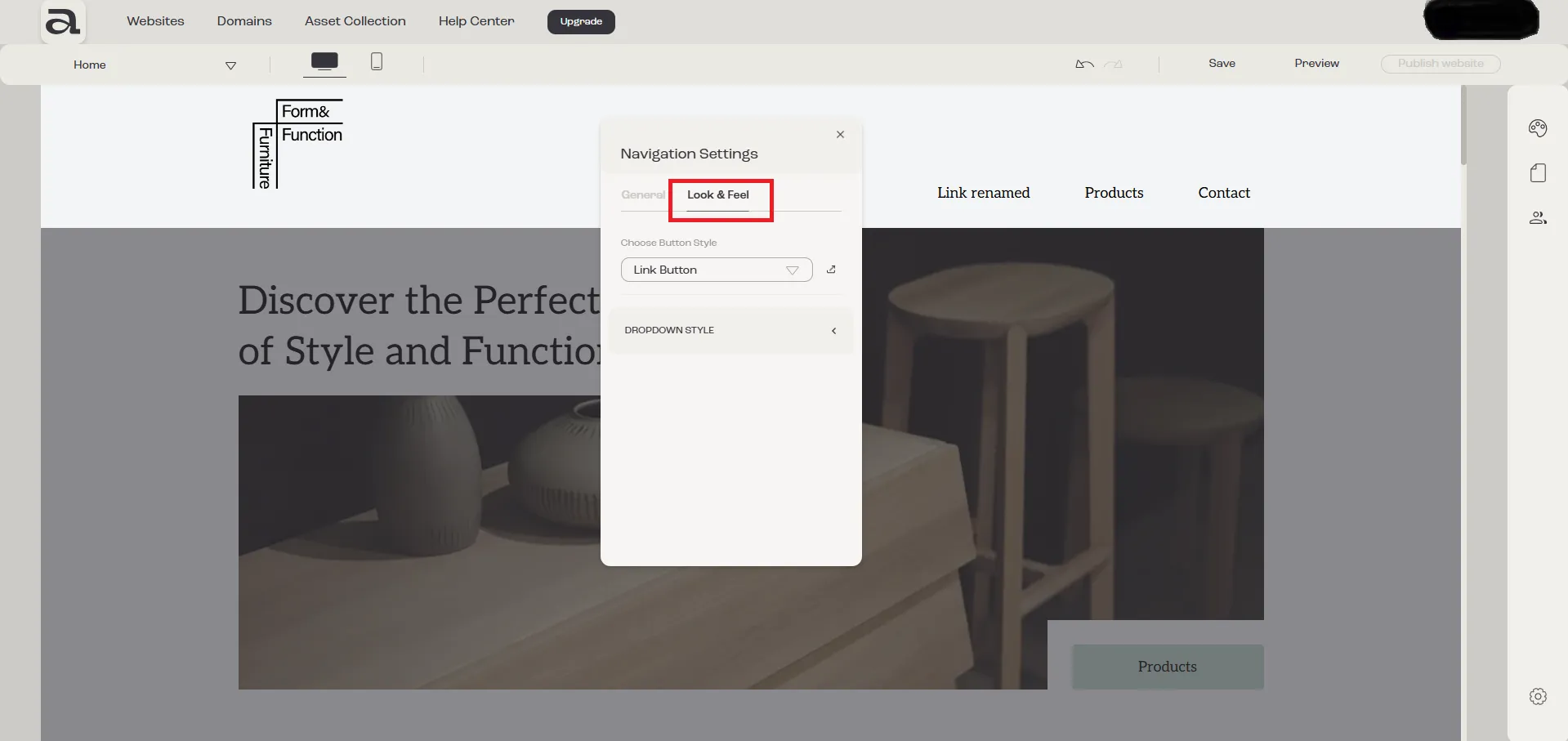
The settings we are interested in are located under the “Look & Feel” tab.
Step 2 - change style
Section titled “Step 2 - change style”In the “Navigation Settings” menu, you will see the following options:
A dropdown labeled “Choose Button Style”. This refers to the main navigation links.A section labeled “Dropdown Style”, which contains two additional dropdowns:
1. “Choose Dropdown Button Style” . Click this dropdown to change the appearance of the links within the dropdown menu (e.g., text style, button design).
2. “Choose Dropdown Box Style”. Use this option to customize the overall style of the dropdown box, including background, borders, or shadows.
Change main navigation links style
Section titled “Change main navigation links style”To change the style of the main navigation buttons, click on the “Choose Button Style” dropdown.
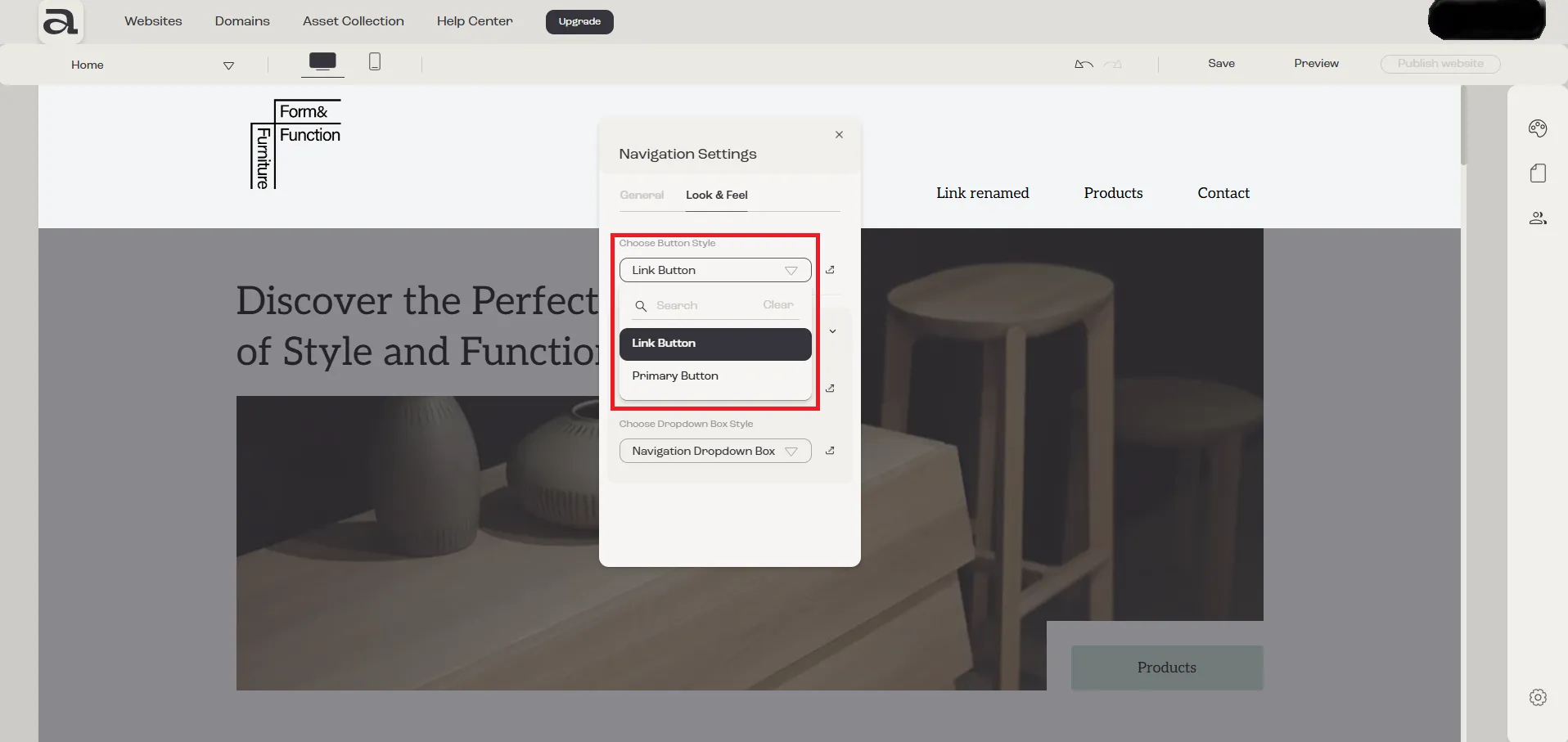
In this dropdown, you have all the predefined styles in “Website Look & Feel -> Buttons”
If you want to edit an existing style or create your own style, click on the “Edit Style” button which will open the “Website Look & Feel -> Buttons” sidebar.
Change secondary links style
Section titled “Change secondary links style”To change the style of the buttons inside the navigation dropdown (secondary links), click on the “Choose Dropdown Button Style” dropdown.
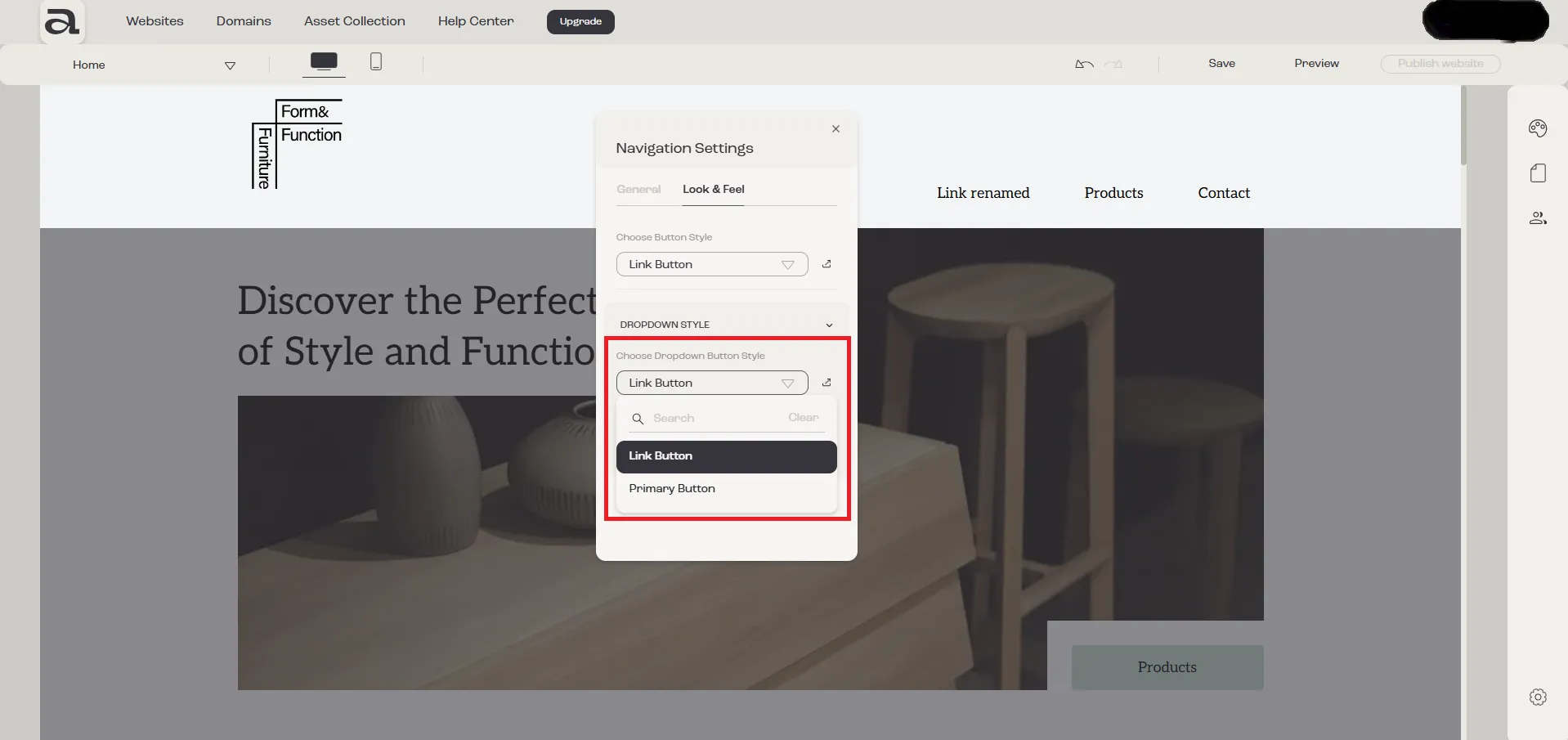
In this dropdown, you have all the predefined styles in “Website Look & Feel -> Buttons”
If you want to edit an existing style or create your own style, click on the “Edit Style” button which will open the “Website Look & Feel -> Buttons” sidebar.
Change dropdown box style
Section titled “Change dropdown box style”To change the style of the dropdown box itself, click on the “Choose Dropdown Box Style” dropdown.
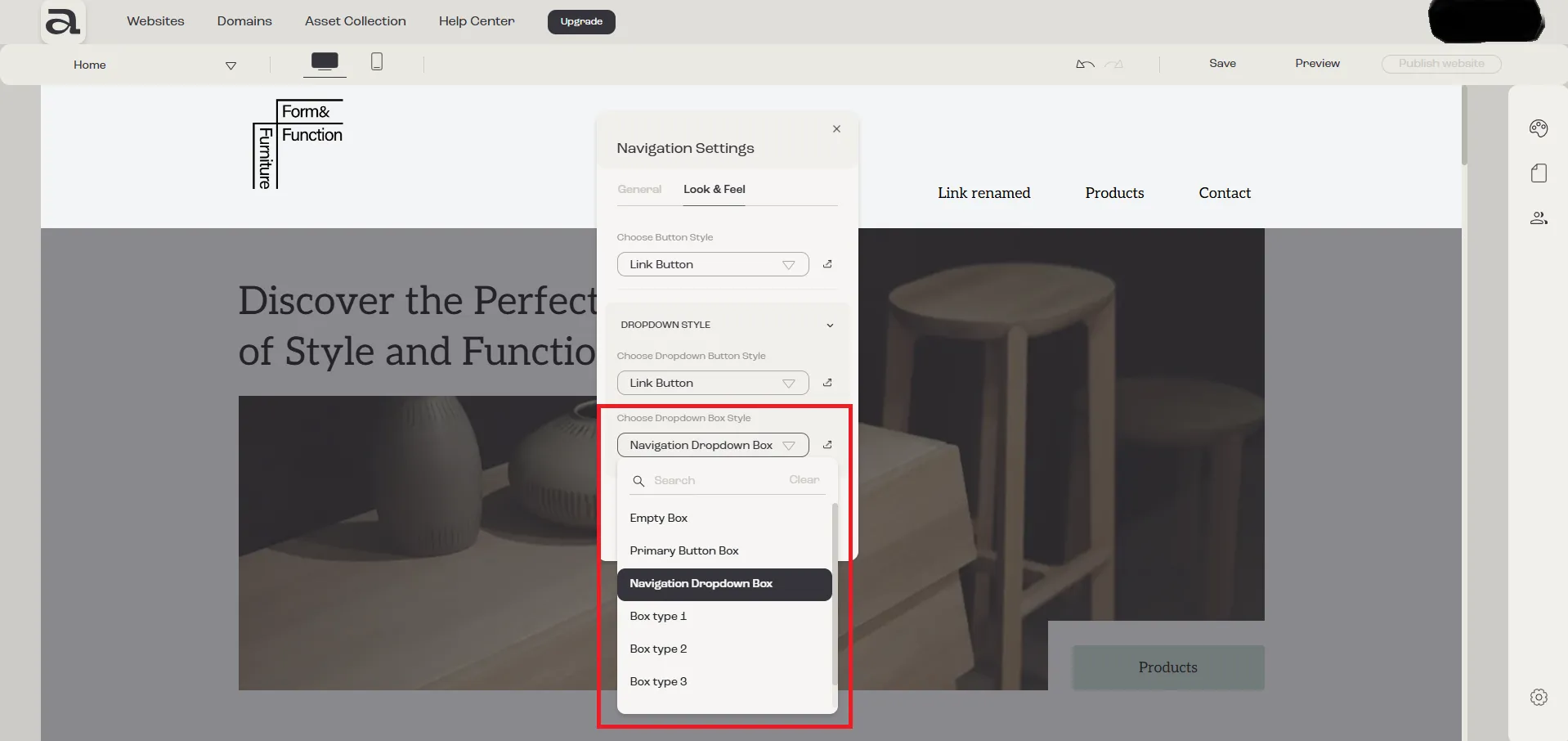
In this dropdown, you have all the predefined styles in “Website Look & Feel -> Box Styles”
If you want to edit an existing style or create your own style, click on the “Edit Style” button which will open the “Website Look & Feel -> Box Style” sidebar.
Mobile considerations
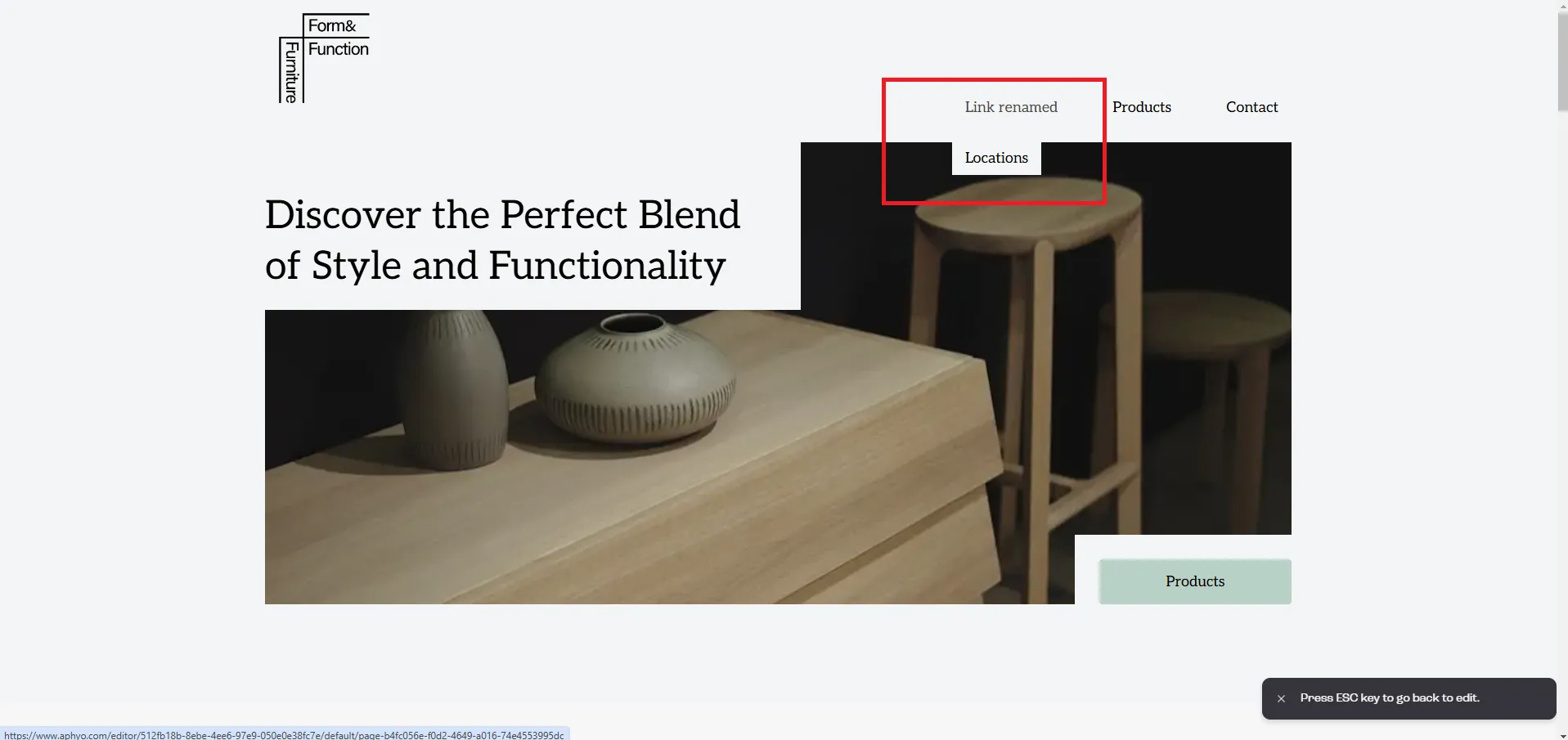
Section titled “Mobile considerations”On mobile devices, the Dropdown Box Style determines the appearance of the hamburger menu and the navigation menu as a whole.
Ensure it is user-friendly, visually appealing, and matches your site’s design.