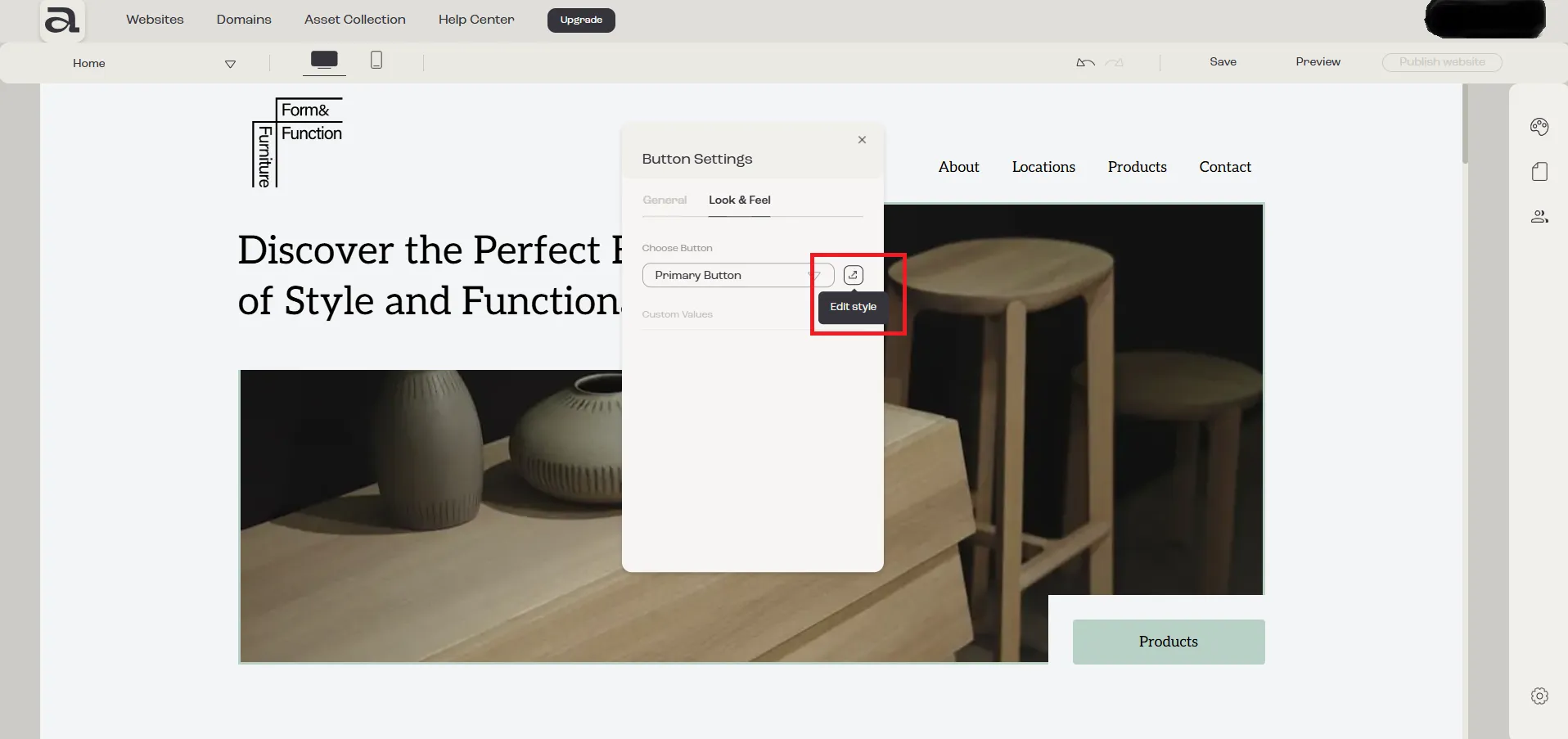

How to change button style
This section will explain how to select and customize a “Button” style.
Step 1
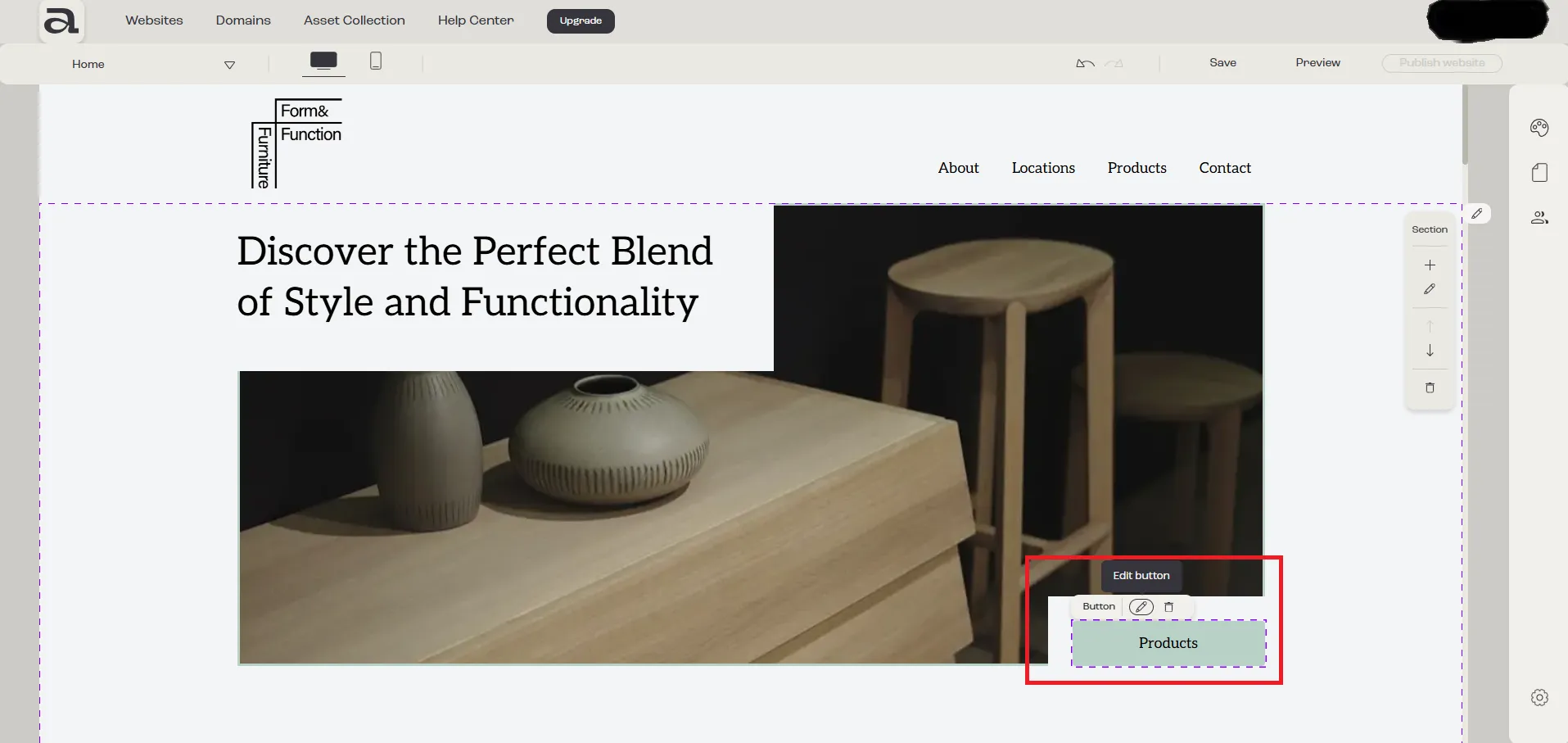
Section titled “Step 1”Open the “Button Settings” editor.
Click “Edit Button” on the hover menu or double-click on the “Button” element you want to customize.
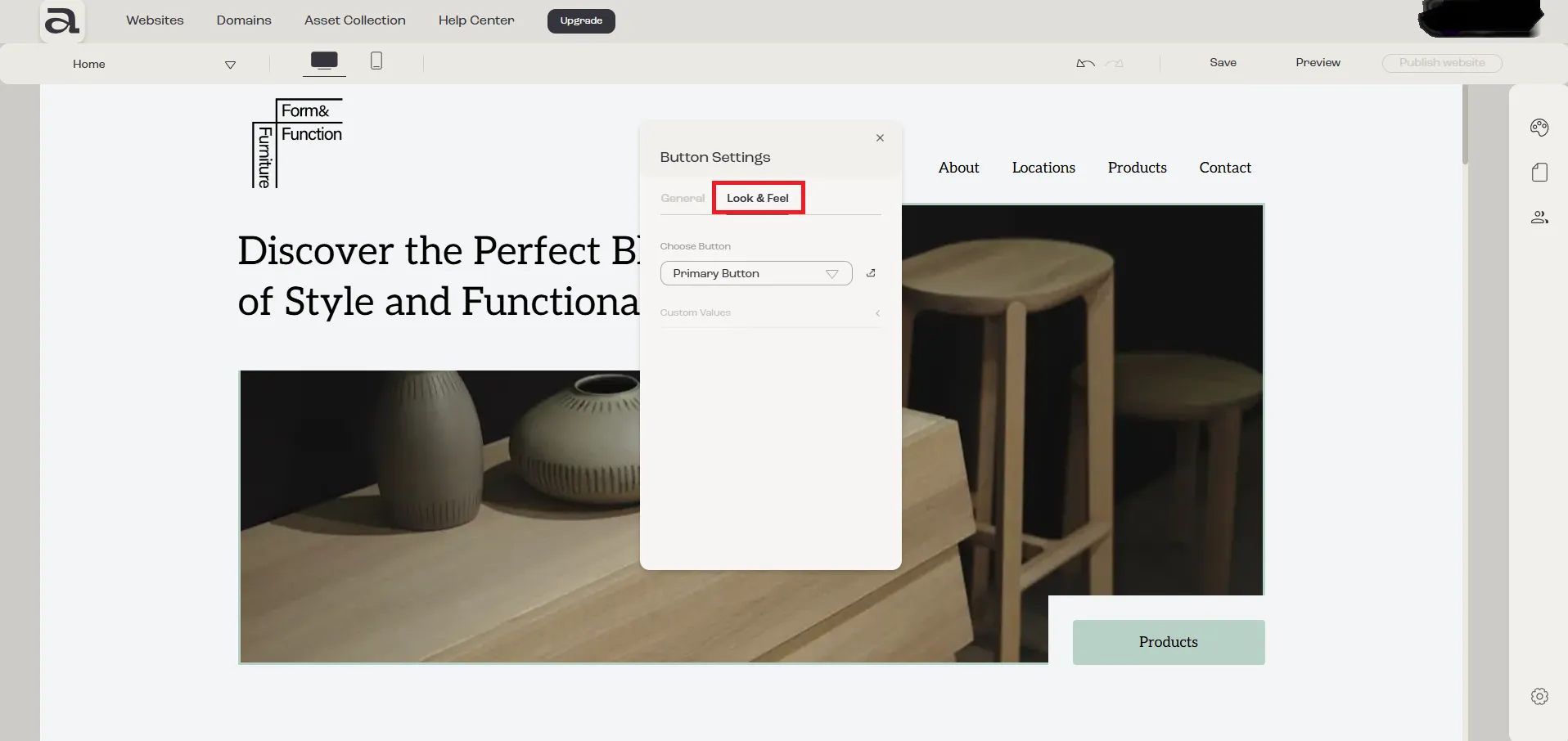
In the “Button Settings” editor, there are two customization categories: “General” and “Look & Feel”.
The settings we are interested in are located under the “Look & Feel” tab.
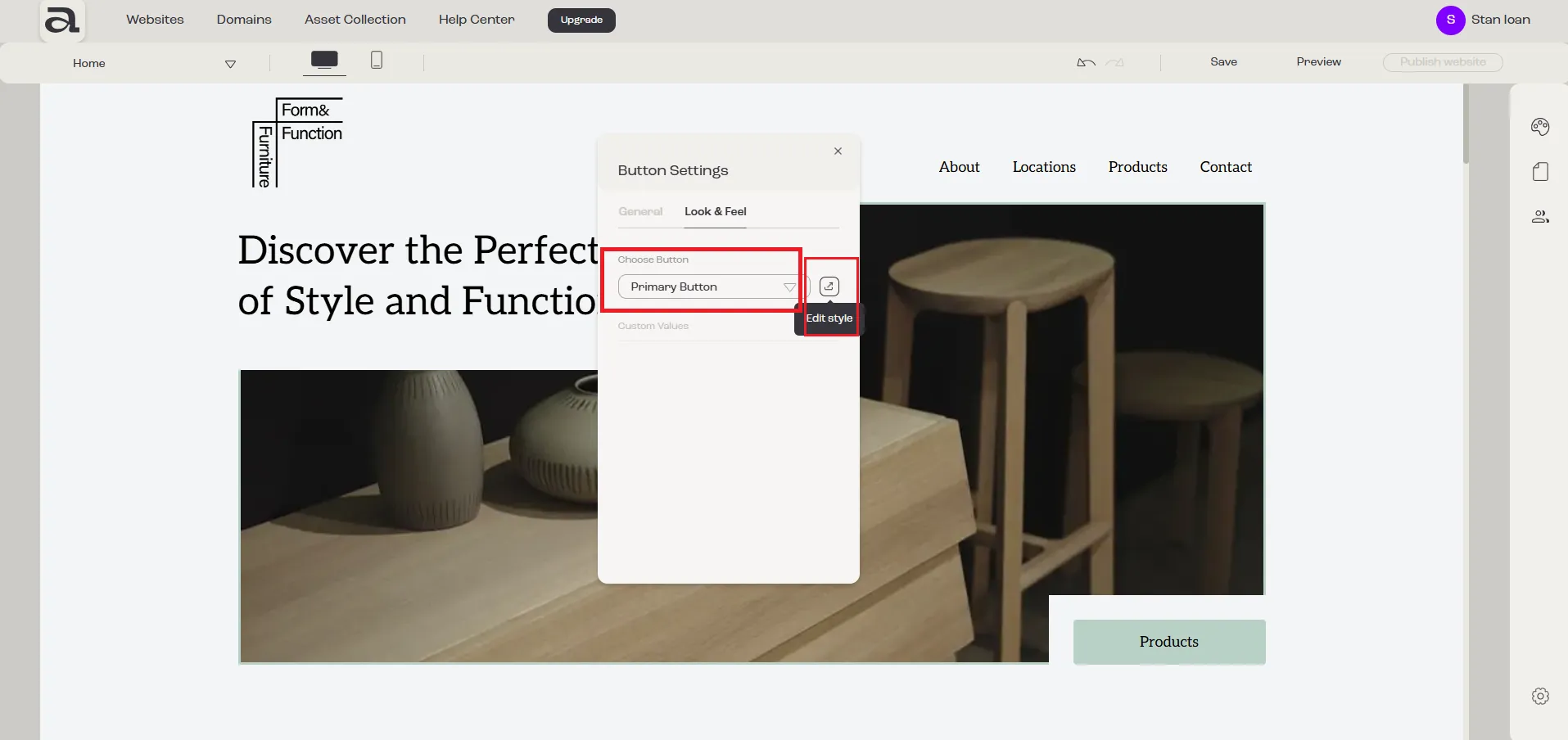
In the Button Settings menu, you will see a “Choose Button” dropdown and an “Edit Style” button.
Step 2
Section titled “Step 2”Click on the “Choose Button” dropdown.
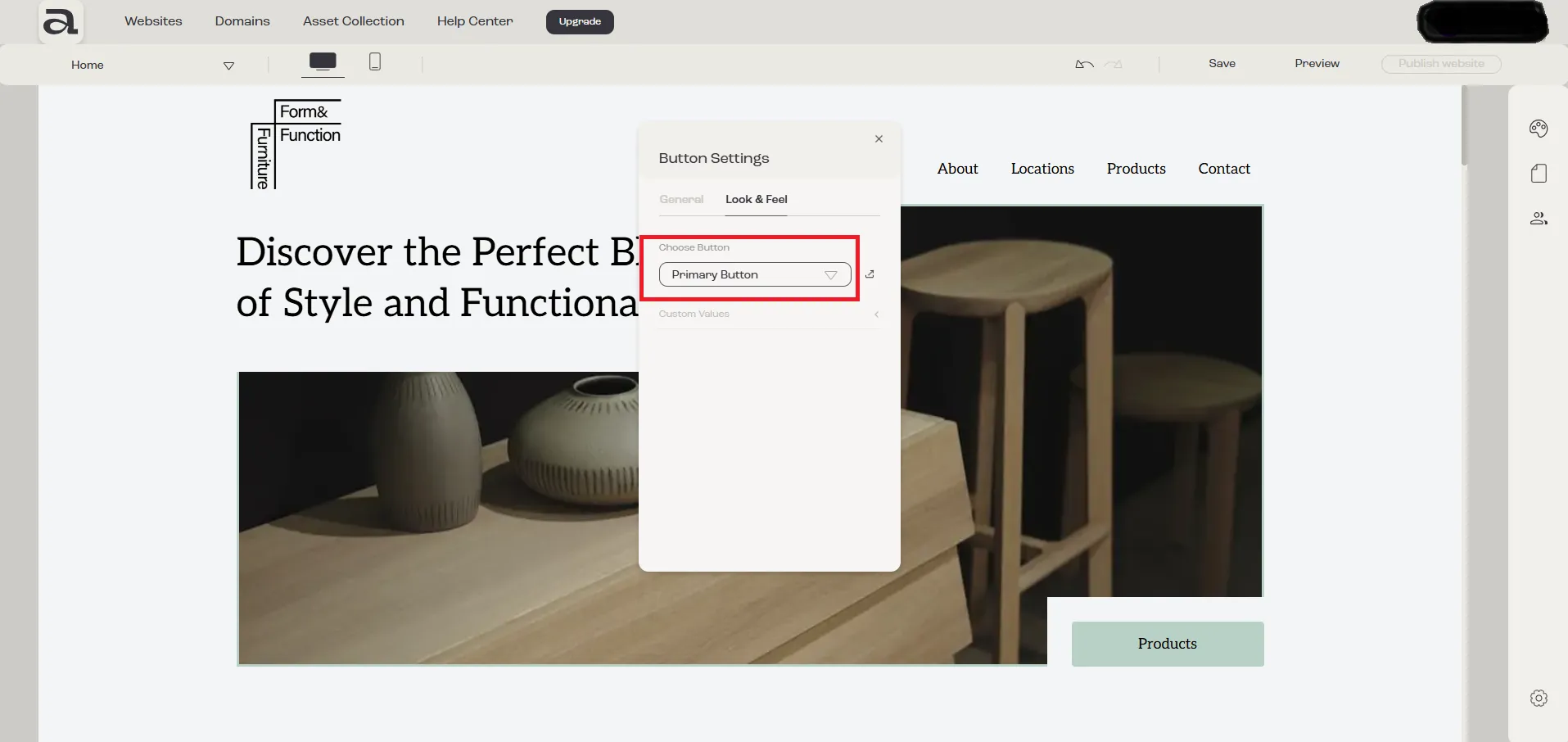
In this dropdown, you have all the predefined styles in “Website Look & Feel -> Buttons” as well as a “Custom Values” option. You can select one of the predefined styles or customize the button by choosing “Custom Values” to style it exactly as you like.
If you want to edit an existing style or create your own style, click on the “Edit Style” button which will open the “Website Look & Feel -> Buttons” sidebar.