
How to change brand colors
This tutorial will guide you on how to change brand colors.
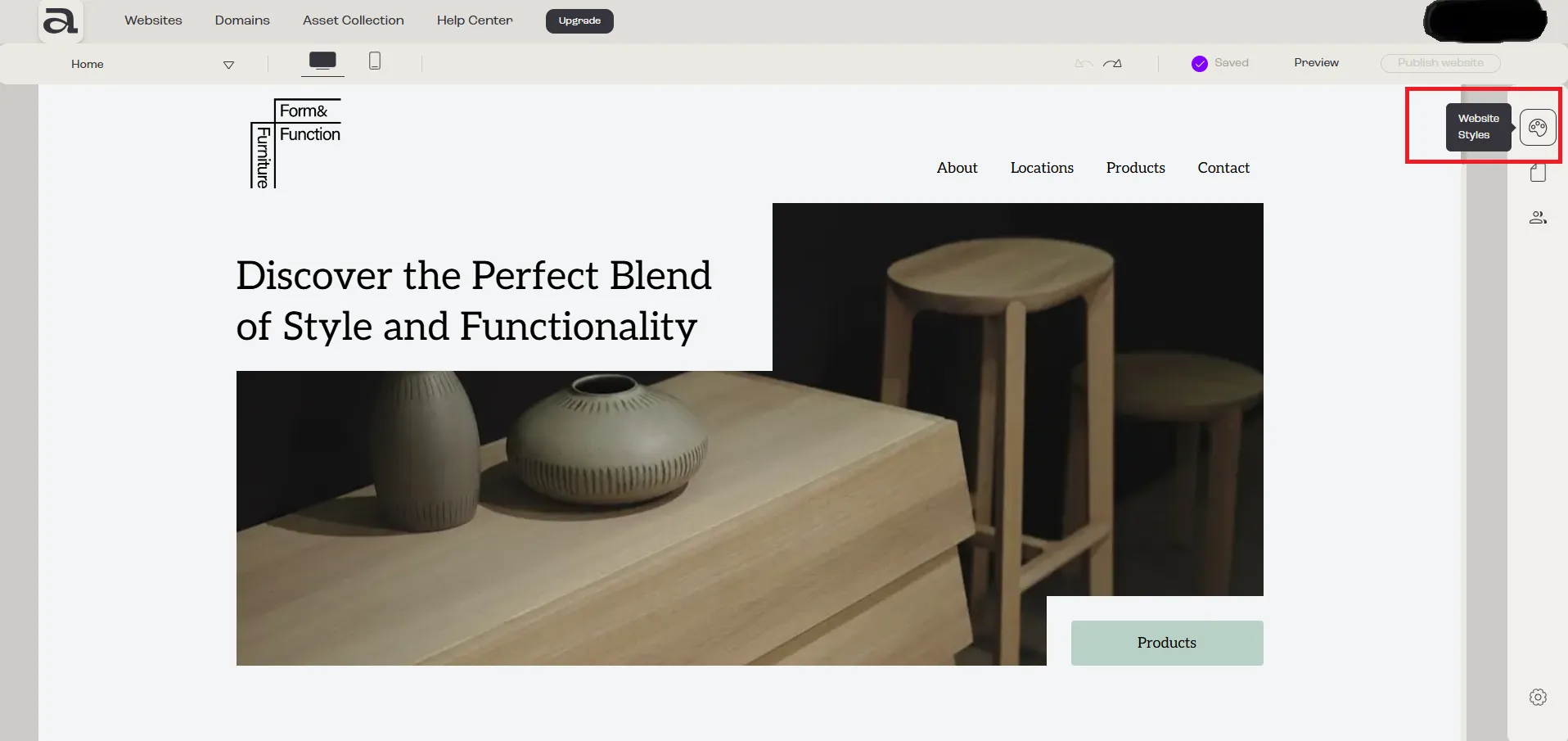
Step 1 - Open Website Styles
Section titled “Step 1 - Open Website Styles”Click on the “Website Styles” button.
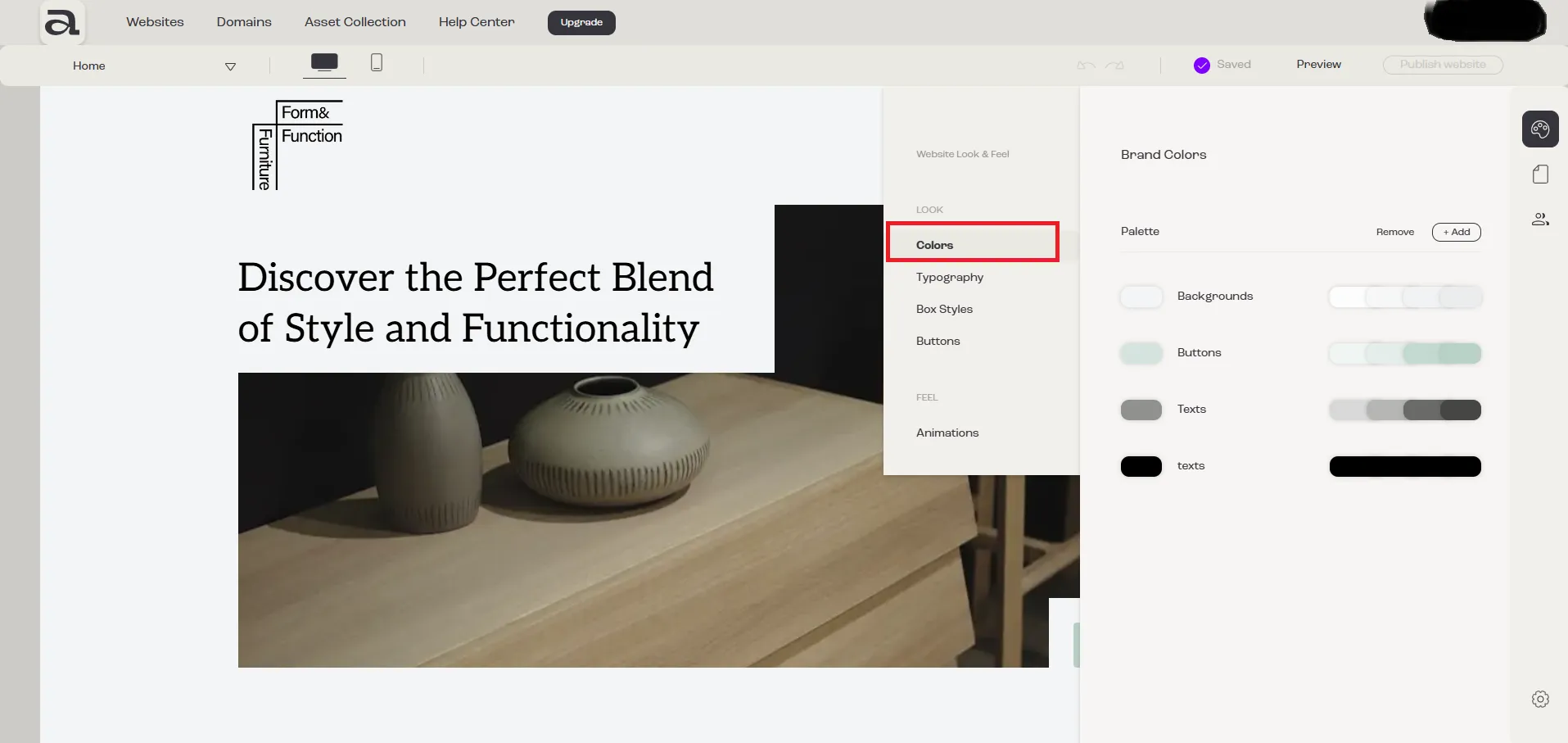
Step 2 - Open Colors
Section titled “Step 2 - Open Colors”In the “Website Look & Feel” menu, select “Colors”.
Step 3 - Open Color Editor
Section titled “Step 3 - Open Color Editor”Click on the main color of the palette you want to modify.
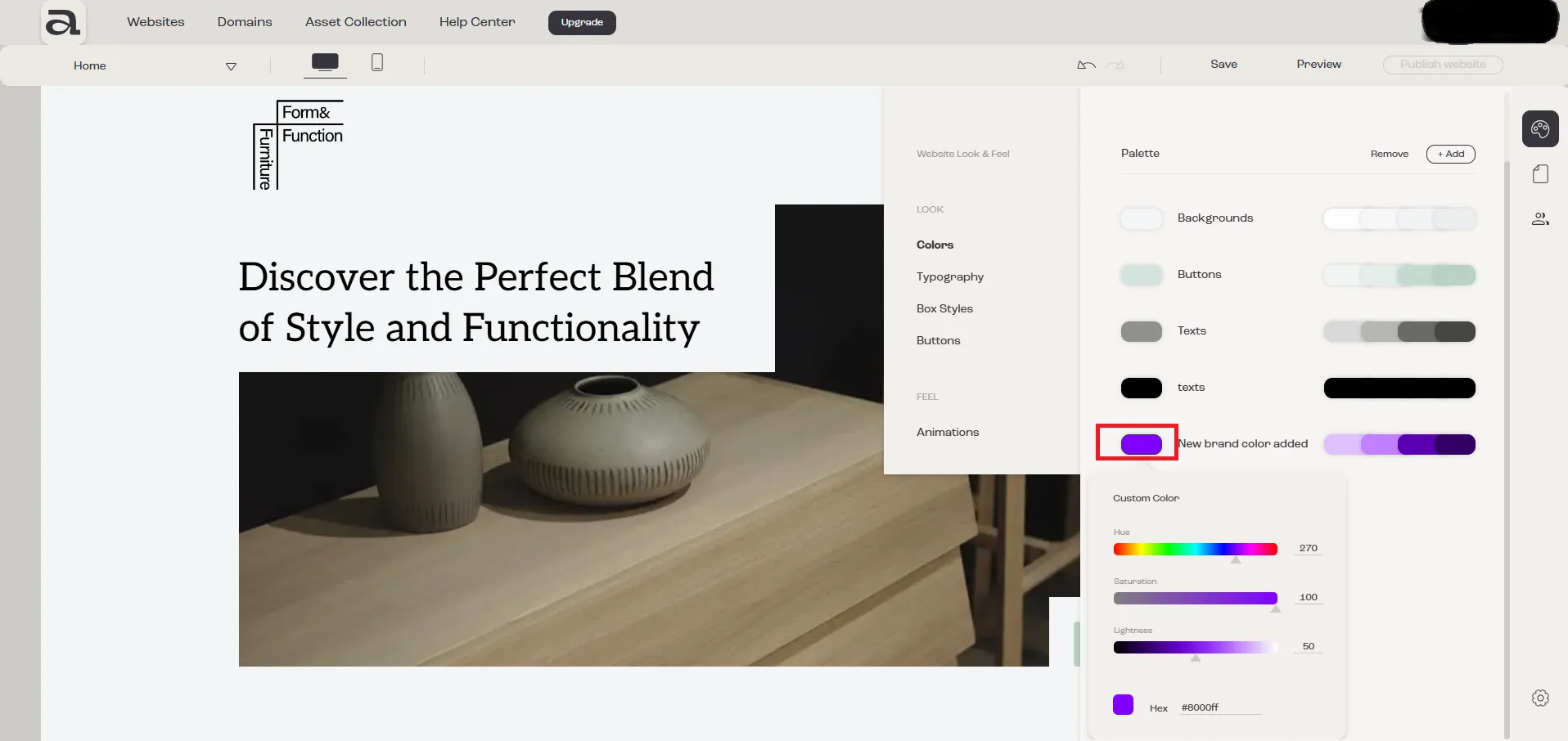
Step 4 - Change Hue, Saturation and / or Lightness for Main Color
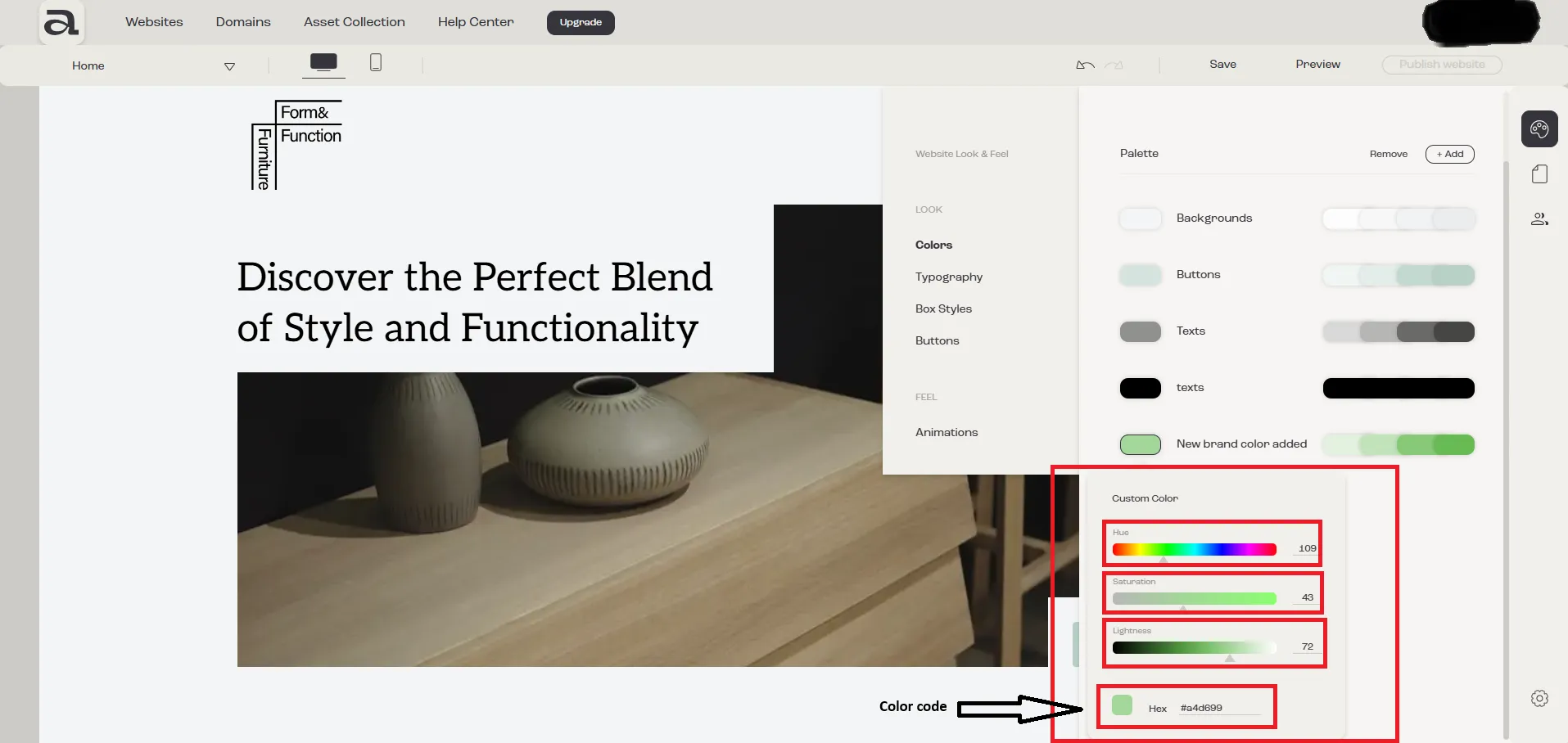
Section titled “Step 4 - Change Hue, Saturation and / or Lightness for Main Color”To adjust the color palette, click on each individual bar or enter a value in each input field. Here, you can modify the following: Hue, Saturation, and Lightness.
You can also manually set the value by entering the hex color code.
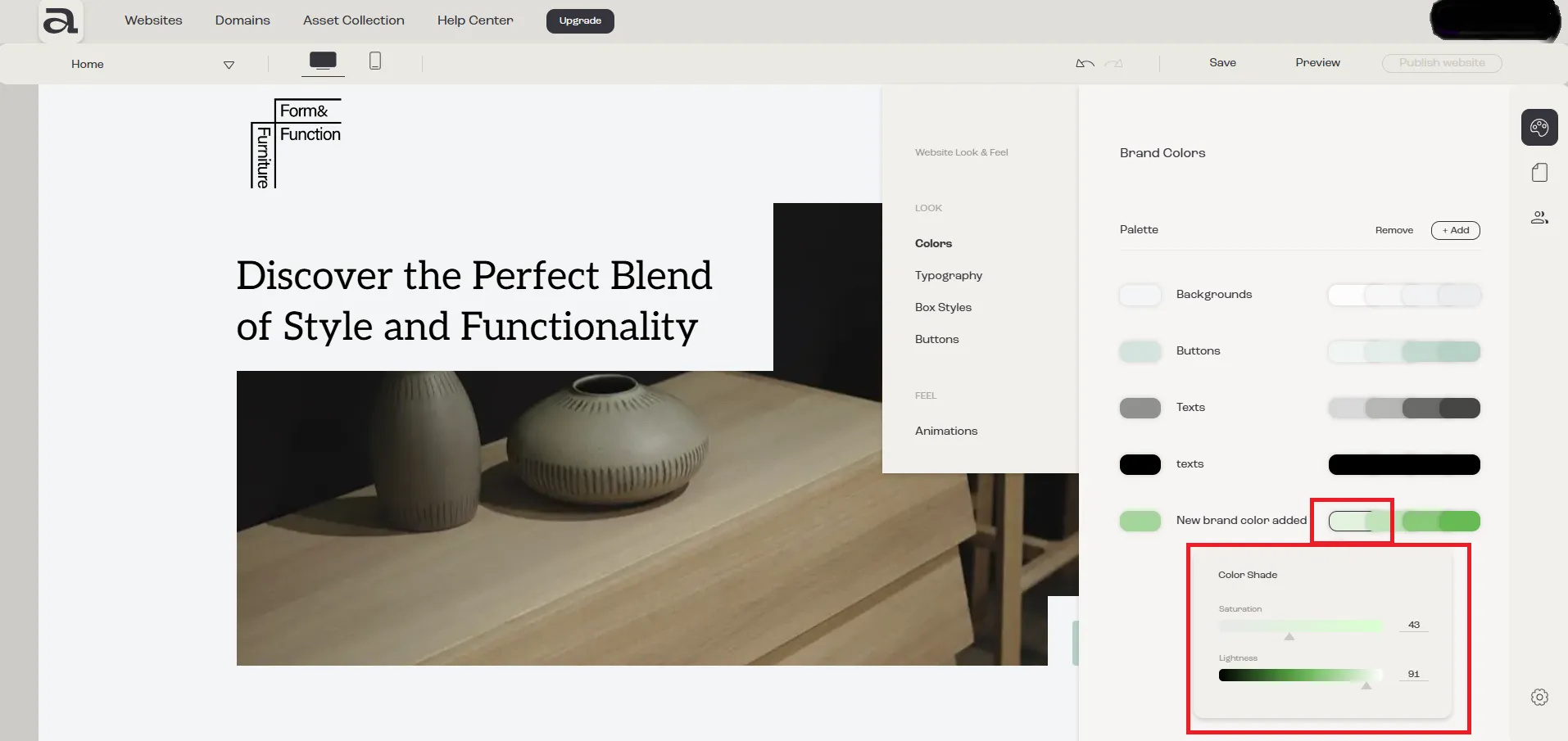
Step 5 (Optional) - Change Saturation and Lightness for Shades / Tints / Tones
Section titled “Step 5 (Optional) - Change Saturation and Lightness for Shades / Tints / Tones”You can customize each color variation by clicking on them individually. For each, you can adjust Saturation and Lightness.